# Using ComponentOne Templates
## Content
**ComponentOne WinForms Edition** provides predefined project templates to create and configure WinForms applications in Visual Studio. These project templates get registered in Visual Studio after the **ComponentOne Studio** installer is run to install **WinForms Edition**. The template provides several benefits over Visual Studio templates as it automatically adds the required resources to the project, as listed below:
* Adds required WinForms Edition references to the project.
* Adds Licensing.licx file containing valid licenses to the project.
* Adds a sample to see the related control or component in action.
> type=note
> **Note**: Considering the diverse computing standards and code-related requirement, ComponentOne project templates are supported in Visual Studio 2015 and above.
ComponentOne templates provide simple Windows Forms applications that include our control references to reduce the manual work in project creation.
The table below lists the C1 Windows Forms project templates available in both, C# and VB programming languages.
| **Project Template** | **Framework** | **Assemblies** | **Description** |
| --- | --- | --- | --- |
| Windows Forms Docking App | - .NET Framework 4.0
- .NET Framework 4.5.2
- .NET Core 3.0
| - C1.Win.C1Command
- C1.Win.C1Themes
| Create a form with a sample command link, which can be used to create your own menu along with tab pages where you can change the VisualStyle as well. |
| Windows Forms RibbonandGrid App | - .NET Framework 4.0
- .NET Framework 4.5.2
- .NET Core 3.0
| - C1.Win
- C1.Win.C1FlexGrid
- C1.Win.C1Ribbon
- C1.Win.C1Themes
| Creates a form with Ribbon and FlexGrid to provide you with a Ribbon style menu template along with a grid to add your data. |
| Windows Forms Themed App | - .NET Framework 4.0
- .NET Framework 4.5.2
- .NET Core 3.0
| | Creates a form with C1ThemeController embedded with the form and allows you to work with different themes available in C1 Windows Forms application. |
Complete the following steps to create a WinForms project in Visual Studio 2019 using ComponentOne project templates:
1. Open Visual Studio 2019.
2. Click **File** menu and select **New | Project**. The **Create a new project** dialog appears.
3. In the **Project Types** drop-down on the right, select **C1** to see the available ComponentOne templates.
4. In the **Platforms** drop-down, select Windows to see the **ComponentOne** templates associated with the Windows Forms application.
5. In the **Languages** drop-down, select the programming language as per your requirements, **C#** and **Visual Basic**.
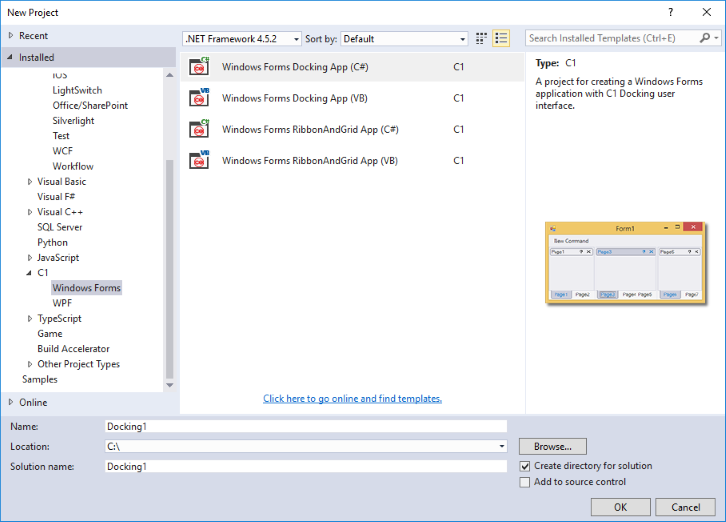
6. Select the required template for your Windows Forms application.
7. Specify the Project name, Location, Solution name, and then click **Create** to create a new Windows Forms project.