# Setting a Collapsible Splitter Panel
## Content
To create a collapsed panel, use the [Collapsible](/componentone/docs/win/online-splitcontainer/) property. In this topic, you will learn how to set the Collapsible property in design view and in code.
For more information on collapsed and expanded panels, see [Collapsible and Expandable Panels](/componentone/docs/win/online-splitcontainer/splitterpanelbehavio/collapsibleandexpand).
### In Design View
Complete the following steps:
1. Add [C1SplitContainer](/componentone/docs/win/online-splitcontainer/) to the form.
2. Click on the C1SplitContainer’s smart tag to open its tasks menu.
3. Select **Add Panel** to add a panel to the **C1SplitContainer** control.
4. Click inside **Panel 1** and open its tasks menu. The C1SplitterPanel Tasks menu appears.
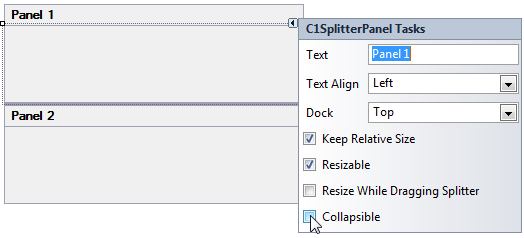
5. Check **Collapsible** to make Panel 1 collapsible and expandable.
### In Code
Complete the following steps:
1. Declare the following namespace into your project:
```vbnet
Imports C1.Win.C1SplitContainer
```
```csharp
using C1.Win.C1SplitContainer;
```
2. Add the following code, which sets the Collapsible property, to the **Form\_Load** event:
```vbnet
Panel1.Collapsible = True
```
```csharp
Panel1.Collapsible = True;
```
3. Run the program.
**This topic illustrates the following**:
**Panel1** is collapsed.
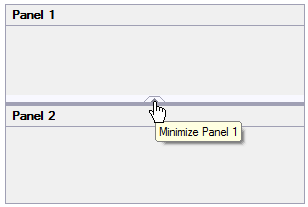
To expand the panel, simply click the expand button.