# Creating a Nested Split
## Content
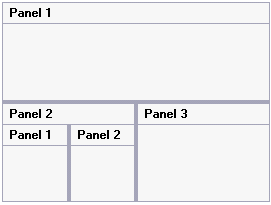
You can combine multiple [C1SplitContainer](/componentone/docs/win/online-splitcontainer/) objects to create nested splits. In this topic, you will learn how to nest a horizontal split within the first panel of a vertical split.
For more information on nested splits, see [Compound Split](/componentone/docs/win/online-splitcontainer/splitcontainerlayout/splitcontainerlayout1/compoundsplit1).
Complete the following steps:
1. Add the C1SplitContainer control to the form.
2. Click on the C1SplitContainer’s smart tag to open its tasks menu.
3. Select **Add Panel** twice to add two more [C1SplitterPanel](/componentone/docs/win/online-splitcontainer/)s to the **C1SplitContainer** control.
4. Select Panel 2’s smart tag and set its **Dock** property to **Left**.
5. Add another C1SplitContainer onto Panel 2 and add select **Add Panel** to add another **C1SplitterPanel** to **C1SplitContainer2**.
6. Select Panel 1’s smart tag in C1SplitContainer2 and set its **Dock** property to **Left**.
 **This Topic Illustrates the Following**:
The following image displays C1SplitContainer2 nested within the bottom left panel of **C1SplitConainer1**:
## See Also
[Creating a Full-Size Split](/componentone/docs/win/online-splitcontainer/splitcontainerforwin3/creatingdifferentspl/creatingafullsizespl)