# Creating a Horizontal Split
## Content
Creating a horizontal split is as simple as setting one property. In this topic, you'll learn how to set the **C1SplitContainer.Dock** property in design view and in code.
For more information on horizontal splits, see [Horizontal Split](/componentone/docs/win/online-splitcontainer/splitcontainerlayout/splitcontainerlayout1/horizontalsplit).
### In Design View:
Complete the following steps:
1. Add the [C1SplitContainer](/componentone/docs/win/online-splitcontainer/) to the form.
2. Click on the C1SplitContainer’s smart tag to open its tasks menu.
3. Select **Add Panel** once to add another panel to the **C1SplitContainer** control. A new panel is added below and the panel’s appear horizontal, by default.
4. In the C1SplitterPanel’s Properties Window or the C1SplitterPanel Tasks menu and locate the Dock property and notice the [Dock](/componentone/docs/win/online-splitcontainer/) property is set to **Top** by default.
### In Code View:
Complete the following steps:
1. Add the **C1.Win.C1SplitContainer.dll** reference to your project.
2. Declare the following **C1.Win.C1SplitContainer** namespace at the top of your code page:
```vbnet
Imports C1.Win.C1SplitContainer
```
```csharp
using C1.Win.C1SplitContainer;
```
3. Add the following code in the **Form\_Load** event:
```vbnet
Private Sub Form1_Load(sender As Object, e As EventArgs)
'create new splitcontainer
Dim split As New C1SplitContainer()
'create a new panel for the split container
Dim panel1 As New C1SplitterPanel()
Dim panel2 As New C1SplitterPanel()
'add the panels to the splitcontainer
split.Panels.Add(panel1)
split.Panels.Add(panel2)
panel1.Text = "Panel 1"
panel2.Text = "Panel 2"
'add the splitcontainer
Controls.Add(split)
End Sub
```
```csharp
private void Form1_Load(object sender, EventArgs e)
{
//create new splitcontainer
C1SplitContainer split = new C1SplitContainer();
//create a new panel for the split container
C1SplitterPanel panel1 = new C1SplitterPanel();
C1SplitterPanel panel2 = new C1SplitterPanel();
//add panel1 to the splitcontainer
split.Panels.Add(panel1);
split.Panels.Add(panel2);
panel1.Text = "Panel 1";
panel2.Text = "Panel 2";
//add the splitcontainer
Controls.Add(split);
}
```
4. Run the program.
**This topic illustrates the following**:
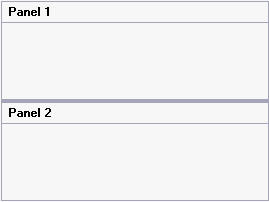
The splitter bar and panels appear horizontal. The result of this topic will resemble the following image:
## See Also
[Creating a Vertical Split](/componentone/docs/win/online-splitcontainer/splitcontainerforwin3/creatingdifferentspl/creatingaverticalspl)