# Creating a Full-Size Split
## Content
A full-size split is a horizontal or vertical split that stretches to fill the content area of a Windows Form. You can create a full-size split by setting one property: **C1SplitContainer.Dock** to Fill. In this topic, you'll learn how to set the **C1SplitContainer.Dock**property in design view and in code.
For more information on full-size splits, see [Full-Size Split](/componentone/docs/win/online-splitcontainer/splitcontainerlayout/splitcontainerlayout1/fullsizesplit1).
### In Design View:
Complete the following steps:
1. Add [C1SplitContainer](/componentone/docs/win/online-splitcontainer/) to the form.
2. Click on the C1SplitContainer’s smart tag to open its tasks menu.
3. Select **Add Panel** once to add one more [C1SplitterPanel](/componentone/docs/win/online-splitcontainer/) to the C1SplitContainer control.
4. Select C1SplitContainer1 from the Properties list dropdown box and set its **C1SplitContainer.Dock** property to **Fill**.
5. Run the program and observe that the control expands to the width and height of your Windows form.
### In Code View:
Complete the following steps:
1. Add the **C1.Win.C1SplitContainer.dll** reference to your project.
2. Declare the following **C1.Win.C1SplitContainer** namespace at the top of your code page:
```vbnet
Imports C1.Win.C1SplitContainer
```
```csharp
using C1.Win.C1SplitContainer;
```
3. Add the following code in the **Form\_Load** event:
```vbnet
Private Sub Form1_Load(sender As Object, e As EventArgs)
'create new splitcontainer
Dim split As New C1SplitContainer()
'create a new panel for the split container
Dim panel1 As New C1SplitterPanel()
Dim panel2 As New C1SplitterPanel()
'add the panels to the splitcontainer
split.Panels.Add(panel1)
split.Panels.Add(panel2)
panel1.Text = "Panel 1"
panel2.Text = "Panel 2"
split.Dock = DockStyle.Fill
'add the splitcontainer
Controls.Add(split)
End Sub
```
```csharp
private void Form1_Load(object sender, EventArgs e)
{
//create new splitcontainer
C1SplitContainer split = new C1SplitContainer();
//create a new panel for the split container
C1SplitterPanel panel1 = new C1SplitterPanel();
C1SplitterPanel panel2 = new C1SplitterPanel();
//add panel1 to the splitcontainer
split.Panels.Add(panel1);
split.Panels.Add(panel2);
panel1.Text = "Panel 1";
panel2.Text = "Panel 2";
//create a full size split
split.Dock = DockStyle.Fill;
//add the splitcontainer
Controls.Add(split);
}
```
4. Run the program and observe that the control expands to the width and height of your Window Form.
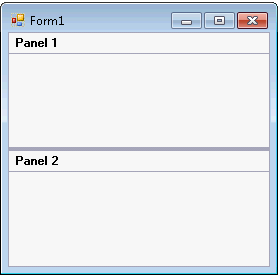
**This Topic Illustrates the Following**:
The C1SplitContainer expands to the width and height of your Window Form.
## See Also
[Setting C1SplitContainer Behaviors](/componentone/docs/win/online-splitcontainer/splitcontainerforwin3/settingc1splitcontai)