# Adding Text to a Splitter Panel
## Content
In this topic, you will learn how to add text to a [C1SplitContainer](/componentone/docs/win/online-splitcontainer/) control in design view and in code.
### In Design View:
To add text to a panel, add a **RichTextBox** control to panel1, add text to the **RichTextBox** control and then set the **Dock** property to Fill.
1. Add the C1SplitContainer to the form.
2. Click on the C1SplitContainer’s smart tag to open its tasks menu.
3. Select **Add Panel** once to add another panel to the **C1SplitContainer** control.
4. Click inside **Panel 1** and open its tasks menu. The **C1SplitterPanel Tasks** menu appears.
5. Select a **RichTextBox** control from the Visual Studio Toolbox and drag it into the **Panel 1**.
6. Set the **RichTextBox1.Text** property to "A lighthouse is a building to help aid pilots in navigation while at sea or on inland waterways."
7. Set the **RichTextBox1.Dock** property to Fill.
8. Set the **RichTextBox1.ForeColor** property to "DarkBlue".
### In Code View:
Complete the following steps:
1. Add the **C1.Win.C1SplitContainer.dll** reference to your project.
2. Declare the following **C1.Win.C1SplitContainer** namespace at the top of your code page:
```vbnet
Imports C1.Win.C1SplitContainer
```
```csharp
using C1.Win.C1SplitContainer;
```
3. Add the following code in the **Form\_Load** event:
```vbnet
Private Sub Form1_Load(sender As Object, e As EventArgs)
Dim richtextbox1 As New RichTextBox()
richtextbox1.Text = "A lighthouse is a building to help aid pilots in navigation while at sea or on inland waterways."
richtextbox1.ForeColor = Color.DarkBlue
richtextbox1.Dock = DockStyle.Fill
'create new splitcontainer
Dim split As New C1SplitContainer()
'create a new panel for the split container
Dim panel1 As New C1SplitterPanel()
Dim panel2 As New C1SplitterPanel()
'add panel1 to the splitcontainer
split.Panels.Add(panel1)
split.Panels.Add(panel2)
panel1.Text = "Panel 1"
panel2.Text = "Panel 2"
'add the splitcontainer
Controls.Add(split)
'add the button control to panel1
panel1.Controls.Add(richtextbox1)
End Sub}
```
```csharp
private void Form1_Load(object sender, EventArgs e)
{
RichTextBox richtextbox1 = new RichTextBox();
richtextbox1.Text = "A lighthouse is a building to help aid pilots in navigation while at sea or on inland waterways.";
richtextbox1.ForeColor = Color.DarkBlue;
richtextbox1.Dock = DockStyle.Fill;
//create new splitcontainer
C1SplitContainer split = new C1SplitContainer();
//create a new panel for the split container
C1SplitterPanel panel1 = new C1SplitterPanel();
C1SplitterPanel panel2 = new C1SplitterPanel();
//add panel1 to the splitcontainer
split.Panels.Add(panel1);
split.Panels.Add(panel2);
panel1.Text = "Panel 1";
panel2.Text = "Panel 2";
//add the splitcontainer
Controls.Add(split);
//add the button control to panel1
panel1.Controls.Add(richtextbox1);
}End Sub}
```
* Run the program.
**This Topic Illustrates the Following**:
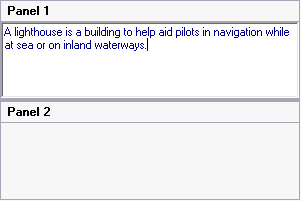
The following graphic depicts a C1SplitContainer control with a **RichTextBox** control docked within **Panel 1**.
## See Also
[Adding Multiple Panels to the C1SplitContainer](/componentone/docs/win/online-splitcontainer/splitcontainerforwin3/addingmultiplepanels)