# Step 2 of 4: Adding C1SplitterPanels to the C1SplitContainer
## Content
In this step you learn how to add the C1SplitterPanels to the C1SplitContainer through the **C1SplitContainer.Panels Collection** editor as well as set the panel’s [Dock](/componentone/docs/win/online-splitcontainer/) property to control the layout of the panels.
Complete the following steps:
1. Click on the C1SplitContainer’s smart tag to open its tasks menu.
2. Select **Add Panel** from the **C1SplitContainer Tasks Menu**. One C1SplitterPanel is added below the existing one.
3. Drag and drop another **C1SplitContainer** into Panel2 of the C1SplitContainer.
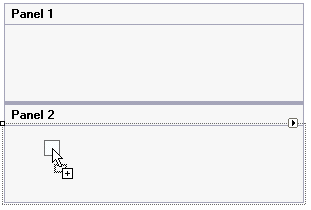
4. Select C1SplitContainer2 and click **Add Panel** from its tasks menu to add a new C1SplitterPanel.
5. Select C1SplitContainer1 and click **Add Panel** from its tasks menu to add a new C1SplitterPanel.
6. Select C1SplitContainer1 Panel1 dock property to left.
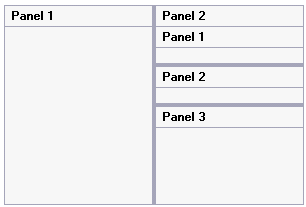
7. Select Panel 2 of C1SplitContainer1 and set its Dock property to left.
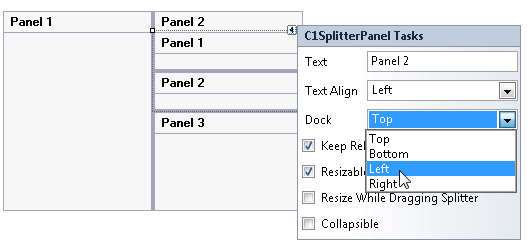
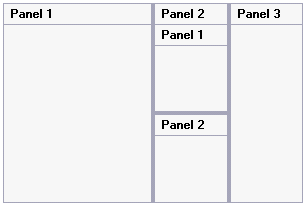
Panel2 which contains Panel1 and Panel2 of C1SplitContainer2 will be docked to the left of its parent control, Panel 3.
## See Also
[Step 3 of 4: Creating Collapsible Panels](/componentone/docs/win/online-splitcontainer/splitcontainerforwin1/step3of4creatingcoll)