# Automatic Replacements
## Content
The built-in spell dialog checks the list when it finds a misspelled word. If a match is found, the misspelled word is replaced with the corresponding list entry. The as-you-type mechanism looks for matches whenever the user types a character that is not a letter or a digit. If a match is found, the text is replaced with the corresponding list entry.
Use the AutoReplaceList property to spell-check a list of words, and if a match is found on the list then the misspelled word is replaced with the corresponding list entry as-you-type.
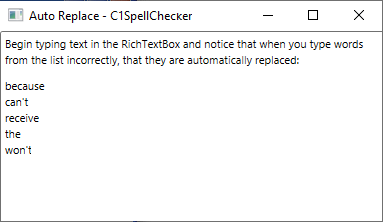
For example, you can monitor spelling on a Windows.Forms.RichTextBox control using this list. To see this feature in action, complete the following steps:
1. From the Toolbox, add the **SpellChecker** component and **RichTextBox** control to your form.
Note that the **C1SpellChecker** component will appear below the form, not on it.
2. Select the RichTextBox, and set the following properties:
* **Dock** property to **Fill**.
* **SpellChecking on C1SpellChecker1** property to **True**.
3. Enter the following in your source code to declare the directive for the C1.Win.C1SpellChecker:
```csharp
using C1.Win.C1SpellChecker;
```
```vbnet
Imports C1.Win.C1SpellChecker
```
4. Then double-click the RichTextBox and implement the following code in the body of the **RichTextBox1\_TextChanged** event handler:
```csharp
// Build AutoReplace list
c1SpellChecker1.AutoReplaceList.Clear();
c1SpellChecker1.AutoReplaceList.Add("becuase", "because");
c1SpellChecker1.AutoReplaceList.Add("cant", "can't");
c1SpellChecker1.AutoReplaceList.Add("recieve", "receive");
c1SpellChecker1.AutoReplaceList.Add("teh", "the");
c1SpellChecker1.AutoReplaceList.Add("wont", "won't");
// Activate as-you-type spell-checking on the RichTextBox
c1SpellChecker1.SetActiveSpellChecking(richTextBox1, true);
```
```vbnet
' Build AutoReplace list
C1SpellChecker1.AutoReplaceList.Clear()
C1SpellChecker1.AutoReplaceList.Add("becuase", "because")
C1SpellChecker1.AutoReplaceList.Add("cant", "can't")
C1SpellChecker1.AutoReplaceList.Add("recieve", "receive")
C1SpellChecker1.AutoReplaceList.Add("teh", "the")
C1SpellChecker1.AutoReplaceList.Add("wont", "won't")
' Activate as-you-type spell-checking on the RichTextBox
C1SpellChecker1.SetActiveSpellChecking(RichTextBox1, True)
```
This code builds the following list using the **AutoReplaceList.Add** method:
| Misspelled word | Correction word |
| --------------- | --------------- |
| because | because |
| cant | can't |
| receive | receive |
| the | the |
| wont | won't |
Then it activates as-you-type spell-checking on the RichTextBox control using the [SetActiveSpellChecking](/componentone/docs/win/online-spellchecker/) method.
Run the application and observe the following: