# SpellCheck Using Merged Dictionary
## Content
The **C1SpellChecker** provides 21 international dictionaries in addition to the English - US dictionary that is built into the control. However, you may want to merge two dictionaries into one. To do this, you can use a C1SpellChecker Dictionary Editor called **C1DictionaryEditor.exe** that allows you to create and maintain dictionary files (.dct). For instance, you can merge Spanish and French dictionaries into one dictionary and perform a spell check in an application.
### Creating a Merged Dictionary
1. Type **C1DictionaryEditor 4.8** in the Start menu to open the application. The **C1SpellChecker** **Dictionary** **Editor** appears.
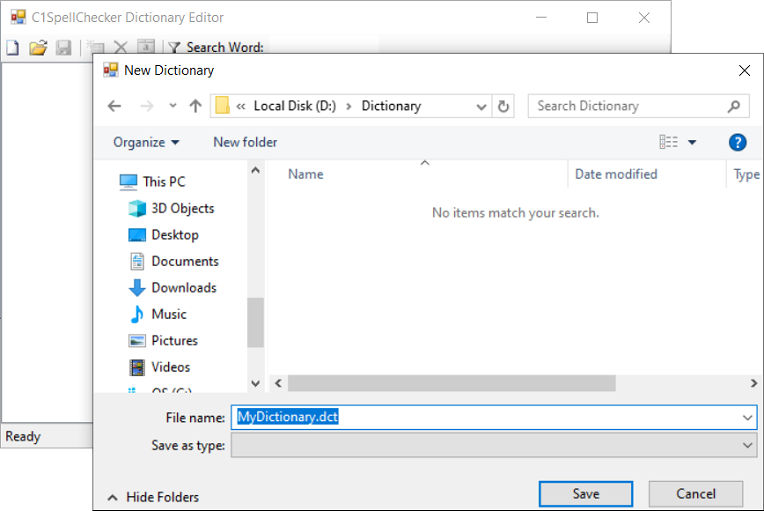
2. Create a new dictionary by using the **New Dictionary** option in the editor with the name **MyDictionary.dct**.
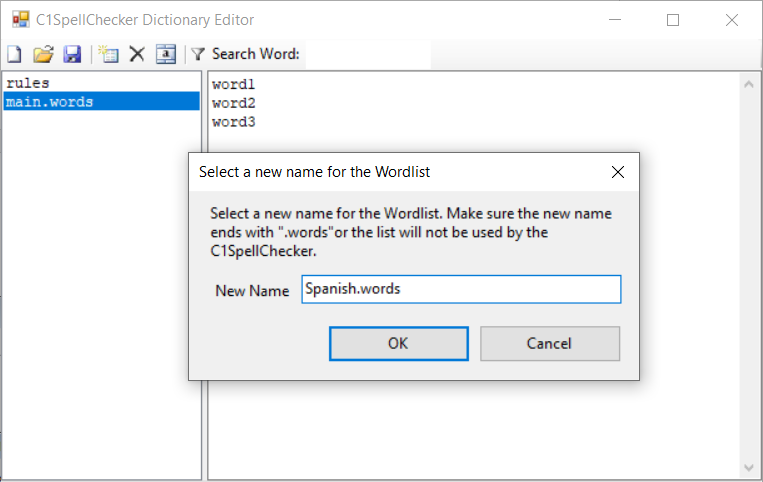
3. When a new dictionary is created, it contains two files -- rules (containing the **rules** of a language) and **main.words** (containing the words in a dictionary).
4. Name the word list as **Spanish**.words.
5. Open another instance of **C1DictionaryEditor** to open the Spanish dictionary file.
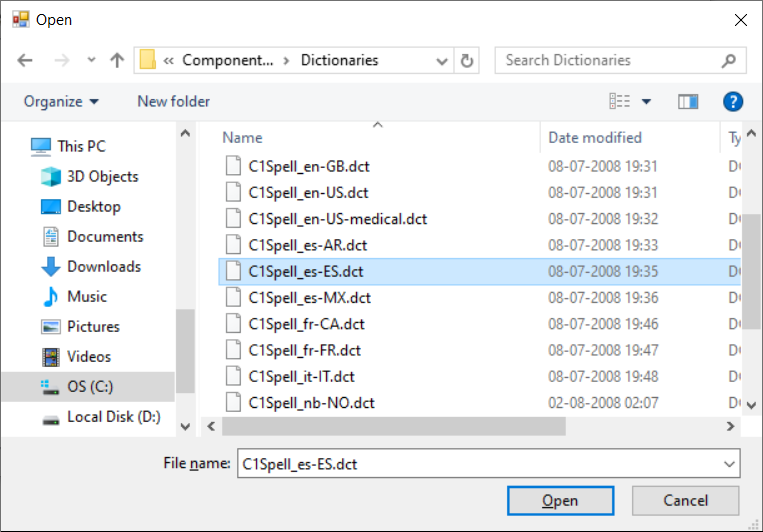
6. Open the **C1Spell\_es-ES.dct** dictionary. This dictionary is installed in **C:\\Program Files (x86)\\MESCIUS\\ComponentOne\\Dictionaries** when the WinForms Controls are installed.
7. Open the **es-ES.words** wordlist and select all words.
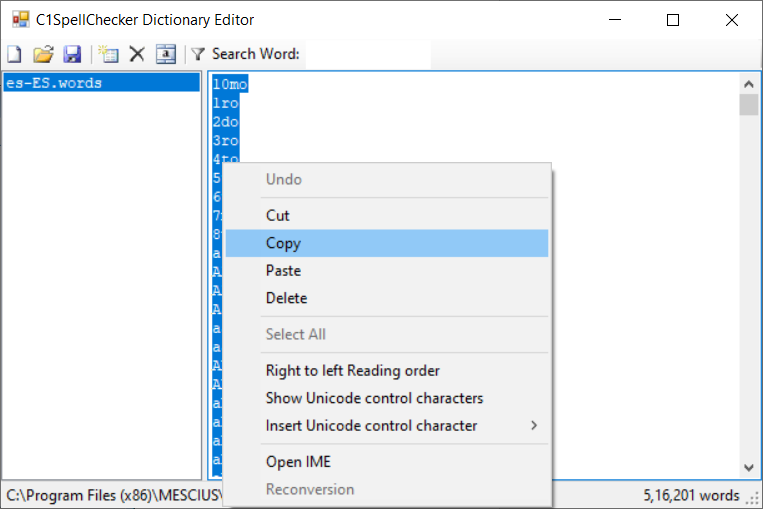
8. Right-click on the selected list and select the **Copy** option from the context menu to copy all the words.
9. Switch to Dictionary Editor Window of **MyDictionary**, Now, click the **Spanish**.words list, and right-click the content. Select the **Select All** option, and then select the **Paste** option to paste the copied words from **Spanish** dictionary.
10. Add a **French** wordlist in MyDictionary. To do this, click on the New Wordlist button and then rename the wordlist as French.words. Likewise, open the **C1Spell\_fr-FR.dct** dictionary and copy the word list and paste it in French.words list in MyDictionary.
11. Copy the rules from the **French** dictionary and paste them into rules for **MyDictionary**.
12. Save the changes in **MyDictionary**. You now have a dictionary that contains both French and Spanish and French words along with rules.
### Using Merged Dictionary
Now, create a .NET application to use the merged dictionary for spell-checking the Spanish and French words. In the application, use the c1SpellChecker1, label, and richtextbox controls in which the first instance of C1SpellChecker uses **C1Spell\_es-ES.dct**, the second uses **C1Spell\_fr-FR.dct**, and the third uses **MyDictionary.dct**. The texts in richtextboxes are spellchecked by these spellcheckers, and the content is spellchecked according to the selected dictionary. The third spellchecker spell-checks both French and Spanish text. Now, perform the following steps to create the application:
1. Create a new .NET WinForms application.
2. Install the following Nuget packages from the NuGet Package Manager:
* **C1.Win.C1SpellChecker.4.8** **(.NET Framework)** or
* **C1.Win.SpellChecker (.NET)**
3. Add three c1SpellChecker1, label and richtextbox controls in the application.
4. Set the following properties of the three c1SpellChecker controls:
| **Control** **Name** | **Property** **Name** | **Value** |
| ------------ | ------------- | ----- |
| c1SpellChecker1 | FileName | C:\\Program Files (x86)\\MESCIUS\\ComponentOne\\Dictionaries\\C1Spell\_es-ES.dct |
| c1SpellChecker2 | FileName | C:\\Program Files (x86)\\MESCIUS\\ComponentOne\\Dictionaries\\C1Spell\_fr-FR.dct |
| c1SpellChecker3 | FileName | D:\\MyDictionary.dct |
5. Set the **Text** property of each label control appropriately.
6. Set the **SpellChecking on c1SpellChecker1** property of each richtextbox control to **True**.
7. Add the following code in the **Load** event of the Form. The **SetActiveSpellChecking** option enables you to spell-check to the textBox as-you-type when sets to true.
```csharp
c1SpellChecker1.SetActiveSpellChecking(richTextBox1, true);
c1SpellChecker1.SetActiveSpellChecking(richTextBox2, true);
c1SpellChecker1.SetActiveSpellChecking(richTextBox3, true);
```
```vbnet
c1SpellChecker1.SetActiveSpellChecking(richTextBox1, True)
c1SpellChecker1.SetActiveSpellChecking(richTextBox2, True)
c1SpellChecker1.SetActiveSpellChecking(richTextBox3, True)
```
8. Run the application.
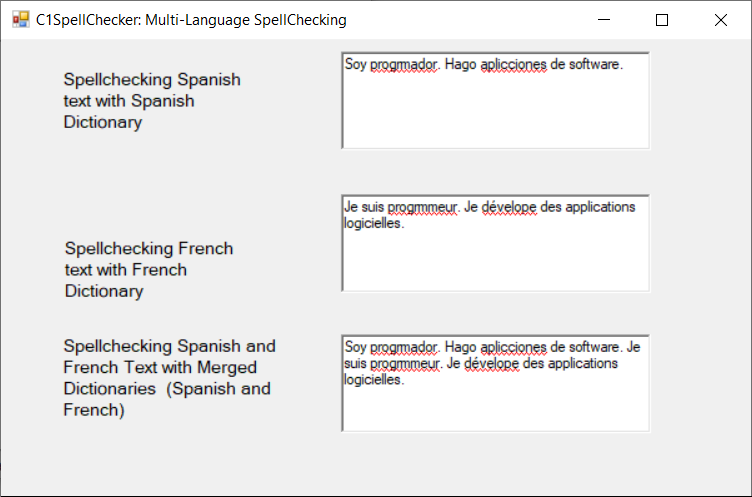
9. Enter the Spanish, French and both language words in first, second and third richtexboxes respectively.
You can see that incorrect words in each RichTextBox control are highlighted with a red wavy underline.