# Table Properties Dialog Box
Table Properties Dialog Box in the C1Editor control allows users to create a new table, specify the number of row and columns, set up cell spacing and more.
## Content
In the **Table** **Properties** dialog box, users create a new table, specify the number of columns and rows, set up cell spacing and padding, create a border, and add a caption for the table. Right-click the table to access additional properties for the row, column, or cell.
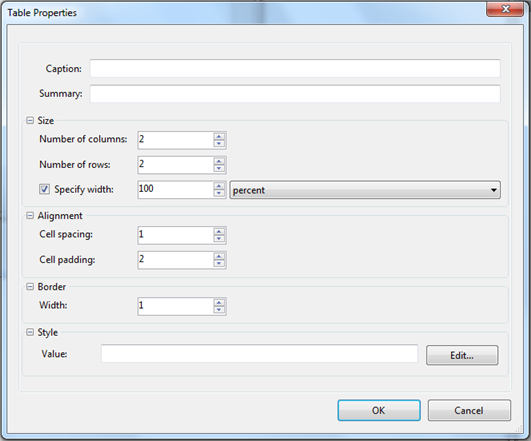
| **Caption** | Enter the caption to appear above the table. |
| --- | --- |
| **Summary** | Enter a description for the table. |
### Size
| **Number of columns** | Enter the number of table columns. |
| --- | --- |
| **Number of rows** | Enter the number of table rows. |
| **Specify width** | Select this checkbox to specify the width of the table, either in percent or pixels. |
### Alignment
| **Cell spacing** | Enter a number to determine spacing between cells. |
| --- | --- |
| **Cell padding** | Enter a number to determine the spacing that appears around cell content. |
### Border
| **Width** | Enter the width of the table border. |
| --- | --- |
## See Also
[Row Properties](/componentone/docs/win/online-richtexteditor/c1editorruntimeeleme/c1editordialogboxes/tablepropertiesdialo/rowproperties)
[Column Properties](/componentone/docs/win/online-richtexteditor/c1editorruntimeeleme/c1editordialogboxes/tablepropertiesdialo/columnproperties)
[Cell Properties](/componentone/docs/win/online-richtexteditor/c1editorruntimeeleme/c1editordialogboxes/tablepropertiesdialo/cellproperties)