# Find and Replace Dialog Box
C1Editor for WinForms allows you to find and/or replace text in a document. For more information, see C1Editor for WinForms documentation.
## Content
The **Find** and **Replace** dialog boxes are the same dialog box with two tabs allowing you to find and/or replace text.
In the **Find and Replace** dialog box, users can find text and replace it with other text if they choose. To access the **Find and Replace** dialog box, click inside the [C1Editor](/componentone/api/win/online-richtexteditor/dotnet-framework-api/C1.Win.C1Editor.4.8/C1.Win.C1Editor.C1Editor.html) control and click CTRL+F.
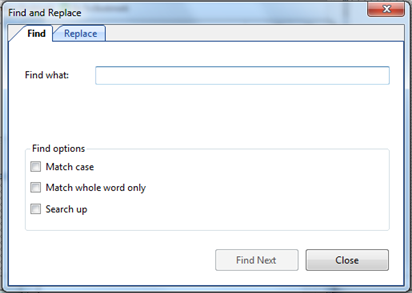
To find specific text, enter the text in the **Find what** text box, select one of the check boxes under **Find options**, and click **Find Next**.
To replace specific text, enter the text to be replaced in the **Find what** text box, enter the text to replace it in the **Replace with** text box, and click **Replace** to replace certain instances or click **Replace All** to replace all instances.
### Find Options
The **Find** **options** section of the **Find and Replace** dialog box allows you to specify certain search criteria as described in the following table:
| Option | Description |
| --- | --- |
| Match case | Locates text that exactly matches the combination of uppercase and lowercase letters you type in the **Find what** box. |
| Match whole word only | Locates distinct occurrences of words, not groups of characters inside words. |
| Search up | Searches for text specified in the **Find what** box from the bottom of the control upwards. |