# Label
This topic covers details about label in C1Ribbon.
## Content
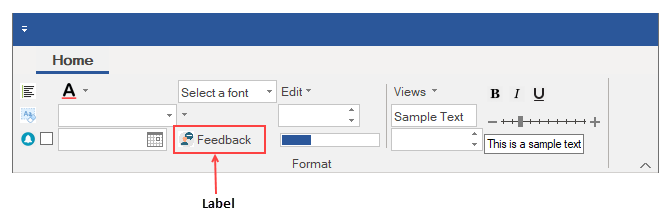
A label displays content and can point to the element next to it. It can include both text and image.
The image given below depicts a label.
## Add Label at Design-Time
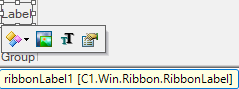
The **Ribbon Label** can be added at design-time using the **Ribbon Group Floating Toolbar** or **RibbonGroup Items Collection Editor**. Also, you can customize the look of the Ribbon Label using the **Ribbon Label Floating ToolBar** or by editing the properties in the **Properties** Window. For more information about floating toolbars, refer this [topic](/componentone/docs/win/online-ribbon/concepts/designtimesupport/floatingtoolbar).
This image below shows the floating toolbar of Label.
## Add Label via Code
The Label can also be added to the C1Ribbon control through the code using the RibbonLabel class. This is depicted in the code below:
```vbnet
' Add Label ribbon item
Dim ribbonLabel As RibbonLabel = New RibbonLabel("Feedback", Image.FromFile("images\feedback.png"))
formatGroup.Items.Add(ribbonLabel)
```
```csharp
// Add a Label ribbon item
RibbonLabel ribbonLabel = new RibbonLabel("Feedback", Image.FromFile(@"images\feedback.png"));
formatGroup.Items.Add(ribbonLabel);
```
## Add Multiple Labels
**C1Ribbon** allows you to align multiple labels within your **RibbonGroup** using the MaxTextWidth and MinTextWidth properties. This section will walk you through the steps of adding multiple labels using two RibbonToolBars containing the default Ribbonlabel, a RibbonComboBox, and a RibbonLabel.
1. Add two **RibbonToolBars** to your application. By default, the **RibbonToolBar** contains a **Ribbonlabel**.
2. Float over the upper left corner of the first Toolbar until the glyph appears. Click the **Action** label and select **Add ComboBox** from the list.
3. Click the glyph again and click the **Action** label again. Select **Add Label** from the list.
4. Repeat steps 1- 3 with the second Toolbar.
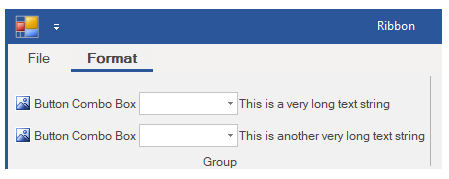
5. The Ribbon application should appear as in the following image:
6. Select the **RibbonLabel** on the first Toolbar and choose **Text Settings** from the RibbonLabel Toolbar. In the Text textbox, enter **This is a very long text string**.
7. In the **RibbonLabel** Properties window, scroll down to the **MaxTextWidth** property and set it to 130. Enter the same number for the **MinTextWidth** property.
8. Select the **RibbonLabel** on the second Toolbar and choose Text Settings from the RibbonLabel Toolbar. In the Text textbox, enter **This is another very long text string**.
9. In the **RibbonLabel** Properties window, scroll down to the **MaxTextWidth** property and set it to 130. Enter the same number for the MinTextWidth property.
10. Press **F5** to run your application. Your application should resemble the following image:
```auto

```
## Change ForeColor
The ForeColor of an item typically refers to its text color. Users can change the ForeColor of the ribbon label item. The **C1Ribbon** class provides the **UpdatingItemStyle** event, which occurs before a style is applied to a ribbon item.
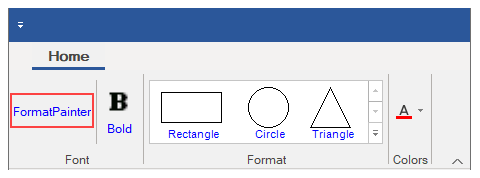
Let's see how to change the ForeColor of RibbonLabel by setting the UpdatingItemStyle event in the code snippet.
```csharp
//Handle UpdatingItemStyle event to set forecolor of RibbonLabel
private void C1Ribbon1_UpdatingItemStyle(object sender, UpdatingItemStyleEventArgs e)
{
if (e.RibbonItem.GetType() == typeof(RibbonLabel))
{
e.ForeColor = Color.Blue;
}
}
```