# Control Host
This topic covers controlhost item in C1Ribbon.
## Content
The **Control Host** item enables the user to add a hosted control in the RibbonGroup of the **C1Ribbon** control. A ControlHost item can be added both through the designer as well as code. In both the cases, the user has to programmatically configure the hosted control in the MainForm. Let's say a user wants to add a TextBox control. For this, the user needs to create a new **TextBoxHost** class that inherits the **RibbonControlHost** element. Likewise, in order to add a ComboBox control, the user can create a new **ComboBoxHost** class that inherits the **RibbonControlHost** element.
The following sections cover in detail about the configuration of a **ControlHost** in the **C1Ribbon** control via both the designer and code.
### By Designer
Complete the following steps to add a standard **TextBox** control to a Ribbon group via the designer:
1. Open the **MainRibbonForm** to view the Ribbon Form, and select **View Code** to open code view.
2. Add the following code to your project to create a new **TextBoxHost** class that inherits the **RibbonControlHost** element:
```vbnet
Public Sub New()
MyBase.New(New System.Windows.Forms.TextBox())
MyBase.Text = "This is a sample text."
End Sub
```
```csharp
public class TextBoxHost : C1.Win.Ribbon.RibbonControlHost
{
public TextBoxHost() : base(new System.Windows.Forms.TextBox())
{
base.Text = "This is a sample text.";
}
}
```
3. Build and close your project, and then return to Design view.
>type=note
> **Note**: This is an important step, without which you will not be able to add ControlHost from the floating toolbar in the Design view.
4. Open the floating toolbar of the Group to which you want to add the ControlHost item.
5. Click the **Actions** button, and select **Add ControlHost**.
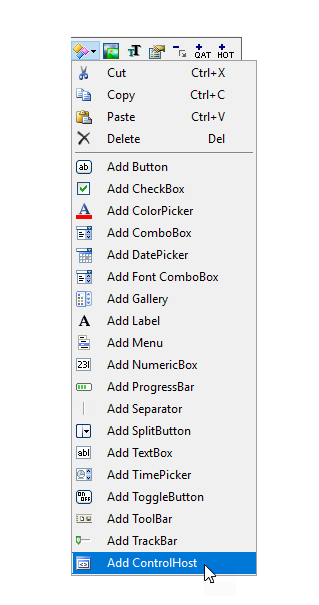
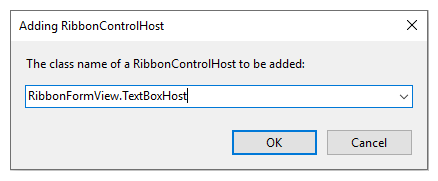
6. The **Adding RibbonControlHost** dialog box will launch. The dialog box will request the class name of the RibbonControlHost. Enter the name of the control host in the **Adding RibbonControlHost** dialog box in this format "ProjectName.TextBoxHost".
>type=note
> Note: When you again add a TextBoxHost element, you won't have to type its name. The name of this class will be available in the drop-down list in the Adding RibbonControlHost dialog box.
7. Click **OK** to close the **Adding RibbonControlHost** dialog box.
Notice that the **TextBox** control now appears in the Ribbon group.
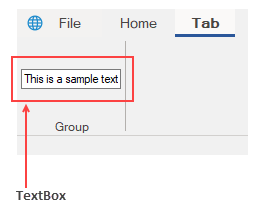
The user can customize the look of the Ribbon ControlHost using the **Ribbon** **TrackBar** **Floating ToolBar** or by editing the properties in the **Properties** Window. For more information about floating toolbars, refer this [topic](/componentone/docs/win/online-ribbon/concepts/designtimesupport/floatingtoolbar).
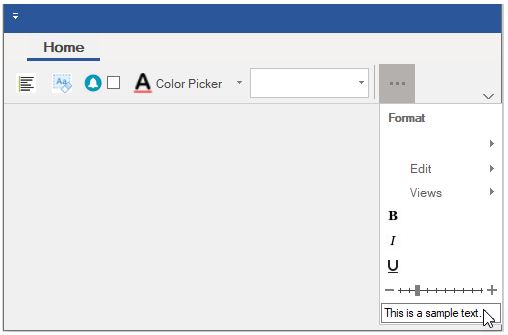
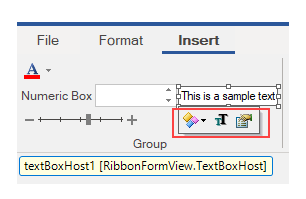
The image below shows the floating toolbar of TextBox ControlHost.
### By Code
The **RibbonControlHost** item can be added programmatically with the RibbonControlHost class as shown in the code below:
```vbnet
Private Sub Form1_Load(sender As Object, e As EventArgs) Handles MyBase.Load
Dim textboxHost As RibbonControlHost = New RibbonControlHost()
textboxHost = New AddRibbonItems.TextBoxHost()
formatGroup.Items.Add(textboxHost)
End Sub
Public Class TextBoxHost
Inherits C1.Win.Ribbon.RibbonControlHost
Public Sub New()
MyBase.New(New System.Windows.Forms.TextBox())
MyBase.Text = "This is a sample text."
End Sub
```
```csharp
private void Form1_Load(object sender, EventArgs e)
{
//Add ControlHost item
RibbonControlHost textboxHost = new RibbonControlHost();
textboxHost = new AddRibbonItems.TextBoxHost();
formatGroup.Items.Add(textboxHost);
}
}
public class TextBoxHost : C1.Win.Ribbon.RibbonControlHost
{
public TextBoxHost(): base(new System.Windows.Forms.TextBox())
{
base.Text = "This is a sample text.";
}
}
```
## Availability in the Dropdown
When the Ribbon is switched to its Simplified state, you can easily view the RibbonControlHost using the dropdown button as shown in the snapshot below.