# Context Menu
Get started with Ribbon, a WinForms control that is a ribbon style flat menu similar to what Microsoft offers in its Office 365 applications. See more in documentation here.
## Content
Ribbon provides additional commands for each ribbon item through context menu. To access Ribbon item's context menu, right-click on the ribbon item and the context menu appears as following:
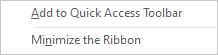
The following table demonstrates the commands provided by RibbonItem context menu:
| **Commands** | **Descriptions** |
| --- | --- |
| Add to Quick Access Toolbar | Adds the item to Quick Access Toolbar. |
| Minimize the Ribbon | Minimizes the Ribbon |
### Customize Context Menu
Ribbon provides access to some basic operations through the context menu. However, there might be a scenario where you would want to access custom operations via context menu. For instance, you want to facilitate end-users to hide ribbon items as per their requirement using the context menu as shown in the following image.
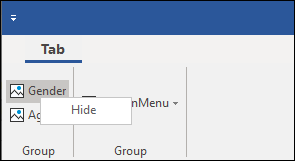
To display a customized context menu for the ribbon item, follow these steps:
1. Add the custom menu item to the collection of menu items using the **Add** method. In this example, we add a RibbonButton item to the context menu.
```csharp
RibbonButton button1 = new RibbonButton();
button1.Text = "Hide";
//Adding Custom Item to Ribbon ContextMenu
c1Ribbon1.ContextMenuItems.Add(button1);
```
2. Subscribe to the **MouseUp** event to display a customized context menu for a radio button using the following code.
```csharp
c1Ribbon1.MouseUp += C1Ribbon1_MouseUp;
```
3. Add the following code to the **C1Ribbon1\_MouseUp** event handler to use custom context menu instead of the default context menu. In this example, we display a custom context menu for a radio button in Ribbon using **ShowContextMenu** method of the C1Ribbon class. This method displays the contextual menu at the specified screen position.
```csharp
private void C1Ribbon1_MouseUp(object? sender, MouseEventArgs e)
{
if (e.Button != MouseButtons.Right) return;
var rItem = c1Ribbon1.GetItemAt(e.Location);
if (rItem != null && rItem is RibbonItem ri)
{
c1Ribbon1.ShowContextMenu(this.PointToScreen(e.Location), ri);
}
}
```
By default, the **ShowContextMenu** method displays customized context menu for ribbon items only and not for child ribbon items. However, if you want to display a customized context menu for child ribbon items as well, you can use [UseCustomMenu](/componentone/docs/win/online-ribbon/) property of the [ContextMenuPopUpEventArgs](/componentone/docs/win/online-ribbon/) class as demonstrated in the following steps.
1. Subscribe to **ContextMenuPopUp** event of the [C1Ribbon](/componentone/docs/win/online-ribbon/) class as shown in the following code.
```csharp
c1Ribbon1.ContextMenuPopUp += C1Ribbon1_ContextMenuPopUp;
```
2. Add the following code to the **C1Ribbon1\_ContextMenuPopup** event handler to show custom context menu instead of the default menu using the **UseCustomMenu** property.
```csharp
private void C1Ribbon1_ContextMenuPopup(object? sender, C1.Win.Ribbon.ContextMenuPopupEventArgs e)
{
//If the ContextMenu is opening for ribbonButton2
if(e.Component is RibbonButton ribbonButton2 && ribbonButton2.Name == "GenderBtn")
{
//Use Custom Menu instead of default menu, items for which are added above
e.UseCustomMenu = true;
}
}
```
Alternatively, you can use **RibbonMenuItems Collection Editor** to add custom items to the context menu. To access **RibbonMenuItems Collection Editor**, click the ellipsis next to the **ContextMenuItems** property from the **Properties** Window. The RibbonMenuItems Collection Editor appears as following:
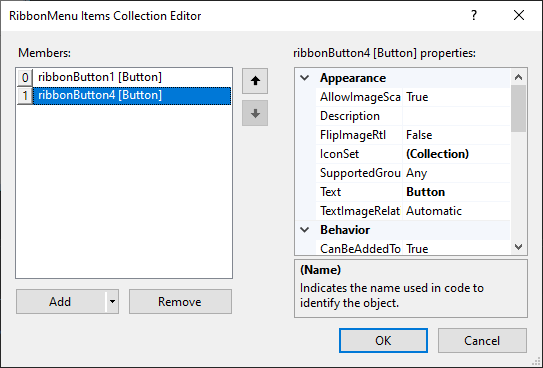
In **RibbonMenuItems Collection Editor**, the right pane displays properties for each defined ribbon menu item. The left pane displays a list of menu items along with **Add** and **Remove** buttons which can be used to add and remove menu items, respectively.