# Quick Start
## Content
The following quick start guides you how to create a simple application using the MultiColumnCombo control. In this quick start, you'll create a new project in Visual Studio, add the MultiColumnCombo control to your application, configure it and bind it to the data.
## Set Up the Application
1. Create a new **Windows Forms App**.
2. Configure your project and set the **Framework** to **.NET 6.0**.
3. Install **C1.Win.Input.MultiColumnCombo** package using the **NuGet Package Manager**. The **C1MultiColumnCombo** control gets added to the **Toolbox** once the package gets installed.
4. Drag and drop the **C1MultiColumnCombo** control from the **Toolbox** onto the form.
## Configure MultiColumnCombo
1. Click the C1MultiColumnCombo smart tag to open **C1MultiColumnCombo Tasks** panel and select **Edit Columns**. Alternatively, you can navigate to the **Column** property in the **Properties** window and click the ellipsis button next to it.
This opens **DisplayColumn Collection Editor**.
2. In the **DisplayColumn Collection Editor**, click **Add** button to add a column to the dropdown. Then, set the **Name** and **Caption** properties of the added column. In this example, we set the **Name** as pname and **Caption** as Name.
3. Click **Add** button twice to add two more columns to the C1MultiColumnCombo control. Then, set their **Name** property as pcolor and pline along with the **Caption** property as Color and Line, respectively.
4. Click **OK** to close the editor.
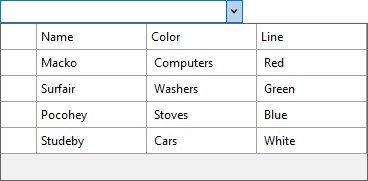
This adds three columns to the MultiColumnCombo dropdown.
## Populate MultiColumnCombo with Data
Switch to the code view and add the following code to add items to the MultiColumnCombo control using [AddItem](/componentone/docs/win/online-multicolumncombo/) method of the [C1MultiColumnCombo](/componentone/docs/win/online-multicolumncombo/) class. This example adds data to the previously created columns.
```csharp
c1MultiColumnCombo1.AddItem("Macko, Computers, Red");
c1MultiColumnCombo1.AddItem("Surfair, Washers, Green");
c1MultiColumnCombo1.AddItem("Pocohey, Stoves, Blue");
c1MultiColumnCombo1.AddItem("Studeby, Cars, White");
```