# Run-Time Customization for NavBar
Get started with Menus and Toolbars for WinForms. Create versatile menus and docking/floating toolbars. See more in documentation here.
## Content
The buttons for the **C1NavBar** can be customizable at run time by clicking on the drop-down arrow button.
The following pop-up menu appears at run time when you click on the drop-down arrow:
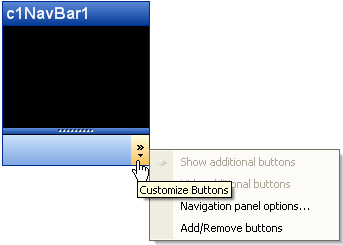
The Customize Buttons menu operates as follows:
### Show additional buttons
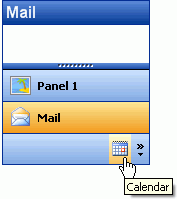
Clicking on the **Show additional buttons** command item from the menu removes the button from the task bar area and places it in the panel area of the **C1NavBar**.
### Hide additional buttons
Clicking on the hide additional items removes the button from the panel and places in the task bar area.
### Navigation panels options
Clicking on the **Navigational panel options** item opens the **Navigation Panel Options** dialog box.
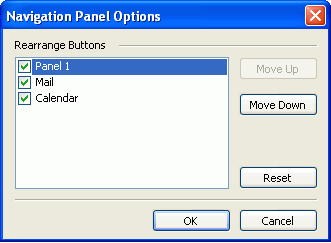
The Navigation panel options dialog box consists of the following command buttons:
| Name | Description |
| --- | --- |
| Move Up | Moves the selected button up one position. |
| Move Down | Moves the selected button down one position. |
| Reset | Resets the buttons to their default position. |
| OK | Saves the changes and closes the **Navigation Panel Options** dialog box. |
| Cancel | Cancels the changes to the buttons and closes the **Navigation Panel Options** dialog box. |
### Add/Remove buttons
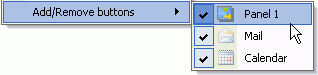
Clicking on the **Add/Remove** buttons item opens a menu with the names of the present buttons shown in the **C1NavBar** along with a check box next to the names of the present buttons shown in the **C1NavBar**. To remove a specific button click on the check box next to the name of the button you wish to remove.
## See Also
[OutBar Overview](/componentone/docs/win/online-menus-toolbar/outbaroverview)