# Run-Time Customization for Toolbars
Get started with Menus and Toolbars for WinForms. Create versatile menus and docking/floating toolbars. See more in documentation here.
## Content
**C1ToolBars** can be customizable at run time by setting the [CustomizeButton](/componentone/api/win/online-menus-toolbar/dotnet-api/C1.Win.Command.10/C1.Win.Command.C1ToolBar.CustomizeButton.html) property to **True** at design time.
>type=note
> **Note**: The toolbar needs to be placed inside a **C1CommandDock** before you set its [CustomizeButton](/componentone/api/win/online-menus-toolbar/dotnet-api/C1.Win.Command.10/C1.Win.Command.C1ToolBar.CustomizeButton.html) property to **True** at design-time.
When the customization is enabled a drop-down arrow appears on the toolbar at design time.

The pop-up menu appears at run time when you click on the drop-down arrow.

The Customize toolbars menu operates as follows:
### Add or Remove Buttons
Clicking on a command item from the menu removes the command button from the toolbar.
### Reset
Clicking on the Reset menu item resets the toolbar back to its original setting.
### Customize
Clicking on Customize menu item opens the **Customize toolbars** dialog box.
The Customize Dialog contains three tabs for modifying the **C1ToolBar** component:
* **Toolbars** – This tab contains options for creating, renaming, deleting, and modifying the **C1ToolBar** component.
* **Commands** – This tab contains options for adding existing commands to the toolbars.
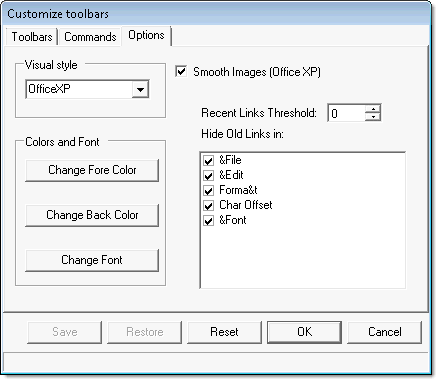
* **Options** – This tab contains options for modifying the **C1ToolBars** general appearance properties such as its look and feel and its font and color.
On the bottom of each tab in the **Customize toolbars** dialog box, there is a **Save**, **Restore**, **Reset**, **OK**, and **Cancel** command button which can be used to save the updated settings of the toolbar, restore the update settings, reset the default settings, accept the new settings, and cancel the Customize toolbars respectively.
For the end-user customizations to be persisted in the application config file, command holder's Environment property must be added to dynamic properties.
>type=note
> **Note**: The user interface for dynamic properties has been removed from Visual Studio 2005. It still supports the dynamic properties. For more information about using the dynamic properties, please see the following topic in Microsoft Visual Studio 2005 documentation: [Introduction to Dynamic Properties (Visual Studio)](https://msdn.microsoft.com/en-us/library/f432txa3.aspx).
To Save the Layout in the Application's .Config File:
1. Click on the **C1CommandHolder** in the form's Component Tray.
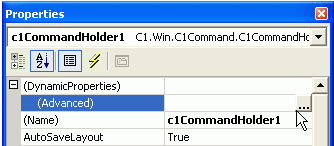
2. Expand the **DynamicProperties** node and then click on the **ellipsis** button next to the **Advanced** property.
The **Dynamic Properties** dialog box appears.
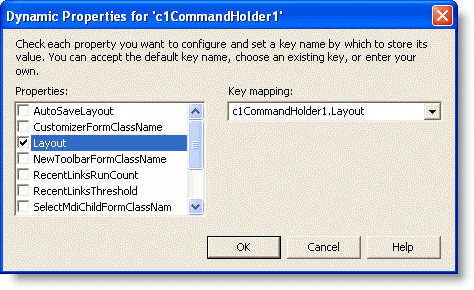
3. Click the **Layout** check box and then click **OK**. This will make Layout saved in the application's .config file instead of in the form's code.
>type=note
> **Note**: When you run your program from the Visual Studio's designer, Visual Studio creates an app.config file in the project directory, and then on each run replaces the actual application's .config file (located in the bin directory) with that app.config file's contents. As a result, if you run the project in Visual Studio, change the toolbars layout, close it and then run it again, you won't see the last layout restored. This is not a bug, everything works fine when the application is not run from Visual Studio.
In addition to saving your toolbar layout using the form's dynamic properties you can also use your own scheme for saving and restoring the toolbars layout. For finer control, save and set the value of the [Layout](/componentone/docs/win/online-menus-toolbar/) property in your code instead.
### Toolbars
The **Toolbars** tab contains options for creating and manipulating toolbars.
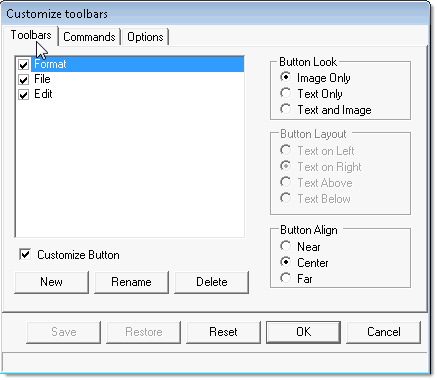
By default, the [ButtonLook](/componentone/api/win/online-menus-toolbar/dotnet-api/C1.Win.Command.10/C1.Win.Command.C1CommandLink.ButtonLook.html) and the [CustomizeButton](/componentone/api/win/online-menus-toolbar/dotnet-api/C1.Win.Command.10/C1.Win.Command.C1ToolBar.CustomizeButton.html) properties are disabled.
The Button Layout properties are enabled when the **ButtonLook** property is set to **Text and Image**(the **Text and Image** radio button is selected). This is because the [ButtonLayoutHorz](/componentone/api/win/online-menus-toolbar/dotnet-api/C1.Win.Command.10/C1.Win.Command.C1ToolBar.ButtonLayoutHorz.html) property determines how the text is placed by the image (above, below, to the left, or to the right of the image).
The **CustomizeButton** is enabled when a new [C1ToolBar](/componentone/docs/win/online-menus-toolbar/designtimesupport/c1commandsmartdesign/smartdesignerfloatin/c1toolbartoolbar) is added to the dialog box.
### Commands
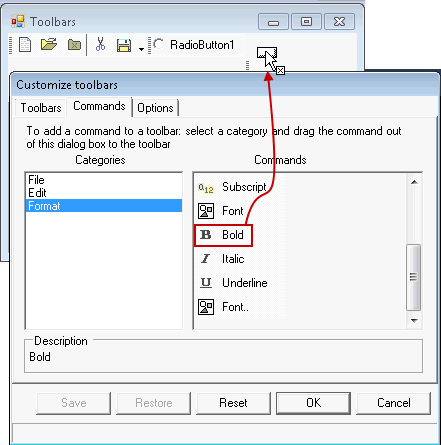
The **Commands** tab contains two list boxes: **Categories** and **Commands**. The **Categories** list box contains the categories for all of the commands. The **Commands** list box contains all of the commands for each category.
>type=note
> **Note**: The Categories list box appears empty if the [Category](/componentone/api/win/online-menus-toolbar/dotnet-api/C1.Win.Command.10/C1.Win.Command.C1Command.Category.html) property is not set for the commands.
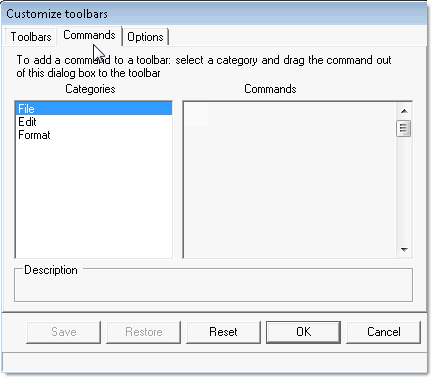
Commands can be easily added to the toolbars by doing either of the following:
* Selecting a category from the **Categories** list box.
* Selecting a command from the **Commands** list box and then dragging it to the desired toolbar.
The following image illustrates a command being dragged from the Commands list to the Format toolbar on the form at run time.
### Options
The **Options** tab contains options for modifying **C1ToolBar**’s general appearance properties such as its look and feel and its colors and font.
## See Also
[Wrapping Toolbar Buttons and Text](/componentone/docs/win/online-menus-toolbar/menusandtoolbarsover/toolbarsappearancean/wrappingtoolbarbutto)