# ToolTips in Menus
Get started with Menus and Toolbars for WinForms. Create versatile menus and docking/floating toolbars. See more in documentation here.
## Content
A ToolTip is used to display text when the mouse hovers over the control. The [C1MainMenu](/componentone/docs/win/online-menus-toolbar/) class provides the [ShowToolTips](/componentone/docs/win/online-menus-toolbar/) property to indicate whether the menu item can show the tooltip text when the mouse cursor hovers over it. By default, this property is false.
When you set the **ShowToolTips** property to true, the value of the **Text** property of the menu item is displayed as the tooltip. For example, if we have a menu item in the main menu with text value as File, then the tooltip will appear as follows:

You can also set a custom text as the tooltip of each menu item. For doing so, set the [ShowTextAsToolTip](/componentone/docs/win/online-menus-toolbar/) property to False and then set the custom text using the [ToolTipText](/componentone/docs/win/online-menus-toolbar/) property. For instance, if we have a menu item with text value as File and the ToolTip Text set as 'View File', then the tooltip will appear as shown below.

To display the tooltip text, use the following code.
```csharp
C1CommandMenu mmenu = ch.CreateCommand(typeof(C1CommandMenu)) as C1CommandMenu;
mmenu.Text = "File";
mmenu.ShowTextAsToolTip = false;
mmenu.ToolTipText = "View file";
```
### Specify Font for Tooltip
While you can display plain text tooltips for the MainMenu control, it is also possible to display tooltips with rich HTML text, and use different fonts. To display such tooltips, use [SuperTooltip](/componentone/docs/win/online-menus-toolbar/) property of the [C1MainMenu](/componentone/docs/win/online-menus-toolbar/) class, which gets an external SuperToolTip control for the MainMenu.
The following image depicts a supertooltip that appears on hovering over the File menu.
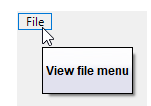
To configure the SuperTooltip, follow the steps below:
1. Install the **C1.Win.SuperTooltip** package.
2. Drag and drop the SuperTooltip component on the form.
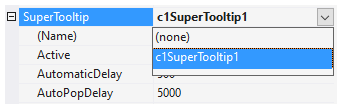
3. In the **Properties** window, select the SuperTooltip component from the dropdown menu of the **SuperTooltip** property of the **MainMenu** control.
### Through Designer
1. In the **Properties** window, click the ellipsis button next to the **Tooltip on c1SuperTooltip1** property of the MainMenu to open the **C1SuperTooltip Editor**.
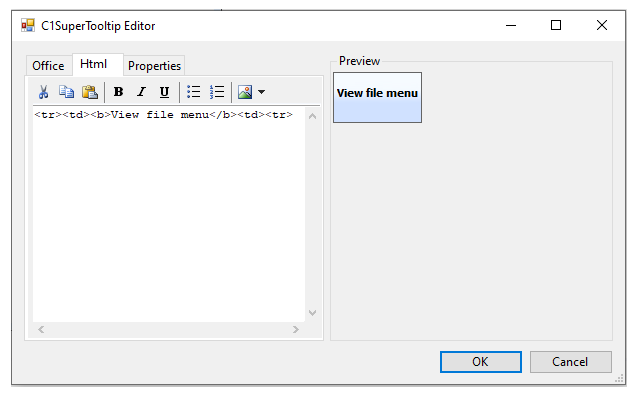
2. Select the **Html** tab. Enter the following HTML code in the Html text box.
```html
| View file menu | |
```
A preview of the SuperTooltip appears in the **Preview** pane.
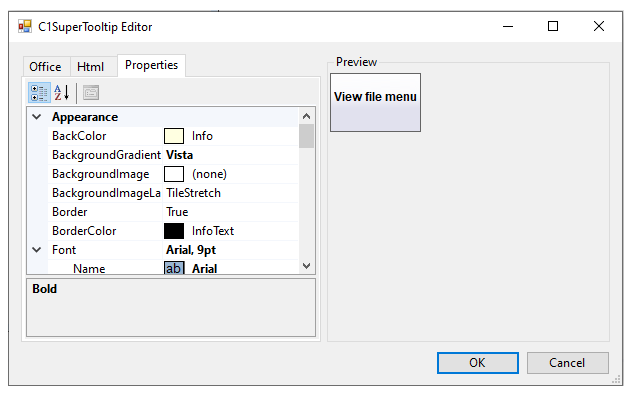
3. Select the **Properties** tab, set the **BackgroundGradient, Font** and **Size** properties for the supertooltip and click OK to close the editor.
### Through Code
1. Use the [SetToolTip](/componentone/docs/win/online-menus-toolbar/) (System.Windows.Forms.Control control, string text) method of the [C1SuperTooltip](/componentone/docs/win/online-menus-toolbar/) class to associate the tooltip HTML text with the specified control, which is MainMenu control in our case.
```csharp
c1SuperTooltip1.SetToolTip(c1MainMenu1, "| View file menu | |
");
```
> type=note
> **Note**: The **SetToolTip** property only works with controls and ToolStripItems and not for components, which means that it cannot be used for menu items. In such a case, you can just set the SuperToolTip and ToolTipText properties for the menu item.
2. Set the **BackgroundGradient** and **Font** properties for SuperTooltip.
```csharp
c1SuperTooltip1.BackgroundGradient = BackgroundGradient.Vista;
c1SuperTooltip1.Font = new Font("Arial", 9);
```
For more information on how to use the ToolTips, see [Displaying ToolTips for Menus and Toolbars](/componentone/docs/win/online-menus-toolbar/menusandtoolbarsforw2/menutasks/displayingtooltipsfo).
## See Also
[Toolbars Appearance and Behavior](/componentone/docs/win/online-menus-toolbar/menusandtoolbarsover/toolbarsappearancean)