# Adding ToolTips to Link Pages
Get started with Menus and Toolbars for WinForms. Create versatile menus and docking/floating toolbars. See more in documentation here.
## Content
You can add ToolTips to topic links using the floating toolbar, the collection editor, and code.
### Using the Floating Toolbar
Complete the following steps:
1. Navigate to the Toolbox and double-click the [C1TopicBar](/componentone/docs/win/online-menus-toolbar/) icon. The [C1TopicBar](/componentone/docs/win/online-menus-toolbar/) control is added to the form. Observe that one page, named **Page 1**, appears on the control by default.
2. Add a topic link to **Page 1** (see [Adding Topic Links to Topic Pages](/componentone/docs/win/online-menus-toolbar/menusandtoolbarsforw2/topicbartasks/addingandremovingtop/addingtopiclinkstoto)).
3. Hover over the new link until its floating toolbar appears and then click the **Edit topic link appearance** button .
The **C1TopicLink Properties** editor opens.
4. In the Tooltip text box, enter “I am a topic link ToolTip!”.
5. Press F5 to build the project.
6. Hover over the link you added the ToolTip to and observe that a ToolTip appears.
### Using the Collection Editor
Complete the following steps:
1. Navigate to the Toolbox and double-click the [C1TopicBar](/componentone/docs/win/online-menus-toolbar/) icon. The [C1TopicBar](/componentone/docs/win/online-menus-toolbar/) control is added to the form. Observe that one page, named **Page 1**, appears on the control by default.
2. Click [C1TopicBar](/componentone/docs/win/online-menus-toolbar/)'s smart tag () to open the **C1TopicBar Tasks** menu.
3. On the **C1TopicBar Tasks** menu, click **Edit Pages**.
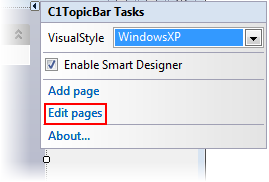
The **C1TopicPage Collection Editor** opens.
4. In the Properties grid, locate the **Links** property and click the ellipsis button .
The **C1TopicLink Collection Editor** opens.
5. In the Members pane, select the link you wish to add the ToolTip to.
6. In the Properties grid, set the [ToolTipText](/componentone/docs/win/online-menus-toolbar/) property to “I am a topic link ToolTip!”.
7. Click **OK** to close the **C1TopicLink Collection Editor**.
8. Click **OK** to close the **C1TopicPage Collection Editor**.
9. Press F5 to build the project.
10. Hover over the link you added the ToolTip to and observe that a ToolTip appears.
### Using Code
Complete the following steps:
1. Navigate to the Toolbox and double-click the [C1TopicBar](/componentone/docs/win/online-menus-toolbar/) icon. The [C1TopicBar](/componentone/docs/win/online-menus-toolbar/) control is added to the form. Observe that one page, named **Page 1**, appears on the control by default.
2. Click [C1TopicBar](/componentone/docs/win/online-menus-toolbar/)'s smart tag () to open the **C1TopicBar Tasks** menu.
3. On the **C1TopicBar Tasks** menu, click **Edit Pages**.

The **C1TopicPage Collection Editor** opens.
4. In the Members pane, select a page.
5. In the Properties grid, locate the **Links** property and click the ellipsis button . The **C1TopicLink Collection Editor** opens.
6. In the Members pane, select the link you wish to add the ToolTip to.
7. In the Properties grid, set the [Tag](/componentone/docs/win/online-menus-toolbar/) property to “LinkToolTip”. In a later step, you will use this tag to find the topic link.
8. Click **OK** to close the **C1TopicLink Collection Editor**.
9. Click **OK** to close the **C1TopicPage Collection Editor**.
10. Double-click the empty part of the form to open Code view. Notice that a **Form\_Load** event handler has been added to Code view.
11. Add the following code to the **Form\_Load** event. This code will find the page, assign it to a variable, and then set the page's [ToolTipText](/componentone/docs/win/online-menus-toolbar/) property.
DOC-DETAILS-TAG-OPEN
DOC-SUMMARY-TAG-OPEN
To write code in Visual Basic
DOC-SUMMARY-TAG-CLOSE
```vbnet
Dim c1TopicLink1 = c1TopicBar1.FindLinkByTag("LinkToolTip")
c1TopicLink1.ToolTipText = "I am a topic link ToolTip!"
```
DOC-DETAILS-TAG-CLOSE
DOC-DETAILS-TAG-OPEN
DOC-SUMMARY-TAG-OPEN
To write code in C#
DOC-SUMMARY-TAG-CLOSE
```csharp
var c1TopicLink1 = c1TopicBar1.FindLinkByTag("LinkToolTip");
c1TopicLink1.ToolTipText = "I am a topic link ToolTip!";
```
DOC-DETAILS-TAG-CLOSE
12. Press F5 to build the project.
13. Hover over the link you added the ToolTip to and observe that a ToolTip appears.
### This topic illustrates the following:
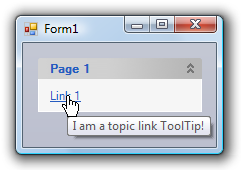
In this topic, you learned how to add a ToolTip to a topic page using the floating toolbar, the collection editor, and code. No matter which method you used in this topic, the result will resemble the following:
## See Also
[Disabling ToolTips](/componentone/docs/win/online-menus-toolbar/menusandtoolbarsforw2/topicbartasks/usingtopicbartooltip/disablingtooltips)