# Adding an Icon to a Topic Page
Get started with Menus and Toolbars for WinForms. Create versatile menus and docking/floating toolbars. See more in documentation here.
## Content
In this topic, you will create an image list and then an image in that list to a topic page.
Complete the following steps:
1. In the Toolbox, double-click the [C1TopicBar](/componentone/docs/win/online-menus-toolbar/) icon to add the [C1TopicBar](/componentone/docs/win/online-menus-toolbar/) control to your project.
2. In the Toolbox, double click the **Image List** icon to add the **Image List** component to your project.
3. Click the **ImageList** control's smart tag () to open the **Image List Tasks** menu.
4. Select **Choose Images** to open the **Images Collection Editor**.
5. Click **Add** to open the **Open** dialog box and complete the following:
1. Navigate to the image you wish to use as an icon.
2. Select the image.
3. Press **OK** to close the **Open** dialog box and to return to the **Images Collection Editor**. Observe that the image is numbered “0”.
6. Press **OK** to close the **Images Collection Editor**.
7. Right-click the [C1TopicBar](/componentone/docs/win/online-menus-toolbar/) control to open its context menu and then select **Properties** from the list. The Properties window opens with the [C1TopicBar](/componentone/docs/win/online-menus-toolbar/) control's properties in focus.
8. Locate the [ImageList](/componentone/docs/win/online-menus-toolbar/) property, click its drop-down arrow, and select **imageList1** from the list. This loads the image list into the control so that the control's topic pages can pull images from the list.
9. Hover over **Page 1** with your cursor until the floating toolbar appears. The topic page's toolbar appears as follows:
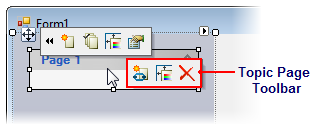
10. Click the **Edit topic page appearance** button  to open the **C1TopicPage Properties** editor.
11. Click the **Image Index** drop-down arrow and select **0** from the list.
The icon is added to **Page 1**.
### This topic illustrates the following:
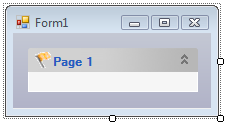
In this topic, you added an icon to a topic page. The image below depicts a page with an icon.
## See Also
[Adding an Icon to a Topic Link](/componentone/docs/win/online-menus-toolbar/menusandtoolbarsforw2/topicbartasks/customizingtheappear/addinganicontoatopic1)