# Removing a Topic Page from the TopicBar
Get started with Menus and Toolbars for WinForms. Create versatile menus and docking/floating toolbars. See more in documentation here.
## Content
There are three ways to remove a page from the topic bar: you can use the floating toolbar, the collection editor, or code. In this topic, you will learn how to remove pages from the topic bar using each of these three methods.
### Using the Floating Toolbar
Complete the following steps:
1. Navigate to the Toolbox and double-click the [C1TopicBar](/componentone/docs/win/online-menus-toolbar/) icon. The [C1TopicBar](/componentone/docs/win/online-menus-toolbar/) control is added to the form. Observe that one page, named **Page 1**, appears on the control by default. If you'd like to add more pages to the control, see [Adding Topic Pages to the TopicBar](/componentone/docs/win/online-menus-toolbar/menusandtoolbarsforw2/topicbartasks/addingandremovingtop/addingtopicpagestoth).
2. Hover over **Page 1** with your cursor until the floating toolbar appears. The topic page's toolbar appears as follows:
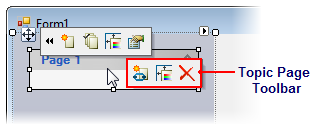
3. Click the **Delete topic page** button .
The topic page is removed from the control.
### Using the Collection Editor
Complete the following steps:
1. Navigate to the Toolbox and double-click the [C1TopicBar](/componentone/docs/win/online-menus-toolbar/) icon. The [C1TopicBar](/componentone/docs/win/online-menus-toolbar/) control is added to the form. Observe that one page, named **Page 1**, appears on the control by default. If you'd like to add more pages to the control, see [Adding Topic Pages to the TopicBar](/componentone/docs/win/online-menus-toolbar/menusandtoolbarsforw2/topicbartasks/addingandremovingtop/addingtopicpagestoth).
2. Click [C1TopicBar](/componentone/docs/win/online-menus-toolbar/)'s smart tag () to open the **C1TopicBar Tasks** menu.
3. On the **C1TopicBar Tasks** menu, click **Edit Pages**.
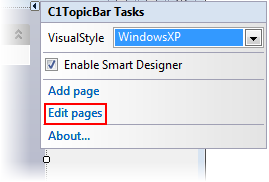
The **C1TopicPage Collection Editor** opens.
4. In the Members pane, select the page you wish to remove.
5. Click **Remove** to remove the page.
6. Click **OK** to close the **C1TopicPage Collection Editor**.
The page is removed from the control.
### Using Code
Complete the following steps:
1. Navigate to the Toolbox and double-click the [C1TopicBar](/componentone/docs/win/online-menus-toolbar/) icon. The [C1TopicBar](/componentone/docs/win/online-menus-toolbar/) control is added to the form. Observe that one page, named **Page 1**, appears on the control by default. If you'd like to add more pages to the control, see [Adding Topic Pages to the TopicBar](/componentone/docs/win/online-menus-toolbar/menusandtoolbarsforw2/topicbartasks/addingandremovingtop/addingtopicpagestoth).
2. Click [C1TopicBar](/componentone/docs/win/online-menus-toolbar/)'s smart tag () to open the **C1TopicBar Tasks** menu.
3. On the **C1TopicBar Tasks** menu, click **Edit Pages**.

The **C1TopicPage Collection Editor** opens.
4. Select the page you wish to remove and then set its **Tag** property to “Tag1”. Adding this tag gives the page a unique indicator that will allow you to find it later using the [FindPageByTag](/componentone/docs/win/online-menus-toolbar/) method.
5. Click **OK** to close the **C1TopicPage Collection Editor**.
6. Double-click the empty portion of the form to open Code view. Notice that a **Form\_Load** event handler has been added to Code view.
7. Add the following code, which finds the page and then removes it, to the **Form\_Load** event:
DOC-DETAILS-TAG-OPEN
DOC-SUMMARY-TAG-OPEN
To write code in Visual Basic
DOC-SUMMARY-TAG-CLOSE
```vbnet
'Find the page and assign it to a variable
Dim Page1 = c1TopicBar1.FindPageByTag("Tag1")
'Remove the specified page
c1TopicBar1.Pages.Remove(Page1)
```
DOC-DETAILS-TAG-CLOSE
DOC-DETAILS-TAG-OPEN
DOC-SUMMARY-TAG-OPEN
To write code in C#
DOC-SUMMARY-TAG-CLOSE
```csharp
//Find the page and assign it to a variable
var Page1 = c1TopicBar1.FindPageByTag("Tag1");
//Remove the specified page
c1TopicBar1.Pages.Remove(Page1);
```
DOC-DETAILS-TAG-CLOSE
8. Press F5 to build the project and observe that the page has been removed.
## See Also
[Adding Topic Links to Topic Pages](/componentone/docs/win/online-menus-toolbar/menusandtoolbarsforw2/topicbartasks/addingandremovingtop/addingtopiclinkstoto)