# Creating a Toolbar
Get started with Menus and Toolbars for WinForms. Create versatile menus and docking/floating toolbars. See more in documentation here.
## Content
You can create a toolbar at design time or through code. Click on either of the following links to expand the steps for the designer or for the code.
DOC-DETAILS-TAG-OPEN
DOC-SUMMARY-TAG-OPEN
To create a toolbar at design time
DOC-SUMMARY-TAG-CLOSE
To create a [C1ToolBar](/componentone/docs/win/online-menus-toolbar/) using its **Link to Command** designer, complete the following steps;.
1. Place a **C1ToolBar** control on the form, then right-click the **C1ToolBar** control and select **Edit** from its context menu. The **Link to Command** designer for the selected toolbar item appears.
2. Enter **File** in the **Text** textbox, and then click **OK**.
3. Select **c1CommandLink1** from the Properties drop-down list. Set the CommandLink's [ButtonLook](/componentone/docs/win/online-menus-toolbar/) property field for the File toolbar button to **Text**. The File toolbar button appears as text.
4. Right-click on the [C1ToolBar](/componentone/docs/win/online-menus-toolbar/) control and select **Append Item** from the context menu. The new command link will be added after the current one. The **Link to Command** designer appears.
5. Enter **Edit** in the **Text** textbox and press the **OK** button.
6. Select **c1CommandLink2** from the **Properties** drop-down list box. Set the CommandLink's ButtonLook property field for the **Edit** toolbar button to **Text**.
7. Right-click on the Edit toolbar button and select **Insert Item** from its context menu. The new command link will be added before the current one. The **Link to Command** designer.
8. Enter **View** in the **Text** textbox then click **OK**.
9. Select **c1CommandLink3** from the Properties drop-down list. Set the CommandLink's ButtonLook property field for the View toolbar button to **Text**.
10. Build and run the Windows application.
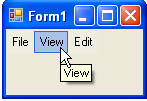
At run time, the toolbar appears like the following image:
DOC-DETAILS-TAG-CLOSE
DOC-DETAILS-TAG-OPEN
DOC-SUMMARY-TAG-OPEN
To create a toolbar programmatically
DOC-SUMMARY-TAG-CLOSE
To programmatically create a [C1ToolBar](/componentone/docs/win/online-menus-toolbar/) with text buttons, complete the following steps:
1. Add the C1.Win.C1Command namespace to your references in your project.
2. Declare the namespace in your source file, then add a **C1CommandHolder** to hold the toolbar.
To write code in Visual Basic
```vbnet
Imports C1.Win.C1Command
Dim ch As C1CommandHolder = C1CommandHolder.CreateCommandHolder(Me)
```
To write code in C#
```csharp
using C1.Win.C1Command;
C1CommandHolder ch = C1CommandHolder.CreateCommandHolder(this);
```
3. Create a new [C1ToolBar](/componentone/docs/win/online-menus-toolbar/), then add the [C1ToolBar](/componentone/docs/win/online-menus-toolbar/) on your form.
To write code in Visual Basic
```vbnet
Dim tb As New C1ToolBar()
Me.Controls.Add(tb)
```
To write code in C#
```csharp
C1ToolBar tb = new C1ToolBar();
this.Controls.Add(tb);
```
4. Assign the [C1CommandHolder](/componentone/docs/win/online-menus-toolbar/) to the [C1ToolBar](/componentone/docs/win/online-menus-toolbar/), then create a new command for the toolbar. The name for the new command will be called **File**.
To write code in Visual Basic
```vbnet
tb.CommandHolder = ch
Dim cFile As New C1Command()
cFile.Text = "File"
```
To write code in C#
```csharp
tb.CommandHolder = ch;
C1Command cFile = new C1Command();
cFile.Text = "File";
```
5. Create a new commandlink for the new command in the toolbar, then add the new commandlink to the toolbar.
To write code in Visual Basic
```vbnet
Dim cl As C1CommandLink
cl = New C1CommandLink(cFile)
tb.CommandLinks.Add(cl)
```
To write code in C#
```csharp
C1CommandLink cl = new C1CommandLink(cFile);
tb.CommandLinks.Add(cl);
```
6. Make the commandlink appear as text, then create another command for the toolbar and call it **View**.
To write code in Visual Basic
```vbnet
cl.ButtonLook = ButtonLookFlags.Text
Dim cView As New C1Command()
cView.Text = "View"
```
To write code in C#
```csharp
cl.ButtonLook = ButtonLookFlags.Text;
C1Command cView = new C1Command();
cView.Text = "View";
```
7. Create a new commandlink for the new command, **View**, then add it to the toolbar.
To write code in Visual Basic
```vbnet
cl = New C1CommandLink(cView)
tb.CommandLinks.Add(cl)
```
To write code in C#
```csharp
cl = new C1CommandLink(cView);
tb.CommandLinks.Add(cl);
```
8. Make the commandlink for **View** appear as text, then create another command and call it **Edit**.
To write code in Visual Basic
```vbnet
cl.ButtonLook = ButtonLookFlags.Text
Dim mEdit As New C1Command()
mEdit.Text = "Edit"
```
To write code in C#
```csharp
cl.ButtonLook = ButtonLookFlags.Text;
C1Command mEdit = new C1Command();
mEdit.Text = "Edit";
```
9. Create a new commandlink for the new command, **Edit**, then add the commandlink to the toolbar.
To write code in Visual Basic
```vbnet
cl = New C1CommandLink(mEdit)
tb.CommandLinks.Add(cl)
```
To write code in C#
```csharp
cl = new C1CommandLink(mEdit);
tb.CommandLinks.Add(cl);
```
10. Make the command link for the edit toolbar button to appear as text.
To write code in Visual Basic
```vbnet
cl.ButtonLook = ButtonLookFlags.Text
```
To write code in C#
```csharp
cl.ButtonLook = ButtonLookFlags.Text;
```
11. Save and run your application.
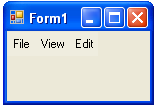
The toolbar appears like the following:
DOC-DETAILS-TAG-CLOSE
## See Also
[Docking a Toolbar Programmatically](/componentone/docs/win/online-menus-toolbar/menusandtoolbarsforw2/toolbartasks/dockingatoolbarprogr)