# Displaying the Delimiter in Drop-Down Menus
Get started with Menus and Toolbars for WinForms. Create versatile menus and docking/floating toolbars. See more in documentation here.
## Content
To display a delimiter in the drop-down menu, complete the following steps:
1. Right-click a command from an existing drop-down menu and select **Append Item** from its context menu.
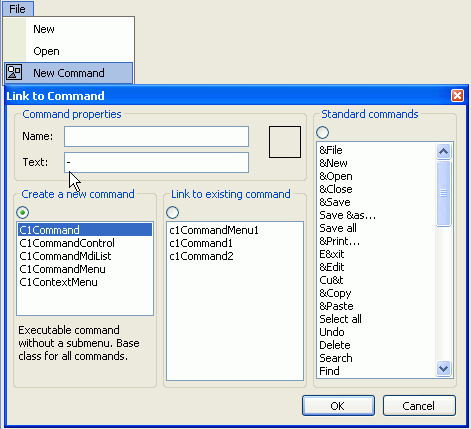
2. A new command will appear. In the New Command's **Link to Command to Command** designer, delete the name in the **Name** textbox. In the **Text** textbox change the name to a hyphen. The input value for the **Text** textbox and **Name** textbox fields should appear like the **Link to Command** designer shown below.
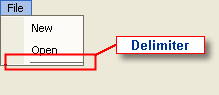
3. Select **OK** and your command link will appear as a delimiter like the one shown below.
## See Also
[Displaying ToolTips for Menus and Toolbars](/componentone/docs/win/online-menus-toolbar/menusandtoolbarsforw2/menutasks/displayingtooltipsfo)