# Adding Multiple SubMenus
Get started with Menus and Toolbars for WinForms. Create versatile menus and docking/floating toolbars. See more in documentation here.
## Content
You can add a submenu and another menu within the submenu through the designer or through code. Click on either of the following links to expand the steps for the designer or for the code.
DOC-DETAILS-TAG-OPEN
DOC-SUMMARY-TAG-OPEN
To add multiple submenu items at design time
DOC-SUMMARY-TAG-CLOSE
To add a submenu and another menu within the submenu at design time, complete the following steps:
1. Place the [C1MainMenu](/componentone/docs/win/online-menus-toolbar/) control on your form using a drag-and-drop operation.
2. Right-click on the [C1MainMenu](/componentone/docs/win/online-menus-toolbar/) and select **Edit** from its context menu. The **Link to Command** designer appears.
3. In the **Text** textbox enter **menu 1** and click **OK**. The menu appears like the following:
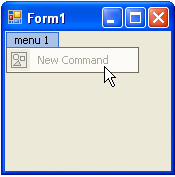
4. Click on the **New Command** and select **Edit** from its context menu. In the **Text** textbox enter **Menu Item 1** and select **OK**.
5. Click on **menu 1** on your form.
6. Click on **Menu Item 1** on your form and select **Append Item** from its context menu. The **Link to Command** designer appears.
* In the **Command Text** box enter **Menu Item 2**, and select **OK**. The menu appears like the following:
* Click on **Menu Item 2** on your form and select **Edit** from its context menu. The **Link to Command** designer appears.8. In the **Command Type** box select **C1CommandMenu,** and then select **OK**. The **Menu Item 2** is a [C1CommandMenu](/componentone/docs/win/online-menus-toolbar/) type that can hold multiple menus inside it.
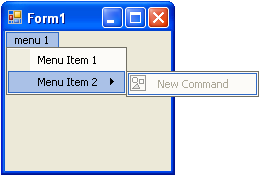
9. Select the **New Command** menu item and select **Edit** from its context menu.
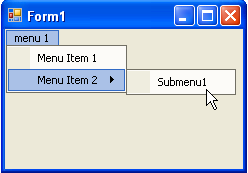
10. In the **Text** textbox enter **Submenu1** and click **OK**. The menu appears like the following image:
DOC-DETAILS-TAG-CLOSE
DOC-DETAILS-TAG-OPEN
DOC-SUMMARY-TAG-OPEN
To add multiple submenus programmatically
DOC-SUMMARY-TAG-CLOSE
To programmatically add a submenu and another menu within the submenu, complete the following steps:
1. Add the **C1.Win.C1Command** namespace to your references in your project, and then declare the namespace in your source file.
To write code in Visual Basic
```vbnet
Imports C1.Win.C1Command
```
To write code in C#
```csharp
using C1.Win.C1Command;
```
2. Double-click the form to create a **Form\_Load** event handler, then insert the following code snippets from the remaining steps into the **Form\_Load** event handler.
3. Add a [C1CommandHolder](/componentone/docs/win/online-menus-toolbar/) to hold the menu, then create a new [C1MainMenu](/componentone/docs/win/online-menus-toolbar/) object.
To write code in Visual Basic
```vbnet
Dim ch As C1CommandHolder = C1CommandHolder.CreateCommandHolder(Me)
Dim mm As New C1MainMenu
```
To write code in C#
```csharp
C1CommandHolder ch = C1CommandHolder.CreateCommandHolder(this);
C1MainMenu mm = new C1MainMenu();
```
4. Add the main menu control to your form, then create the main menu to hold commands.
To write code in Visual Basic
```vbnet
Me.Controls.Add(mm)
Dim mmenu As C1CommandMenu = CType(ch.CreateCommand(GetType(C1CommandMenu)), C1CommandMenu)
```
To write code in C#
```csharp
this.Controls.Add(mm);
C1CommandMenu mmenu = ch.CreateCommand(typeof(C1CommandMenu)) as C1CommandMenu;
```
5. Set the text property for the new menu, then add the commandlink to the new main menu.
To write code in Visual Basic
```vbnet
mmenu.Text = "&menu 1"
mm.CommandLinks.Add(New C1CommandLink(mmenu))
```
To write code in C#
```csharp
mmenu.Text = "&menu 1";
mm.CommandLinks.Add(new C1CommandLink(mmenu));
```
6. Create and set up a menu item under the menu (**menu 1**), then fill the menu with a command.
To write code in Visual Basic
```vbnet
Dim menuitem1 As C1Command = ch.CreateCommand()
```
To write code in C#
```csharp
C1Command menuitem1 = ch.CreateCommand();
```
7. Add text to the new menu item and add a new c1commandlink to menuitem1.
To write code in Visual Basic
```vbnet
menuitem1.Text = "Menu Item 1"
'add a new c1commandlink to the menuitem1
mmenu.CommandLinks.Add(New C1CommandLink(menuitem1))
```
To write code in C#
```csharp
menuitem1.Text = "Menu Item 1";
//add a new c1commandlink to the menuitem1
mmenu.CommandLinks.Add(new C1CommandLink(menuitem1));
```
8. Create a new command menu for the second menu item below the menu (**menu1**), and then add a commandlink for the new menuitem2 menu. **Menuitem2** is going to be a menu that contains submenus.
To write code in Visual Basic
```vbnet
Dim menuitem2 As C1CommandMenu = New C1CommandMenu()
menuitem2.Text = "Menu Item 2"
menu.CommandLinks.Add(New C1CommandLink(menuitem2))
```
To write code in C#
```csharp
C1CommandMenu menuitem2 = new C1CommandMenu();
menuitem2.Text = "Menu Item 2";
mmenu.CommandLinks.Add(new C1CommandLink(menuitem2));
```
9. Create a submenu for the new **menuitem2** menu and call it **Submenu 1**, then add a commandlink for submenu1.
To write code in Visual Basic
```vbnet
Dim submenu1 As C1Command = ch.CreateCommand()
submenu1.Text = "Submenu1"
menuitem2.CommandLinks.Add(New C1CommandLink(submenu1))
```
To write code in C#
```csharp
C1Command submenu1 = ch.CreateCommand();
submenu1.Text = "Submenu1";
menuitem2.CommandLinks.Add(new C1CommandLink(submenu1));
```
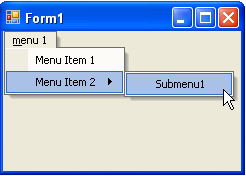
10. Save and run your application. The menus appear like the following at run time:
DOC-DETAILS-TAG-CLOSE
## See Also
[Applying ShortCut Keys to Menus](/componentone/docs/win/online-menus-toolbar/menusandtoolbarsforw2/menutasks/applyingshortcutkeys)