# Adding a Standard Menu Item from the Link to Command Designer
Get started with Menus and Toolbars for WinForms. Create versatile menus and docking/floating toolbars. See more in documentation here.
## Content
To add a standard command item with a built-in image from the **Link to Command** designer, complete the following steps:
1. Click the empty command item twice from the [C1MainMenu](/componentone/docs/win/online-menus-toolbar/) control. The **Link to Command** designer appears.
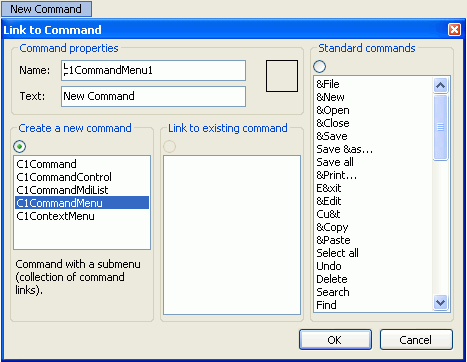
2. Select one of the standard commands from the listbox, for example, **Find**.
3. Click **OK**.
The new command item and its built-in image appears in the [C1MainMenu](/componentone/docs/win/online-menus-toolbar/) control on the form.

4. Select the menu, **Find**, and select the **C1CommandLink Properties** button from its toolbar. The dialog box for the [C1CommandLink](/componentone/docs/win/online-menus-toolbar/) properties to appear.
> type=note
> **Note**: The toolbar for the command item will not appear if the Smart Designer is not enabled.
5. Click on the drop-down arrow for the **Button look** drop-down box and select **TextAndImage**.
The built-in image appears next to the text, Find.

> type=note
> **Note**: The same procedure can be applied when adding a standard command item to the **C1ToolBar** control.
## See Also
[Adding a Submenu](/componentone/docs/win/online-menus-toolbar/menusandtoolbarsforw2/menutasks/addingasubmenu)