# Adding a Menu Item to MainMenu
Get started with Menus and Toolbars for WinForms. Create versatile menus and docking/floating toolbars. See more in documentation here.
## Content
You can add a menu item to [C1MainMenu](/componentone/docs/win/online-menus-toolbar/) at design time by adding the [C1MainMenu](/componentone/docs/win/online-menus-toolbar/) component and then appending menu items to it using the Edit designer (Menu designer). Menus can also be added programmatically by adding [C1CommandHolder](/componentone/docs/win/online-menus-toolbar/) object to the Windows form to hold the menus, add the [C1MainMenu](/componentone/docs/win/online-menus-toolbar/) object, and then create the command type for the menu. This topic shows how to create a menu item, called **menu 1** that can hold future submenu items.
> type=note
> **Note**: **C1MainMenu** is a control that represents the main menu. It contains a collection of command links that represent items of the menu. Only one main menu can be added to the form. **C1CommandMenu** is a command that is a menu.
DOC-DETAILS-TAG-OPEN
DOC-SUMMARY-TAG-OPEN
To add a menu item to C1MainMenu at design time
DOC-SUMMARY-TAG-CLOSE
To add a menu item to [C1MainMenu](/componentone/docs/win/online-menus-toolbar/) using the **Link to Command** designer, complete the following:
1. Place a [C1MainMenu](/componentone/docs/win/online-menus-toolbar/) on the form by performing a drag-and-drop operation. A [C1CommandHolder](/componentone/docs/win/online-menus-toolbar/) automatically appears on the component tray below the form.
2. Right-click the text, **New Command**, and select **Edit** from its context menu. The **Link to Command** designer appears.
3. In the **Link to Command** designer, select the **Text** field and enter **&Menu 1**.
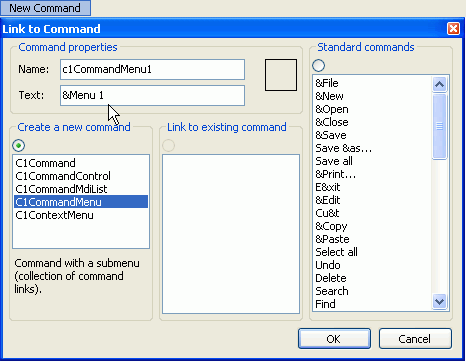
4. Select **OK**. The new menu (Menu 1) appears. Here is how the menu looks on your form at design time:

DOC-DETAILS-TAG-CLOSE
DOC-DETAILS-TAG-OPEN
DOC-SUMMARY-TAG-OPEN
To add a menu item to C1MainMenu programmatically
DOC-SUMMARY-TAG-CLOSE
To add the menu item to [C1MainMenu](/componentone/docs/win/online-menus-toolbar/) programmatically, complete the following steps:
1. Add the **C1.Win.C1Command** namespace to your references in your project.
2. Double-click the form to create a **Form\_Load** event, declare the namespace in your source file, and then add a **C1CommandHolder** to hold the menu.
To write code in Visual Basic
```vbnet
Imports C1.Win.C1Command
Dim ch As C1CommandHolder = C1CommandHolder.CreateCommandHolder(Me)
```
To write code in C#
```csharp
using C1.Win.C1Command;
C1CommandHolder ch = C1CommandHolder.CreateCommandHolder(this);
```
3. Create a new main menu, then add the main menu control to your form.
To write code in Visual Basic
```vbnet
Dim mm As New C1MainMenu
Me.Controls.Add(mm)
```
To write code in C#
```csharp
C1MainMenu mm = new C1MainMenu();
this.Controls.Add(mm);
```
4. Create a submenu to hold commands, then set the text property for the new menu.
To write code in Visual Basic
```vbnet
Dim mmenu As C1CommandMenu = CType(ch.CreateCommand(GetType(C1CommandMenu)), C1CommandMenu)
mmenu.Text = "&menu1"
```
To write code in C#
```csharp
C1CommandMenu mmenu = ch.CreateCommand(typeof(C1CommandMenu)) as C1CommandMenu;
mmenu.Text = "&menu1";
```
5. Add the command link to the new submenu.
To write code in Visual Basic
```vbnet
mm.CommandLinks.Add(New C1CommandLink(mmenu))
```
To write code in C#
```csharp
mm.CommandLinks.Add(new C1CommandLink(mmenu));
```
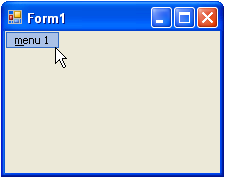
6. Save and run your application. The graphic shows your new menu item on the form at run time:
DOC-DETAILS-TAG-CLOSE
## See Also
[Adding an Icon to a Menu Item](/componentone/docs/win/online-menus-toolbar/menusandtoolbarsforw2/menutasks/addinganicontoamenui)