# Enabling DockingTab Docking and Floating
Get started with Menus and Toolbars for WinForms. Create versatile menus and docking/floating toolbars. See more in documentation here.
## Content
To add a [C1DockingTab](/componentone/docs/win/online-menus-toolbar/) to your form, complete the following basic operations:
1. Place the [C1CommandDock](/componentone/docs/win/online-menus-toolbar/) control onto your form using a drag-and-drop operation.
2. The [C1CommandDock](/componentone/docs/win/online-menus-toolbar/) will dock to the left side of the form. Select the drop-down arrow in the **C1CommandDock.Dock** property and click the top rectangle. This will dock the **C1CommandDock** control to the top of the form.
3. Place the [C1DockingTab](/componentone/docs/win/online-menus-toolbar/) control inside the [C1CommandDock](/componentone/docs/win/online-menus-toolbar/) control using a drag-and-drop operation. It will appear like this on your form:
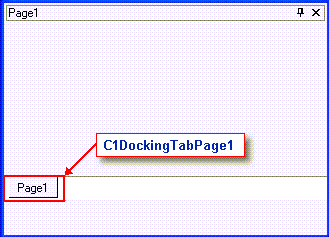
4. Build and run the application. Select **Page1** with your mouse and drag it downward. Your docking tab at run time should look like the following docking tab:
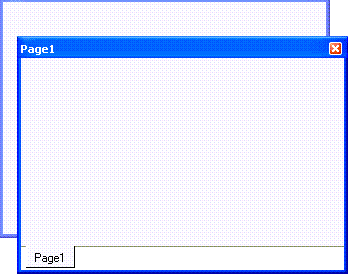
>type=note
> **Note**: You can use the [C1CommandDock](/componentone/docs/win/online-menus-toolbar/) property [FloatHide](/componentone/docs/win/online-menus-toolbar/) to control how the [C1DockingTabPage](/componentone/docs/win/online-menus-toolbar/) behaves at run-time. This property allows you to choose to keep focus on the tab pages when the application loses focus. There are three possible settings for [C1CommandDock.FloatHide](/componentone/docs/win/online-menus-toolbar/): **Default**, **Never**, or **FocusLost**.
## Set Centre Tab Width
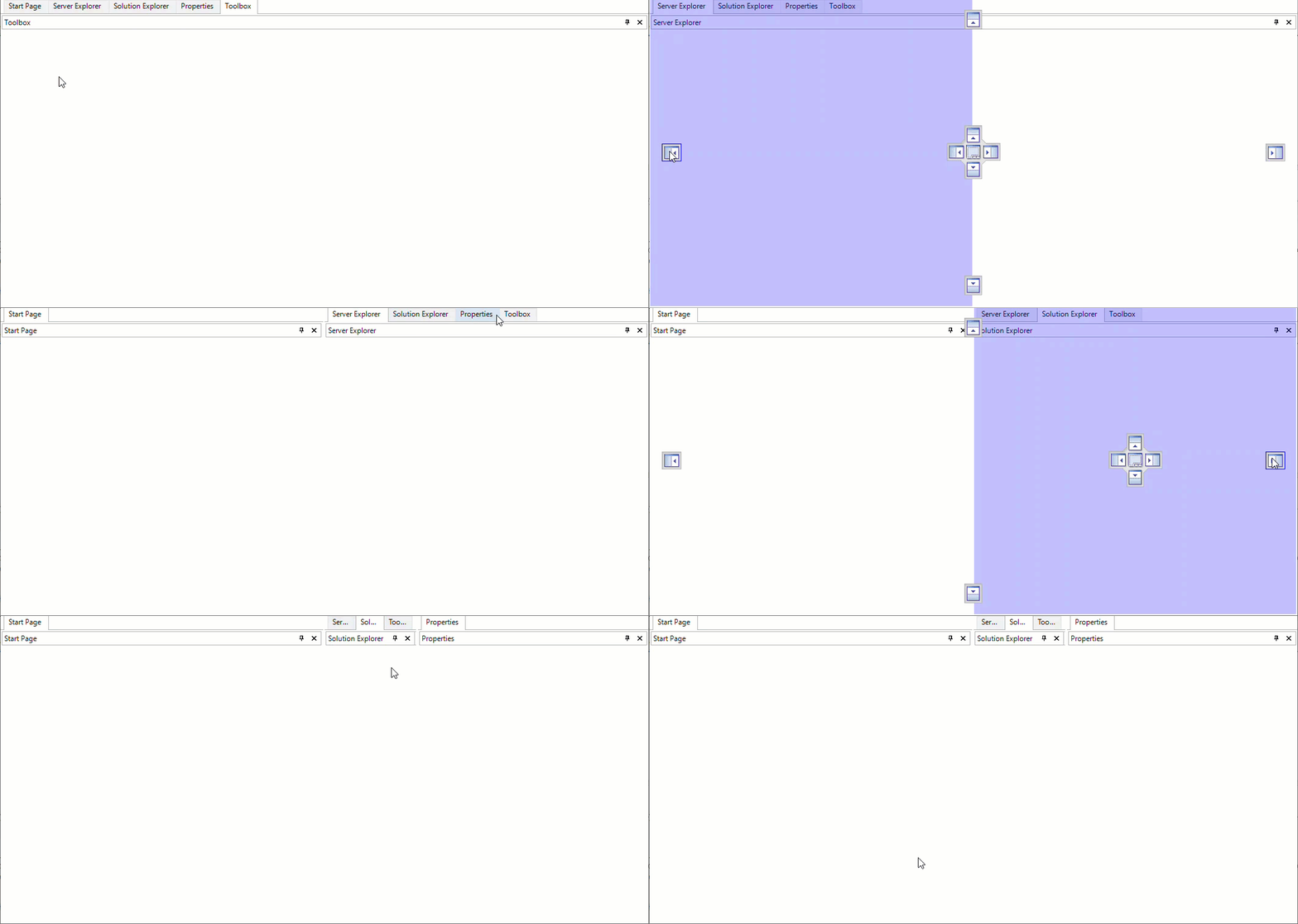
In C1CommandDock, the floating tabpages can be docked using **Left**, **Top**, **Right**, **Bottom**, and **Diamond** anchors. When docking the tabpages in the container, existing tabs may become hidden due to the space occupied by the new tab. In such scenarios, C1CommandDock allows you to set a minimum tab size for existing tabs through [CentralTabMinimumSize](/componentone/docs/win/online-menus-toolbar/) property available in [C1CommandDock](/componentone/docs/win/online-menus-toolbar/) class. The **CentralTabMinimumSize** accepts a non-negative value, either as a percentage or an absolute value. The percentage value specifies the minimum space reserved for the existing tabs as a proportion of the parent container, whereas absolute value specifies the space in terms of pixels.
>type=note
> **Note**: The CentralTabMinimumSize property requires at least two tabpages present in container while a new tab is docked in that area.
The image below illustrates how the CentralTabMinimumSize property preserves space for the existing tabs in C1CommandDock while new tab is being docked.
The below code snippet illustrates setting the CentralTabMinimumSize property with value 150px for central tabs in C1CommandDock.
```csharp
c1CommandDock1.CentralTabMinimumSize.WidthType = SizeType.Absolute;
c1CommandDock1.CentralTabMinimumSize.Width = 150;
```
## Anchors in Floating Tabs
When a tab is detached from the main host window, it becomes an independent host window. This new window functions like the original, allowing additional tabs to be added and supports all docking (anchoring) operations, similar to the original host window.
The below GIF illustrates support of all docking operations in the new host window:
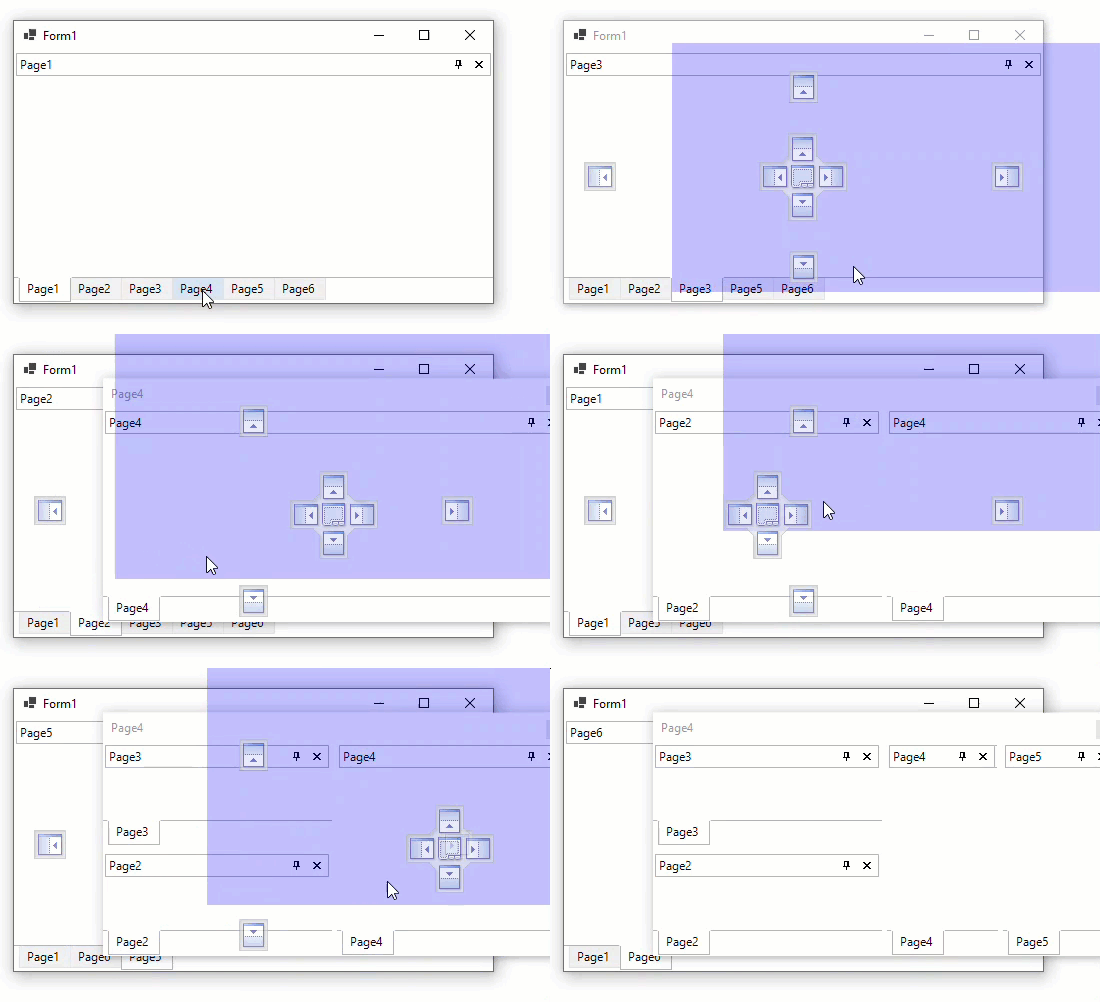
To enable docking operations in the new host window, use the [FloatingWindowOptions](/componentone/docs/win/online-menus-toolbar/) property of C[1DockingManager](/componentone/docs/win/online-menus-toolbar/) Class. Follow the below steps to enable all docking operations in floating window:
1. Add the **C1DockingManager** from the **ToolBox** onto the form. Observe that the **C1DockingManager** component is added to the component tray.
2. Switch to the code window, use the below code to enable all docking operation in the floating window:
```csharp
c1DockingManager1.FloatingWindowOptions.AllowedAnchors = C1.Win.Command.AllowedAnchors.All;
```
## See Also
[Enabling or Disabling Focus Cues](/componentone/docs/win/online-menus-toolbar/menusandtoolbarsforw2/dockingtabtasks/enablingordisablingfocuscues)