# Adding a Scrollbar to a DockingTab
Get started with Menus and Toolbars for WinForms. Create versatile menus and docking/floating toolbars. See more in documentation here.
## Content
To add a scrollbar to a [C1DockingTab](/componentone/docs/win/online-menus-toolbar/), complete the following steps:
> type=note
> **Note**: The [C1DockingTab](/componentone/docs/win/online-menus-toolbar/) does not have its own scrollbar.
1. Place a [C1CommandDock](/componentone/docs/win/online-menus-toolbar/) control on the form, and then set its **Dock** property to **Fill**.
2. Add a [C1DockingTab](/componentone/docs/win/online-menus-toolbar/) inside the [C1CommandDock](/componentone/docs/win/online-menus-toolbar/).
3. Add a **Panel** control inside the [C1DockingTabPage](/componentone/docs/win/online-menus-toolbar/), and then set the Panel's **Dock** property to **Fill**.
4. Place a few Windows Form controls inside Panel1 of the [C1DockingTabPage](/componentone/docs/win/online-menus-toolbar/).
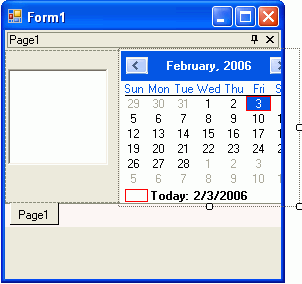
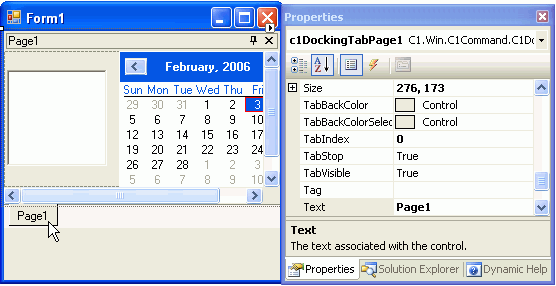
5. Set **Panel1**'s AutoScroll property to **True**.
The scrollbars appear for the [C1DockingTab](/componentone/docs/win/online-menus-toolbar/).
## See Also
[Closing a DockingTabPage](/componentone/docs/win/online-menus-toolbar/menusandtoolbarsforw2/dockingtabtasks/closingac1dockingtab)