# Adding a ContextMenu to a DockingTab
Get started with Menus and Toolbars for WinForms. Create versatile menus and docking/floating toolbars. See more in documentation here.
## Content
Complete the following steps to add a [C1ContextMenu](/componentone/docs/win/online-menus-toolbar/) control to a [C1DockingTab](/componentone/docs/win/online-menus-toolbar/) control.
1. Locate the [C1ContextMenu](/componentone/docs/win/online-menus-toolbar/) control in your Toolbox and double-click the control to add it to your Component Tray. A [C1CommandHolder](/componentone/docs/win/online-menus-toolbar/) will also be added to the Component Tray.
2. Use the [C1ContextMenu](/componentone/docs/win/online-menus-toolbar/) smart tag to open the [C1ContextMenu](/componentone/docs/win/online-menus-toolbar/) **Tasks Menu**. Select **Add Item** from the **Tasks Menu** to add an item to the [C1ContextMenu](/componentone/docs/win/online-menus-toolbar/). Add two more items to the menu.
3. Place a [C1DockingTab](/componentone/docs/win/online-menus-toolbar/) control on the form and open the [C1DockingTab](/componentone/docs/win/online-menus-toolbar/) Context Menu. Select **Add Page** from the context menu. Add several pages to the [C1DockingTab](/componentone/docs/win/online-menus-toolbar/).
Select the C1DockingTab control on your form to view the properties. Click the Events button and locate the **MouseClick** event. Insert **c1DockingTab1\_MouseClick** to create the **MouseClick** event.
4. Right-click on the form and select **View Code** from the list. Insert the following code after the **InitializeComponent()** method:
DOC-DETAILS-TAG-OPEN
DOC-SUMMARY-TAG-OPEN
To write code in Visual Basic
DOC-SUMMARY-TAG-CLOSE
```vbnet
Private Sub c1DockingTab1_MouseClick(ByVal sender As Object, ByVal e As MouseEventArgs)
If (e.Button = System.Windows.Forms.MouseButtons.Left) Then
If (e.X > Me.c1DockingTabPage1.Location.X) Then
c1ContextMenu1.ShowContextMenu(Me.c1DockingTab1, New Point(e.X, e.Y))
Else
Me.c1DockingTab1.ContextMenu = Nothing
End If
End If
End Sub
```
DOC-DETAILS-TAG-CLOSE
DOC-DETAILS-TAG-OPEN
DOC-SUMMARY-TAG-OPEN
To write code in C#
DOC-SUMMARY-TAG-CLOSE
```csharp
private void c1DockingTab1_MouseClick(object sender, MouseEventArgs e)
{
if (e.Button == System.Windows.Forms.MouseButtons.Left)
{
if (e.X > this.c1DockingTabPage1.Location.X)
{
c1ContextMenu1.ShowContextMenu(this.c1DockingTab1, new Point(e.X, e.Y));
}
else
this.c1DockingTab1.ContextMenu = null;
}
}
```
DOC-DETAILS-TAG-CLOSE
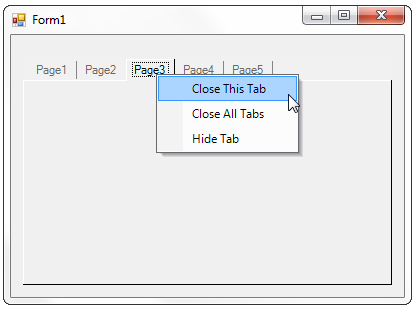
5. Press F5 to run your application. Note that when you click on a tab, the C1ContextMenu opens:
## See Also
[DockingTab Tasks](/componentone/docs/win/online-menus-toolbar/menusandtoolbarsforw2/dockingtabtasks)