# Adding a ContextMenu to a Control
Get started with Menus and Toolbars for WinForms. Create versatile menus and docking/floating toolbars. See more in documentation here.
## Content
You can add a [C1ContextMenu](/componentone/docs/win/online-menus-toolbar/) to a control at design time or through code. Click on either of the following links to expand the steps for the designer or for the code.
DOC-DETAILS-TAG-OPEN
DOC-SUMMARY-TAG-OPEN
To add a C1ContextMenu to a Control at design time
DOC-SUMMARY-TAG-CLOSE
To create a context menu and associate it with a menu item, complete the following tasks:
> type=note
> **Note**: In this example, a [C1ContextMenu](/componentone/docs/win/online-menus-toolbar/) is associated with a menu item.
1. Place a [C1MainMenu](/componentone/docs/win/online-menus-toolbar/) on the form, right-click **New Command**, and then select **Edit** from its context menu. The **Link to Command** designer appears.
2. In the **Link to Command** designer, change the following command properties.
* Text textbox to **File**
* Name textbox to **MenuFile**
3. Select **ContextMenu** from the **Create a new command** listbox. This will create a command with a submenu which can be used as a context menu. Select **OK**, in the **Link to Command** dialog box. The new **C1MainMenu**, **File** will appear.
4. Right-click on the **New Command** item in the **File** menu and select **Edit** from its context menu. Set the properties in the **Link to Command** designer to the following:
* **Text** to **New**
* **Name** to **cmdFileNew**
5. Select **C1Command** from the **Create a new command** listbox.
6. Click **OK**.
7. Right-click the **New** menu, select **Append Item** from its context menu, and then set its properties in the **Link to Command** designer to the following:
* **Text** to Open
* **Name** to cmdFileOpen
8. Select **C1Command** from the Create a new command listbox.
9. Click **OK**.
10. Select the **Windows Form** tab from the Toolbox and place the **RichTextBox** control onto your form using a drag-and-drop operation.
11. Select the **richTextBox1** control from the **Properties** drop-down list box then set its **Dock** property to **Fill**.
12. Select the **MenuFile** from the Properties drop-down list, then select the **Category** property and enter **File** in its box.
13. Select **richTextBox1** from the Properties drop-down list, then select the **C1ContextMenu on C1CommandHolder** property, and then select **MenuFile**.
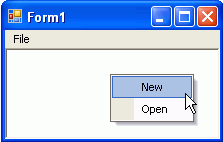
14. Run the application and then right-click your mouse anywhere in the rich text box. The context menu for the **File** menu appears like the following image.
DOC-DETAILS-TAG-CLOSE
DOC-DETAILS-TAG-OPEN
DOC-SUMMARY-TAG-OPEN
To add a C1ContextMenu to a control programmatically
DOC-SUMMARY-TAG-CLOSE
To add a C1ContextMenu to a control, complete the following steps:
1. Attach the **C1.Win.C1Command** to your reference project located in the solution explorer, and then add the **C1.Win.C1Command** namespace to your source file.
2. Place the **TextBox** control onto your form using a drag-and-drop operation.
3. To create a [C1CommandHolder](/componentone/docs/win/online-menus-toolbar/) so it will hold the command, double-click on the form control to create a **Form\_Load** event handler and add the following code:
> type=note
> **Note**: Use the try and catch method if you want to create more than one command holder for a form. This will catch and ignore the exception when the second attempt to create another commandholder fails.
To write code in Visual Basic
```vbnet
Dim ch As C1.Win.C1Command.C1CommandHolder
ch = C1CommandHolder.CreateCommandHolder(Me)
```
To write code in C#
```csharp
C1CommandHolder ch = C1CommandHolder.CreateCommandHolder(this);
```
4. Create and set up a copy command, then use the [Click](/componentone/docs/win/online-menus-toolbar/) event to copy the command when you click on the menu item. Also set up the query handler for the commands so their command is kept up to date automatically by c1command. Add the following code within the form load event handler:
To write code in Visual Basic
```vbnet
'Create and set up the Copy command
Dim cmdCopy As C1Command = ch.CreateCommand()
cmdCopy.Text = "&Copy"
AddHandler cmdCopy.Click, AddressOf clickCopy
AddHandler cmdCopy.CommandStateQuery, AddressOf queryCopy
```
To write code in C#
```csharp
// Create and set up the Copy command
C1Command cmdCopy = ch.CreateCommand();
cmdCopy.Text = "&Copy";
cmdCopy.Click += new C1.Win.C1Command.ClickEventHandler(clickCopy);
cmdCopy.CommandStateQuery += new C1.Win.C1Command.CommandStateQueryEventHandler(queryCopy);
```
5. Create a context menu to hold the copy command, then assign the context menu to the text box control. In order to create a context menu you must create a command in the [C1CommandHolder](/componentone/docs/win/online-menus-toolbar/) and assign it to the context menu. Use the **C1CommandHolder.CreateCommand** and **C1CommandHolder.SetC1ContextMenu** methods from the [C1CommandHolder](/componentone/docs/win/online-menus-toolbar/) class. Add the following code within the **Form\_Load** event handler:
To write code in Visual Basic
```vbnet
Dim cm As C1ContextMenu = Ctype(ch.CreateCommand(GetType(C1ContextMenu)), C1ContextMenu)
'Fill it with the links to the commands
cm.CommandLinks.Add(New C1CommandLink (cmdCopy))
ch.SetC1ContextMenu(TextBox1, cm)
```
To write code in C#
```csharp
C1ContextMenu cm = ch.CreateCommand(typeof(C1ContextMenu)) as C1ContextMenu;
// Fill it with the links to the commands
cm.CommandLinks.Add(new C1CommandLink(cmdCopy));
ch.SetC1ContextMenu(textBox1, cm);
```
6. Invoke the **clickCopy** method to handle the copy command action. Use the **queryCopy** method to provide the current state of the copy command. When you click the copy command from the context menu, the current text will be copied into the textbox. You can achieve this by using the following code:
To write code in Visual Basic
```vbnet
Private Sub clickCopy(ByVal sender As Object, ByVal e As C1.Win.C1Command.ClickEventArgs)
Me.textBox1.Copy()
End Sub
'provides the current state of the copy command
Private Sub queryCopy(ByVal sender As Object, ByVal e As C1.Win.C1Command.CommandStateQueryEventArgs)
e.Enabled = Me.textBox1.SelectionLength > 0
End Sub
```
To write code in C#
```csharp
private void clickCopy(object sender, C1.Win.C1Command.ClickEventArgs e)
{
this.textBox1.Copy();
}
//provides the current state of the copy command
private void queryCopy(object sender, C1.Win.C1Command.CommandStateQueryEventArgs e)
{
e.Enabled = this.textBox1.SelectionLength > 0;
}
```
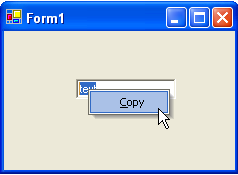
7. Save and run the application. Enter some text into the text box, then right-click the text to make the context menu appear. The following image shows how the context menu appears next to the text box control at run time:
DOC-DETAILS-TAG-CLOSE
## See Also
[Retrieving the ContextMenu Control Attached to the TextBox](/componentone/docs/win/online-menus-toolbar/menusandtoolbarsforw2/contextmenutasks/retrievingthec1conte)