# Tab Orientation
Get started with Menus and Toolbars for WinForms. Create versatile menus and docking/floating toolbars. See more in documentation here.
## Content
**C1DockingTab** provides various options for the tab orientation. The tabs can be aligned to the top, bottom, left, or right of the **C1DockingTab** control by using the [Alignment](/componentone/docs/win/online-menus-toolbar/) property.
The following image displays the tabs aligned at the top of the [C1DockingTab](/componentone/docs/win/online-menus-toolbar/).
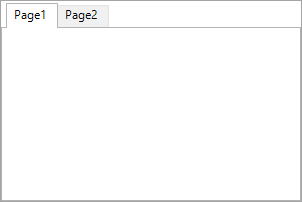
In addition to choosing the tab layout you can also specify how the tabs are aligned along the side of the page content area by setting the [AlignTabs](/componentone/docs/win/online-menus-toolbar/) property to **Near**, **Far**, or **Center**.
> type=note
> **Note**: The [AlignTabs](/componentone/docs/win/online-menus-toolbar/) will not take effect if the [TabSizeMode](/componentone/docs/win/online-menus-toolbar/) property is set to Fit.
The following image displays the tabs aligned at the Top and Center of the [C1DockingTab](/componentone/docs/win/online-menus-toolbar/) control:
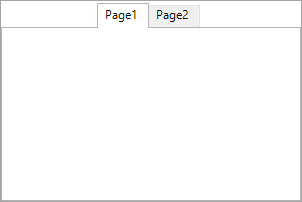
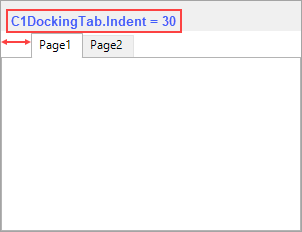
If you would like your tabs located at a specific location rather than **Near**, **Far**, or **Center** of the control you can specify exactly where by setting the [Indent](/componentone/docs/win/online-menus-toolbar/) property to a specific number in pixels. For example the following image depicts the tabs indented to 30 pixels.
## See Also
[Text Orientation](/componentone/docs/win/online-menus-toolbar/dockingtaboverview/dockingtabappearance/textorientation)