# C1MainMenu Toolbar
Get started with Menus and Toolbars for WinForms. Create versatile menus and docking/floating toolbars. See more in documentation here.
## Content
The [C1MainMenu](/componentone/docs/win/online-menus-toolbar/) toolbar appears for the [C1MainMenu](/componentone/docs/win/online-menus-toolbar/) control. To expose the [C1MainMenu](/componentone/docs/win/online-menus-toolbar/) toolbar, select the [C1MainMenu](/componentone/docs/win/online-menus-toolbar/) control and move your cursor so it appears on the [C1MainMenu](/componentone/docs/win/online-menus-toolbar/) control. The **Open** button, , appears for the [C1MainMenu](/componentone/docs/win/online-menus-toolbar/) toolbar.
### Opening and Closing the C1MainMenu Toolbar
To open the [C1MainMenu](/componentone/docs/win/online-menus-toolbar/) toolbar, click on the  button. To close the [C1MainMenu](/componentone/docs/win/online-menus-toolbar/) toolbar, click on the  button.
The [C1MainMenu](/componentone/docs/win/online-menus-toolbar/) toolbar consists of the following command buttons:
| Toobar Button | Description |
| --- | --- |
|  | **Add new command Link/command**: Adds a new command after the current command to the main menu. |
|  | **Edit command links**: Opens the **C1CommandLink Collection Editor** for you to edit the command links. |
|  | **Edit main menu appearance**:Opens the **C1MainMenu** appearance dialog box where you can set the general appearance properties for the **C1MainMenu** control. |
|  | **Edit miscellaneous properties**: Opens the Miscellaneous dialog box for the **C1MainMenu** control where you can apply behavior settings to the **C1MainMenu** control. |
### Add new command link/command
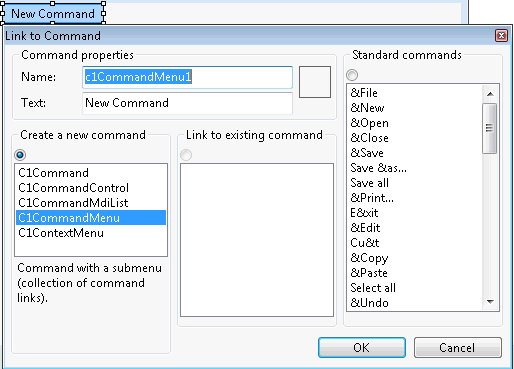
Clicking the **Add new command link/command** button adds a new command after the current command. It displays the **Link to Command** designer below the new command so you can easily edit the new command without leaving the design surface.
### Edit command links
Clicking on the **Edit Command Links** button opens the **C1CommandLink Collection Editor** where you can add or remove command links and edit the commandlink's properties.
### Edit main menu appearance
Clicking on the **Edit** **main menu appearance** button opens the **C1MainMenu Appearance** dialog box where you can modify the appearance properties for the menu items.
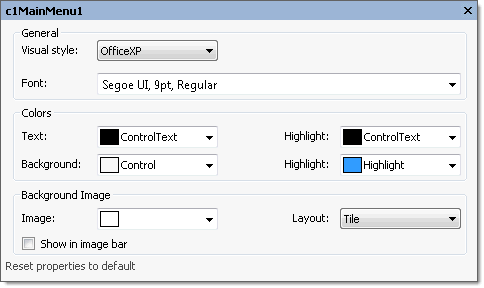
The following table defines the items included in the **Appearance** dialog box:
| Item | Description |
| --- | --- |
| **_General_** | |
| **Text** | The **Text** textbox displays the text name that is associated with the **C1MainMenu** control. To rename the text name for the command, select the text in the Text textbox and type the desired text name. |
| **Font** | The **Font** drop-down box opens the Font dialog box where you can modify the Font style properties for the **C1MainMenu** control. |
| **_Colors_** | |
| **Foreground** | The **Foreground** drop-down list box contains the Custom, System, and Web colors for you to select from to set the Foreground color for the **C1MainMenu** control. |
| **Highlight (ForeHiColor)** | The **Highlight** drop-down list box contains the Custom, System, and Web colors for you to select from to set the text color of the highlighted item in the **C1MainMenu** control. |
| **Background** | The **Background** drop-down list box contains the Custom, System, and Web colors for you to select from to set the back color of the highlighted item in the **C1MainMenu** control. |
| **Highlight (BackHiColor)** | The **Highlight** drop-down list box contains the Custom, System, and Web colors for you to select from to set the back color of the highlighted item in the **C1MainMenu** control. |
| **_Background Image_** | |
| **Image** | The **Image** drop-down box opens an Open dialog box where you can apply the background image used for the **C1MainMenu** control. |
| **Layout** | The **Layout** drop-down box opens a list of layout items (None, Tile, Center, Stretch, and Zoom) for you to select from that gets the background image layout for the **C1MainMenu** control. |
| **Show in image bar** | The **Show in image bar** check box determines whether to show background image in image bar when the toolbar's style is Drop-downMenu. |
| **Reset properties to default** | Selecting the **Reset properties to default** item resets the modified **C1MainMenu** appearance properties back to their default values. |
### Edit Miscellaneous Properties
Clicking on the **Edit Miscellaneous Properties** button opens the **C1MainMenu** **Miscellaneous** dialog box where you can edit miscellaneous properties for the [C1MainMenu](/componentone/docs/win/online-menus-toolbar/) control.
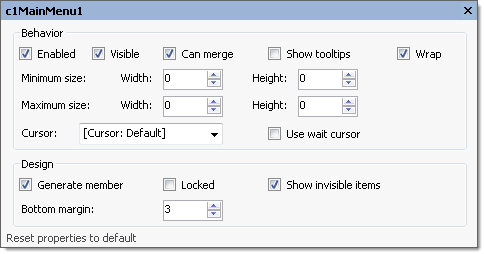
The following table defines the items included in the **c1MainMenu Miscellaneous** properties dialog box:
| Items | Description |
| --- | --- |
| **_Behavior_** | |
| **Enabled** | The **Enabled** check box indicates whether the selected command will be enabled at run time. By default, the **C1Command.Enabled** property is set to **True**. |
| **Visible** | The **Visible** check box indicates whether the selected command will be shown at run time. By default, the **C1Command.Visible** property is set to **True**. |
| **Minimum Size** | The **Minimum size** field includes a Width and Height **NumericUpDown** controls for specifying the minimum width and height size for the **C1MainMenu** control. |
| **Maximum Size** | The **Maximum size** field includes a Width and Height **NumericUpDown** controls for specifying the maximum width and height size for the C1MainMenu control. |
| **Can Merge** | The **Can merge** check box indicates whether to merge MDI child menu with MDI parent menu. Selecting the check box enables this property and deselecting the check box disables this property. |
| **Show tooltips** | The **Show tooltips** check box indicates whether to show ToolTip texts when the mouse cursor is over the menu item. Selecting the check box enables this property and deselecting the check box disables this property. |
| **Wrap** | The **Wrap** check box gets the value (**True**, if selected; **False**, if deselected) to wrap the menu or show a \\"More…\\" button if not all items fit on a single line. |
| **Cursor** | The **Cursor** drop-down box opens a list of different cursor items (None, Tile, Center, Stretch, and Zoom) for you to select from that appears when the pointer moves over the **C1MainMenu** control. |
| **Use wait cursor** | The **Use wait cursor** check box indicates whether to use wait cursor. |
| **_Design_** | |
| **Generate member** | The **Generate member** check box indicates whether to generate the member for the **C1MainMenu** control. (**True**, if selected; **False**, if deselected) |
| **Locked** | The **Locked** check box indicates whether the C1MainMenu is locked. (**True**, if selected; **False**, if deselected) |
| **Show invisible items** | The **Show invisible items** check box indicates whether to show invisible items in the **C1MainMenu** control. |
| **Bottom margin** | The **Bottom margin** gets the space for the bottom margin. |
| **Reset properties to default** | Selecting the **Reset properties to default** item resets the modified **C1MainMenu** properties back to their default values. |
## See Also
[C1CommandLink Toolbar](/componentone/docs/win/online-menus-toolbar/designtimesupport/c1commandsmartdesign/smartdesignerfloatin/c1commandlinktoolbar)