# C1DockingTab Toolbars
Get started with Menus and Toolbars for WinForms. Create versatile menus and docking/floating toolbars. See more in documentation here.
## Content
The [C1DockingTab](/componentone/docs/win/online-menus-toolbar/) toolbar and the [C1DockingTabPage](/componentone/docs/win/online-menus-toolbar/) toolbars appear for the [C1DockingTab](/componentone/docs/win/online-menus-toolbar/) control. To expose the [C1DockingTab](/componentone/docs/win/online-menus-toolbar/) toolbar, select the [C1DockingTab](/componentone/docs/win/online-menus-toolbar/) control and slide your cursor on the [C1DockingTab](/componentone/docs/win/online-menus-toolbar/) control. To expose the [C1DockingTabPage](/componentone/docs/win/online-menus-toolbar/) toolbar slide you cursor inside the [C1DockingTabPage](/componentone/docs/win/online-menus-toolbar/) area of the [C1DockingTab](/componentone/docs/win/online-menus-toolbar/) control.
Opening and Closing the C1DockingTab Toolbar
To open the [C1DockingTab](/componentone/docs/win/online-menus-toolbar/) toolbar, click on the  button. To close the [C1DockingTab](/componentone/docs/win/online-menus-toolbar/) toolbar, click on the  button.
The **C1DockingTab** toolbar consists of the following command buttons:
| Toolbar Button | Description |
| --- | --- |
|  | **Add tab page**: Add tab pages to **C1DockingTab**. |
|  | **Edit the collection of tab pages**: Add or remove tab pages or modify the properties for each tab page through the **C1DockingTabPage Collection Editor**. |
|  | **Edit tabs area properties**: Apply style, layout, and tab layout to the **C1DockingTab** control. |
|  | **Edit docking tab appearance**: Set the color and font styles and apply images to the **C1DockingTab** control. |
|  | **Edit docking tab behavior**: Apply behavior settings to the **C1DockingTab** control. |
### .NET
### Add New Page
Clicking on the **Add tab page** button adds a tab after the existing tab.
### Edit the collection of tab pages
Clicking on the **Edit the collection of tab pages** button opens the **C1DockingTabPage Collection Editor** where you can modify the property settings for each tab page as well as add or remove tab pages. For more information on the **C1DockingTabPage Collection Editor**, see [C1DockingTabPage Collection Editor](/componentone/docs/win/online-menus-toolbar/designtimesupport/c1commandcollectione/c1dockingtabpagecoll).
### Edit tabs area properties
Clicking on the **Edit tabs area properties** button opens the Tab Area dialog box where you can modify the settings for the tab area in the [C1DockingTab](/componentone/docs/win/online-menus-toolbar/) control.
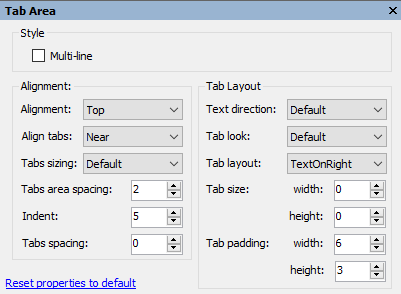
The following table defines the items included in the **Tab Area** properties dialog box:
| Fields | Description |
| --- | --- |
| **_Style_** | |
| **MultiLine** | The **MultiLine** check box gets or sets a value, (**True** if selected; **False**, if deselected) indicating whether more than one row of tabs can be displayed. |
| **_Alignment_** | |
| **Alignment** | The **Alignment** drop-down box displays a list box that contains the area of the control (top, bottom, left or right) for you to select from to specify where the tabs are aligned. |
| **Align tabs** | The **Alignment tabs** drop-down box contains the items (Near, Center, or Far) for you to select from to specify how tabs are aligned along side of the page content area. |
| **Tabs sizing** | The **Tab sizing** drop-down box contains the items (Normal, Fit, FillToEnd, and User) to select from to set how the tabs are sized. |
| **Tabs area spacing** | The **TabsArea spacing** gets or sets the spacing between the edge of the tab area and the tabs. |
| **Indent** | The **Indent** property gets or sets the indentation of the first tab from the side of the control. |
| **Tabs spacing** | The **Tabs spacing** gets or sets the distance between the tabs (the distance may be negative to overlap the tabs). |
| **_Tab Layout_** | |
| **Text direction** | The **Text direction** item gets or sets the direction of the text drawn on the tabs. |
| **Tab look** | The **Tab look** drop-down box contains the items (Default, Text, Image, and TextAndImage) for you to select from to set the look of the tabs. |
| **Tab layout** | The **Tab layout** drop-down box contains the items (TextOnRight, TextOnLeft, TextBelow, TextAbove) for you to select from to set the layout of the text and images on the tabs. |
| **Tab size** | The **Tab size** gets the width and height of the tabs. |
| **Tab padding** | The **Tab padding** gets the width and height of the padding for the tabs. |
| **Reset properties to default** | Selecting the **Reset properties to default** item resets the modified C1DockingTab properties back to their default values. |
### Edit docking tab appearance
Clicking on the **Edit docking tab appearance** button opens the **Appearance** dialog box where you can modify the appearance properties for the [C1DockingTab](/componentone/docs/win/online-menus-toolbar/).
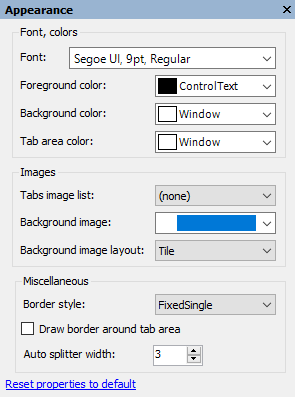
The following table defines the items included in the **Appearance** properties dialog box:
| Fields | Description |
| --- | --- |
| **_Font, colors_** | |
| **Font** | The **Font** drop-down box opens the Font dialog box where you can modify the Font style properties for the **C1DockingTab** control. |
| **Foreground color** | The **Foreground** drop-down list box contains the Custom, System, and Web colors for you to select from to set the Foreground color for the **C1DockingTab** control. |
| **Background color** | The **Background** drop-down list box contains the Custom, System, and Web colors for you to select from to set the back color of the **C1DockingTab** control. |
| **Tab area color** | The **Tab area color** drop-down list box contains the Custom, System, and Web colors for you to select from to set the tab area color for the **C1DockingTab** control. |
| **_Images_** | |
| **Tabs image list** | Manages the list of collection images for the tabs in the **C1DockingTab** control. |
| **Background image** | The **Background image** drop-down box opens an **Open** dialog box where you can apply the background image used for the **C1DockingTab** control. |
| **Background image layout** | The **Background image layout** drop-down box opens a list of layout items (None, Tile, Center, Stretch, and Zoom) for you to select from that gets the background image layout for the **C1DockingTab** control. |
| **_Miscellaneous_** | |
| **Border style** | The **Border style** drop-down box displays a list box that contains the different types of border styles (None, FixedSingle, Fixed3D) for you to select from to specify the border style for the **C1DockingTab** control. |
| **Draw border around tab area** | The **Draw border around tab area** check box indicates whether to draw a border around the tab area. (**True**, if selected; **False**, if deselected) |
| **Auto splitter width** | The **Auto splitter width** gets or sets the width of automatic splitters drawn between pages of the control when the page docking is enabled. |
| **Reset properties to default** | Selecting the **Reset properties to default** item resets the modified **C1DockingTab** properties back to their default values. |
### Edit docking tab behavior
Clicking on the **Edit docking tab behavior** button opens the **Behavior** dialog box where you can enable specific behavior properties for the [C1DockingTab](/componentone/docs/win/online-menus-toolbar/).
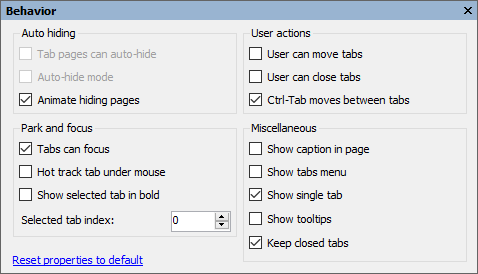
The following table defines the items included in the **Behavior** properties dialog box:
| Item | Description |
| --- | --- |
| **_Auto hiding_** | |
| **Tab pages can auto-hide** | The **Tab pages can auto hide** check box indicates whether the tab pages can auto hide. (**True** if selected; **False**, if deselected) |
| **Auto-hide mode** | The **Auto-hide mode** check box indicates whether the C1DockingTab is in auto-hide mode. (**True** if selected; **False**, if deselected) |
| **Animate hiding pages** | The **Animate hiding pages** check box indicates whether to animate the hiding docking tab pages. (**True** if selected; **False**, if deselected) |
| **_Park and focus_** | |
| **Tabs can focus** | The **Tabs can focus** check box indicates whether tabs can receive focus on mouse click. (**True** if selected; **False**, if deselected) |
| **Hot track tab under mouse** | The **Hot track tab under mouse** check box indicates whether the control's tabs change in appearance when the mouse passes over them. (**True** if selected; **False**, if deselected) |
| **Show selected tab in bold** | The **Show selected tab in bold** check box indicates whether to bold the text in the selected tab. (**True** if selected; **False**, if deselected) |
| **Selected tab index** | The **Selected tab index** gets or sets the index of the currently selected page. |
| **_User actions_** | |
| **User can move tabs** | The **User can move tabs** check box indicates whether the end user can rearrange tabs by dragging them around at run time. (**True** if selected; **False**, if deselected) |
| **User can close tabs** | The **User can close tabs** check box indicates whether individual tab pages can be closed by the end user. If [C1DockingTab.CanCloseTabs](/componentone/docs/win/online-menus-toolbar/) is **True**, a close icon appears either in the caption area (if **ShowCaption** is **True**), or in the tabs otherwise. (**True** if selected; **False**, if deselected) |
| **Ctrl-Tab moves between tabs** | The **Ctrl-Tab moves between tabs** check box indicates whether the C1DockingTab control handles Ctrl-Tab and Ctrl-Shift-Tab keys. (**True** if selected; **False**, if deselected) |
| **_Miscellaneous_** | |
| **Show caption in a page** | The **Show caption in a page** check box indicates whether the caption is shown on the pages. (**True** if selected; **False**, if deselected) |
| **Show tabs menu** | The **Show tabs menu** check box indicates whether to show a button with a drop-down list of all tabs. (**True** if selected; **False**, if deselected). This property is ignored in multiline mode. |
| **Show single tab** | The **Show single tab** check box indicates whether a tab will be shown when there is only one page in the control. (**True** if selected; **False**, if deselected) |
| **Show tooltips** | The **Show tooltips** check box indicates whether the ToolTip is shown when the mouse passes over the tab. (**True** if selected; **False**, if deselected) |
| **Keep closed tabs** | The **Keep closed tabs** check box indicates whether to keep a closed tab. (**True** if selected; **False**, if deselected) |
| **Reset properties to default** | Selecting the **Reset properties to default** item resets the modified C1DockingTab properties back to their default values. |
### C1DockingTabPage toolbar
The [C1DockingTabPage](/componentone/docs/win/online-menus-toolbar/) toolbar appears for the [C1DockingTabPage](/componentone/docs/win/online-menus-toolbar/) control. To expose the [C1DockingTabPage](/componentone/docs/win/online-menus-toolbar/) toolbar, select the [C1DockingTab](/componentone/docs/win/online-menus-toolbar/) control and slide you cursor inside the C1DockingTabPage area of the [C1DockingTab](/componentone/docs/win/online-menus-toolbar/) control.
The **C1DockingTabPag**e toolbar consists of one command button:
| Toolbar Button | Description |
| --- | --- |
|  | **Edit tab page properties**: Set the color and font styles for the tab pages. |
### Edit tab page properties
Clicking on the **Edit tab page properties** button opens the **Appearance** dialog box where you can modify [C1DockingTabPages](/componentone/docs/win/online-menus-toolbar/) appearance properties.
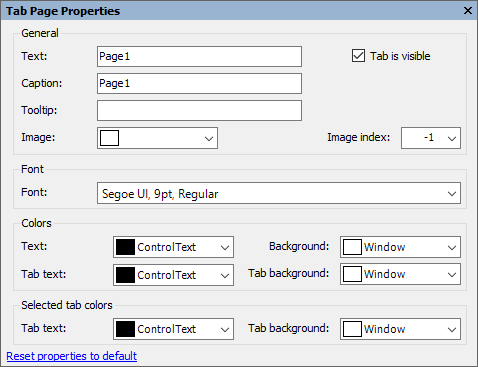
The following table defines the items included in the **Tab Page** **Properties** dialog box:
| Item | Description |
| --- | --- |
| **_General_** | |
| **Text** | The **Text** textbox displays the text name that appears on the selected tab page. To rename the text name for the tab page, select the text in the Text textbox and type the desired text name. |
| **Caption** | The **Caption text** textbox displays the text name that appears on the caption page. To rename the text name for the tab page, select the text in the Text textbox and type the desired text name. |
| **Tooltip** | The **ToolTip text** textbox sets the ToolTip text for the tab page. |
| **Image** | The **Image** drop-down list box displays the current image attached to the selected tab page. Clicking on the drop-down arrow opens the **Open** dialog box where you can locate the image you would like to associate with the selected tab page. |
| **Image index** | The **Image** **index** drop-down list box displays the index value of the selected tab page image. |
| **_Font_** | |
| **Font** | The **Font** drop-down box opens the **Font** dialog box where you can modify the Font style properties for the selected tab page in the [C1DockingTab](/componentone/docs/win/online-menus-toolbar/)control. |
| **_Colors_** | |
| **Text** | The **Text** drop-down list box contains the Custom, System, and Web colors for you to select from to set the text color on the tab and tab page. |
| **Background** | The **Background** drop-down list box contains the Custom, System, and Web colors for you to select from to set the back color of the tab and tab page. |
| **Tab background** | The **Tab background** drop-down list box contains the Custom, System, and Web colors for you to select from to set the back color of the tab. |
| **_Selected tab colors_** | |
| **Text** | The **Text** drop-down list box contains the Custom, System, and Web colors for you to select from to set the text color on the selected tab. |
| **Background** | The **Background** drop-down list box contains the Custom, System, and Web colors for you to select from to set the back color of the selected tab. |
| **Reset properties to default** | Selecting the **Reset properties to default** item resets the modified **C1DockingTabPage** properties back to their default values. |
### .NET FRAMEWORK
### Add New Page
Clicking on the **Add tab page** button adds a tab after the existing tab.
### Edit the collection of tab pages
Clicking on the **Edit the collection of tab pages** button opens the **C1DockingTabPage Collection Editor** where you can modify the property settings for each tab page as well as add or remove tab pages. For more information on the **C1DockingTabPage Collection Editor**, see [C1DockingTabPage Collection Editor](/componentone/docs/win/online-menus-toolbar/designtimesupport/c1commandcollectione/c1dockingtabpagecoll).
### Edit tabs area properties
Clicking on the **Edit tabs area properties** button opens the Tab Area dialog box where you can modify the settings for the tab area in the [C1DockingTab](/componentone/docs/win/online-menus-toolbar/) control.
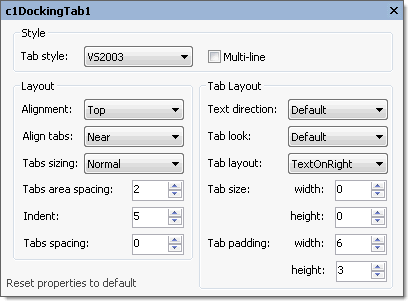
The following table defines the items included in the **Tab Area** properties dialog box:
| Fields | Description |
| --- | --- |
| **_Style_** | |
| **Tab style** | The **TabStyle** drop-down box displays a list of tab style items (**Default**, **WindowsXP**, **Classic**, **Sloping**, **Rounded**, **Office2003**, and **Office2007**) for you to select from to set the tab style for the C1DockingTab control. |
| **MultiLine** | The **MultiLine** check box gets or sets a value, (**True** if selected; **False**, if deselected) indicating whether more than one row of tabs can be displayed. |
| **_Layout_** | |
| **Alignment** | The **Alignment** drop-down box displays a list box that contains the area of the control (top, bottom, left or right) for you to select from to specify where the tabs are aligned. |
| **Align tabs** | The **Alignment tabs** drop-down box contains the items (Near, Center, or Far) for you to select from to specify how tabs are aligned along side of the page content area. |
| **Tabs sizing** | The **Tab sizing** drop-down box contains the items (Normal, Fit, FillToEnd, and User) to select from to set how the tabs are sized. |
| **Tabs area spacing** | The **TabsArea spacing** gets or sets the spacing between the edge of the tab area and the tabs. |
| **Indent** | The **Indent** property gets or sets the indentation of the first tab from the side of the control. |
| **Tabs spacing** | The **Tabs spacing** gets or sets the distance between the tabs (the distance may be negative to overlap the tabs). |
| **_Tab Layout_** | |
| **Text direction** | The **Text direction** item gets or sets the direction of the text drawn on the tabs. |
| **Tab look** | The **Tab look** drop-down box contains the items (Default, Text, Image, and TextAndImage) for you to select from to set the look of the tabs. |
| **Tab layout** | The **Tab layout** drop-down box contains the items (TextOnRight, TextOnLeft, TextBelow, TextAbove) for you to select from to set the layout of the text and images on the tabs. |
| **Tab size** | The **Tab size** gets the width and height of the tabs. |
| **Tab padding** | The **Tab padding** gets the width and height of the padding for the tabs. |
| **Reset properties to default** | Selecting the **Reset properties to default** item resets the modified C1DockingTab properties back to their default values. |
### Edit docking tab appearance
Clicking on the **Edit docking tab appearance** button opens the **Appearance** dialog box where you can modify the appearance properties for the [C1DockingTab](/componentone/docs/win/online-menus-toolbar/).
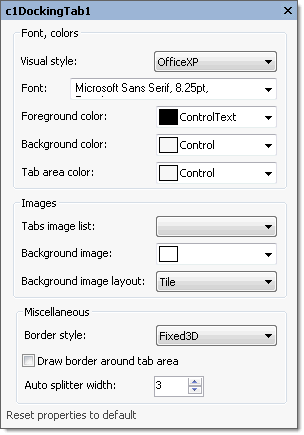
The following table defines the items included in the **Appearance** properties dialog box:
| Fields | Description |
| --- | --- |
| **_Font, colors_** | |
| **Visual style** | The **Visual style** drop-down box contains the following items for you to select from to change the style of the C1DockingTab control: **Custom**, **System**, **Office2007Blue**, **Office2007Black**, **Office2007Silver**, **Office2003Blue**, **Office2003Olive**, **Office2003Silver**, **OfficeXP**, **Classic**, and **WindowsXP**. |
| **Font** | The **Font** drop-down box opens the Font dialog box where you can modify the Font style properties for the **C1DockingTab** control. |
| **Foreground color** | The **Foreground** drop-down list box contains the Custom, System, and Web colors for you to select from to set the Foreground color for the **C1DockingTab** control. |
| **Background color** | The **Background** drop-down list box contains the Custom, System, and Web colors for you to select from to set the back color of the **C1DockingTab** control. |
| **Tab area color** | The **Tab area color** drop-down list box contains the Custom, System, and Web colors for you to select from to set the tab area color for the **C1DockingTab** control. |
| **_Images_** | |
| **Tabs image list** | Manages the list of collection images for the tabs in the **C1DockingTab** control. |
| **Background image** | The **Background image** drop-down box opens an **Open** dialog box where you can apply the background image used for the **C1DockingTab** control. |
| **Background image layout** | The **Background image layout** drop-down box opens a list of layout items (None, Tile, Center, Stretch, and Zoom) for you to select from that gets the background image layout for the **C1DockingTab** control. |
| **_Miscellaneous_** | |
| **Border style** | The **Border style** drop-down box displays a list box that contains the different types of border styles (None, FixedSingle, Fixed3D) for you to select from to specify the border style for the **C1DockingTab** control. |
| **Draw border around tab area** | The **Draw border around tab area** check box indicates whether to draw a border around the tab area. (**True**, if selected; **False**, if deselected) |
| **Auto splitter width** | The **Auto splitter width** gets or sets the width of automatic splitters drawn between pages of the control when the page docking is enabled. |
| **Reset properties to default** | Selecting the **Reset properties to default** item resets the modified **C1DockingTab** properties back to their default values. |
### Edit docking tab behavior
Clicking on the **Edit docking tab behavior** button opens the **Behavior** dialog box where you can enable specific behavior properties for the [C1DockingTab](/componentone/docs/win/online-menus-toolbar/).
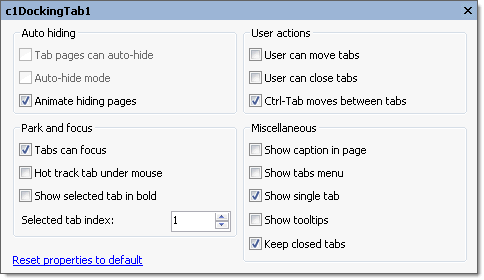
The following table defines the items included in the **Behavior** properties dialog box:
| Item | Description |
| --- | --- |
| **_Auto hiding_** | |
| **Tab pages can auto-hide** | The **Tab pages can auto hide** check box indicates whether the tab pages can auto hide. (**True** if selected; **False**, if deselected) |
| **Auto-hide mode** | The **Auto-hide mode** check box indicates whether the C1DockingTab is in auto-hide mode. (**True** if selected; **False**, if deselected) |
| **Animate hiding pages** | The **Animate hiding pages** check box indicates whether to animate the hiding docking tab pages. (**True** if selected; **False**, if deselected) |
| **_Park and focus_** | |
| **Tabs can focus** | The **Tabs can focus** check box indicates whether tabs can receive focus on mouse click. (**True** if selected; **False**, if deselected) |
| **Hot track tab under mouse** | The **Hot track tab under mouse** check box indicates whether the control's tabs change in appearance when the mouse passes over them. (**True** if selected; **False**, if deselected) |
| **Show selected tab in bold** | The **Show selected tab in bold** check box indicates whether to bold the text in the selected tab. (**True** if selected; **False**, if deselected) |
| **Selected tab index** | The **Selected tab index** gets or sets the index of the currently selected page. |
| **_User actions_** | |
| **User can move tabs** | The **User can move tabs** check box indicates whether the end user can rearrange tabs by dragging them around at run time. (**True** if selected; **False**, if deselected) |
| **User can close tabs** | The **User can close tabs** check box indicates whether individual tab pages can be closed by the end user. If [C1DockingTab.CanCloseTabs](/componentone/docs/win/online-menus-toolbar/) is **True**, a close icon appears either in the caption area (if **ShowCaption** is **True**), or in the tabs otherwise. (**True** if selected; **False**, if deselected) |
| **Ctrl-Tab moves between tabs** | The **Ctrl-Tab moves between tabs** check box indicates whether the C1DockingTab control handles Ctrl-Tab and Ctrl-Shift-Tab keys. (**True** if selected; **False**, if deselected) |
| **_Miscellaneous_** | |
| **Show caption in a page** | The **Show caption in a page** check box indicates whether the caption is shown on the pages. (**True** if selected; **False**, if deselected) |
| **Show tabs menu** | The **Show tabs menu** check box indicates whether to show a button with a drop-down list of all tabs. (**True** if selected; **False**, if deselected). This property is ignored in multiline mode. |
| **Show single tab** | The **Show single tab** check box indicates whether a tab will be shown when there is only one page in the control. (**True** if selected; **False**, if deselected) |
| **Show tooltips** | The **Show tooltips** check box indicates whether the ToolTip is shown when the mouse passes over the tab. (**True** if selected; **False**, if deselected) |
| **Keep closed tabs** | The **Keep closed tabs** check box indicates whether to keep a closed tab. (**True** if selected; **False**, if deselected) |
| **Reset properties to default** | Selecting the **Reset properties to default** item resets the modified C1DockingTab properties back to their default values. |
### C1DockingTabPage toolbar
The [C1DockingTabPage](/componentone/docs/win/online-menus-toolbar/) toolbar appears for the [C1DockingTabPage](/componentone/docs/win/online-menus-toolbar/) control. To expose the [C1DockingTabPage](/componentone/docs/win/online-menus-toolbar/) toolbar, select the [C1DockingTab](/componentone/docs/win/online-menus-toolbar/) control and slide you cursor inside the C1DockingTabPage area of the [C1DockingTab](/componentone/docs/win/online-menus-toolbar/) control.
The **C1DockingTabPag**e toolbar consists of one command button:
| Toolbar Button | Description |
| --- | --- |
|  | **Edit tab page properties**: Set the color and font styles for the tab pages. |
### Edit tab page properties
Clicking on the **Edit tab page properties** button opens the **Appearance** dialog box where you can modify [C1DockingTabPage](/componentone/docs/win/online-menus-toolbar/)s appearance properties.
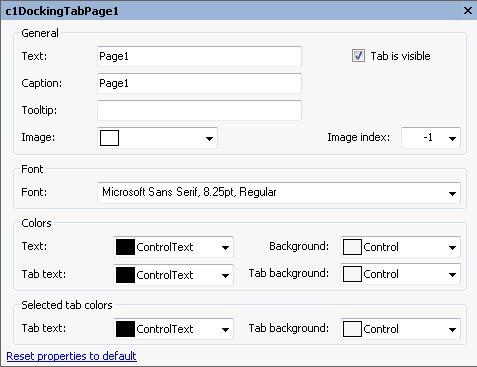
The following table defines the items included in the **Tab Page** **Properties** dialog box:
| Item | Description |
| --- | --- |
| **_General_** | |
| **Text** | The **Text** textbox displays the text name that appears on the selected tab page. To rename the text name for the tab page, select the text in the Text textbox and type the desired text name. |
| **Caption** | The **Caption text** textbox displays the text name that appears on the caption page. To rename the text name for the tab page, select the text in the Text textbox and type the desired text name. |
| **Tooltip** | The **ToolTip text** textbox sets the ToolTip text for the tab page. |
| **Image** | The **Image** drop-down list box displays the current image attached to the selected tab page. Clicking on the drop-down arrow opens the **Open** dialog box where you can locate the image you would like to associate with the selected tab page. |
| **Image index** | The **Image** **index** drop-down list box displays the index value of the selected tab page image. |
| **_Font_** | |
| **Font** | The **Font** drop-down box opens the **Font** dialog box where you can modify the Font style properties for the selected tab page in the [C1DockingTab](/componentone/docs/win/online-menus-toolbar/)control. |
| **_Colors_** | |
| **Text** | The **Text** drop-down list box contains the Custom, System, and Web colors for you to select from to set the text color on the tab and tab page. |
| **Background** | The **Background** drop-down list box contains the Custom, System, and Web colors for you to select from to set the back color of the tab and tab page. |
| **Tab background** | The **Tab background** drop-down list box contains the Custom, System, and Web colors for you to select from to set the back color of the tab. |
| **_Selected tab colors_** | |
| **Text** | The **Text** drop-down list box contains the Custom, System, and Web colors for you to select from to set the text color on the selected tab. |
| **Background** | The **Background** drop-down list box contains the Custom, System, and Web colors for you to select from to set the back color of the selected tab. |
| **Reset properties to default** | Selecting the **Reset properties to default** item resets the modified **C1DockingTabPage** properties back to their default values. |
## See Also
[C1NavBar Toolbars](/componentone/docs/win/online-menus-toolbar/designtimesupport/c1commandsmartdesign/smartdesignerfloatin/c1navbartoolbars)