# C1CommandLink Toolbar
Get started with Menus and Toolbars for WinForms. Create versatile menus and docking/floating toolbars. See more in documentation here.
## Content
The [C1CommandLink](/componentone/docs/win/online-menus-toolbar/) or [C1Command](/componentone/docs/win/online-menus-toolbar/) Toolbar appears for the [C1CommandLinks](/componentone/docs/win/online-menus-toolbar/)**/**[C1Command](/componentone/docs/win/online-menus-toolbar/)s in the [C1MainMenu](/componentone/docs/win/online-menus-toolbar/) and [C1ToolBar](/componentone/docs/win/online-menus-toolbar/) controls.
### Exposing the C1CommandLink Toolbar
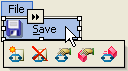
To expose the [C1CommandLink](/componentone/docs/win/online-menus-toolbar/) toolbar select the [C1Command](/componentone/docs/win/online-menus-toolbar/) item in the [C1ToolBar](/componentone/docs/win/online-menus-toolbar/) or [C1MainMenu](/componentone/docs/win/online-menus-toolbar/)control. The [C1CommandLink](/componentone/docs/win/online-menus-toolbar/) toolbar appears below the menu item or toolbar item like the following image:
### C1CommandLink Toolbar Buttons
The [C1CommandLink](/componentone/docs/win/online-menus-toolbar/) toolbar consists of the following command buttons:
| Toolbar Button | Description |
| --- | --- |
|  | **Insert command link**: Adds a new command before the selected command. |
|  | **Delete command link**: Deletes the selected command. |
|  | **Edit command link properties**: Apply style, layout, and tab layout to the **C1DockingTab** control. |
|  | **Edit command properties**: Set the text and font styles and apply images to the commands. |
|  | **Change linked command**: Opens the **Link to Command** designer where you can change the link to command in the link to existing command list box. |
### Insert command link
Clicking on the **Insert command link** button adds a new command before the selected command.
### Delete command link
Clicking on the **Delete command link** button deletes the selected command.
### CommandLink properties
Clicking on the **CommandLink properties** button opens the **CommandLink properties** dialog box where you can apply settings to the selected command.
The following table defines the items included in the [C1CommandLink](/componentone/docs/win/online-menus-toolbar/) **CommandLink** properties dialog box:
| Item | Description |
| --- | --- |
| **_Command_** | |
| **Command** | The **Command** drop-down list box displays the list of command types that pertain to the selected **C1CommandMenu**. |
| **Text** | The **Text** textbox displays the text name that appears on the selected command. To rename the text name for the command, select the text in the Text textbox and type the desired text name. |
| **Tooltip** | The **Tooltip** textbox displays ToolTip that appears on the selected command. If there is no ToolTip defined, then the ToolTip textbox is empty. To modify or create a ToolTip, enter text in the ToolTip textbox. |
| **_Appearance_** | |
| **Button look** | The **Button look** drop-down list box contains the following values for you to select from: Default, Text, Image, and TextAndImage to set the button look for the command link |
| **Owner draw** | Selecting the **Owner draw** check box enables the [C1CommandLink.OwnerDraw](/componentone/docs/win/online-menus-toolbar/) property. |
| **Default item** | Selecting the **Default item** check box gets the default appearance for the selected command link. |
| **_Behavior_** | |
| **Merge type** | The **Merge type** drop-down list box contains the following merge type values for you to select from: Add, Replace, MergeItems, and Remove to get the merge type for the command link. The default value is Add. |
| **Merge order** | The **Merge order** NumericUpDown box gets the value indicating the relative position of the menu item when its merged with another. |
| **Delimiter** | Selecting the **Delimiter** check box draws a delimiter before the selected command link. |
| **New column** | Selecting the **New column** check box enables the [C1CommandLink.NewColumn](/componentone/docs/win/online-menus-toolbar/) property. |
| **Always recent** | Selecting the **Always recent** check box enables the [C1CommandLink.AlwaysRecent](/componentone/docs/win/online-menus-toolbar/) property. |
| **Reset properties to default** | Selecting the **Reset properties to default** item resets the modified C1Command properties back to their default values. |
### C1Command properties
Clicking on the **C1Command properties** button opens the [C1CommandMenu](/componentone/docs/win/online-menus-toolbar/) **Command** properties dialog box where you can apply settings to the selected command.

The following table defines the items included in the **c1CommandMenu** **Command** properties dialog box:
| Fields | Description |
| --- | --- |
| **_General_** | |
| **Text** | The **Text** textbox displays the text name that appears on the selected command. To rename the text name for the command, select the text in the Text textbox and type the desired text name. |
| **Show text As ToolTip** | The **Show text as Tooltip** check box displays the value of the [C1Command.Text](/componentone/docs/win/online-menus-toolbar/) property as the ToolTip when the check box is selected. |
| **Tooltip** | The **Tooltip** textbox displays a ToolTip that appears on the selected command. If there is no ToolTip defined, then the ToolTip textbox is empty. To modify or create a ToolTip, enter text in the ToolTip textbox. Note, that the [C1CommandLink.ToolTipText](/componentone/docs/win/online-menus-toolbar/) property takes precedence over the [C1Command.ToolTipText](/componentone/docs/win/online-menus-toolbar/) property. |
| **Shortcut** | The **Shortcut** drop-down box displays a list of keys for you to select from to associate a keyboard shortcut with the selected command. |
| **Show shortcut** | The **Show shortcut** check box indicates whether the shortcut for the selected command will be shown. The C1Command.ShowShortCut is enabled by default. |
| **Category** | The **Category** drop-down list box displays the category for the selected command. |
| **C1ContextMenu** | The [C1ContextMenu](/componentone/docs/win/online-menus-toolbar/) drop-down list box displays the name(s) of the C1ContextMenu(s) so you can easily select the C1ContexMenu you want to associate with the selected command. |
| **_Image_** | |
| **Icon** | The **Icon** drop-down list box opens an **Open** dialog box for you to locate the icon to attach to the selected command. |
| **Image** | The **Image** drop-down list box displays the current image attached to the selected command. Clicking on the drop-down arrow opens the **Open** dialog box where you can locate the image you would like to associate with the selected command. |
| **Image index** | The **Image** **index** drop-down list box displays the index value of the command image. |
| **_Behavior_** | |
| **Visible** | The **Visible** check box indicates whether the selected command will be shown at run time. By default, the [C1Command.Visible](/componentone/docs/win/online-menus-toolbar/) property is set to **True**. |
| **Enabled** | The **Enabled** check box indicates whether the selected command will be enabled at run time. By default, the [C1Command.Enabled](/componentone/docs/win/online-menus-toolbar/) property is set to **True**. |
| **Pressed** | The **Pressed** check box indicates whether the selected command is pressed. By default, the [C1Command.Pressed](/componentone/docs/win/online-menus-toolbar/) property is set to **True**. |
| **Show drop down arrow** | The **Show drop down arrow** check box indicates whether or not to show the drop down arrow when the selected command is in a toolbar. |
| **Checked** | The **Checked** check box indicates whether or not the command is checked. |
| **Auto-toggle checked state** | The **Auto-toggle checked state** check box indicates whether the [C1Command.Checked](/componentone/docs/win/online-menus-toolbar/) property is toggled automatically when this command in invoked. |
| **Reset properties to default** | Selecting the **Reset properties to default** item resets the modified C1Command properties back to their default values. |
### Change linked command
Clicking on the **Change linked command** button opens the **Link to Command** designer where you can change the link to command in the link to existing command list box.
## See Also
[C1CommandMenu Toolbar](/componentone/docs/win/online-menus-toolbar/designtimesupport/c1commandsmartdesign/smartdesignerfloatin/c1commandmenutoolbar)