# Markers
Learn about built-in and customizable markers using Map control.
## Content
A marker is used to display a location on a map. Markers act like notes that can be used to leave a message on the map. It marks or designates a specific location with desired symbols or glyphs on the maps.
Users can add built-in shape markers and use image as markers on maps. Let's see how to add each type of marker in detail.
### Add built-in shape markers
The Map control allows you to use different types of built-in marker shape as listed below:
* Circle
* Triangle
* Square
* Diamond
* Star
For adding the in-built shape markers, you first need to add VectorPlacemark on the surface of the map. On adding the VectorPlacemark, you can easily customize the marker.
The map with a shape marker will look similar to the image given below:
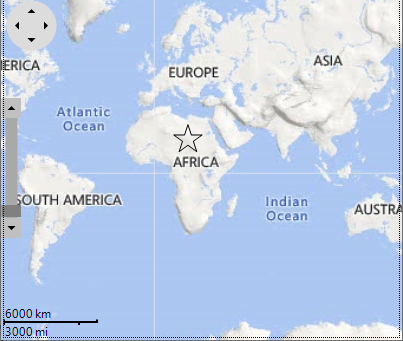
The following code can be used to add a marker on a map and set the shape and size of the marker:
```csharp
var vl = new C1.Win.Map.VectorLayer();
c1Map1.Layers.Add(vl);
var placemark = new C1.Win.Map.VectorPlacemark();
placemark.Geometry = new GeoPoint(20, 20);
vl.Items.Add(placemark);
placemark.Marker.Shape = MarkerShape.Star;
placemark.Marker.Size = new SizeF(30, 30);
```
### Add image as marker
To show images as markers on a map, you need to use C1.Win.Map.MarkerImageShape class that represents a custom marker shape.
The map with an image as a marker will look similar to the image given below.
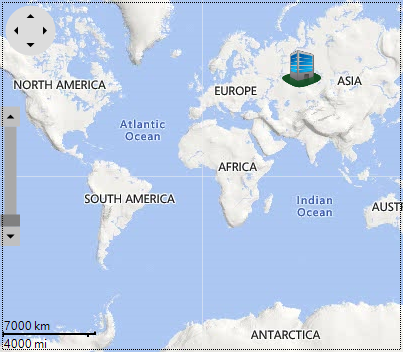
The following code can be used to add an image as a marker on a map:
```csharp
var vl = new C1.Win.Map.VectorLayer();
c1Map1.Layers.Add(vl);
var placemark = new C1.Win.Map.VectorPlacemark();
placemark.Geometry = new GeoPoint(70, 60);
vl.Items.Add(placemark);
// needs set the Shape to MarkerShape.Custom first.
placemark.Marker.Shape = MarkerShape.Custom;
placemark.Marker.Size = new SizeF(40, 40);
// then set the CustomShape
var shape = new MarkerImageShape();
placemark.Marker.CustomShape = shape;
shape.Image = Image.FromFile("office.png");
```
### Customizable markers
You can easily add a custom marker on a map surface using Map control. For doing so, you need to create a class that implements C1.Win.Map.CustomShape class for creating a custom shape.
The map with a custom marker will look similar to the image given below.
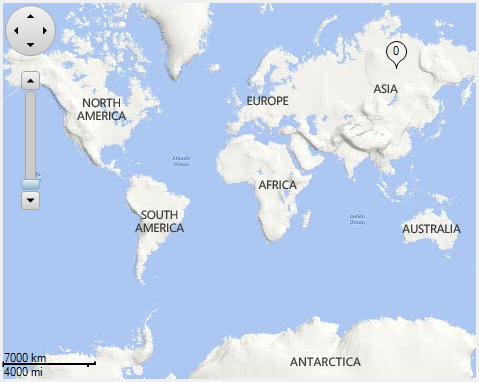
The following code can be used to add a custom marker on a map:
```csharp
var vl = new C1.Win.Map.VectorLayer();
c1Map1.Layers.Add(vl);
var placemark = new C1.Win.Map.VectorPlacemark();
placemark.Geometry = new GeoPoint(110, 65);
vl.Items.Add(placemark);
// needs set Shape to MarkerShape first
placemark.Marker.Shape = MarkerShape.Custom;
placemark.Marker.Size = new SizeF(20, 27.32f);
// then set the CustomShape.
var shape = new SampleCustomShape(0);
placemark.Marker.CustomShape = shape;
```