# Scroll Bar
## Content
Scrolling in List comes into picture when a huge amount of data needs to be plotted in a limited space. This feature provides the end-user with an ability to set the desired view of the list by displaying the required columns and list items. In List, vertical and horizontal scrollbars are represented by [VScrollBar](/componentone/api/win/online-list/dotnet-api/C1.Win.List.10/C1.Win.List.ListBase.C1ListBase.VScrollBar.html) and [HScrollBar](/componentone/api/win/online-list/dotnet-api/C1.Win.List.10/C1.Win.List.ListBase.C1ListBase.HScrollBar.html) properties of the C1List class, respectively.
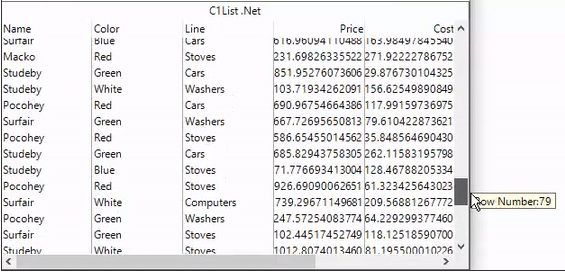
Besides, you can also customize the thickness of scroll bar using the [Height](/componentone/api/win/online-list/dotnet-api/C1.Win.List.10/C1.Win.List.Util.HBar.Height.html) and [Width](/componentone/api/win/online-list/dotnet-api/C1.Win.List.10/C1.Win.List.Util.VBar.Width.html) properties of [HBar](/componentone/api/win/online-list/dotnet-api/C1.Win.List.10/C1.Win.List.Util.HBar.html) and [VBar](/componentone/api/win/online-list/dotnet-api/C1.Win.List.10/C1.Win.List.Util.VBar.html) classes, respectively. The following code demonstrates how to set thickness of the scroll bars in the List control.
```csharp
this.c1List1.VScrollBar.Width = 40;
this.c1List1.HscrollBar.Height = 50;
```
## Scroll Tips
Scroll tips are the pop-up text windows that are displayed when the scrollbar thumb is moved. List supports scroll tips and to display scroll tips, you need to set ScrollTips property of the **C1List** class to **true**. If the **ScrollTips** property is set to true, moving the scrollbar thumb causes the **FetchScrollTips** event to fire. The FetchScrollTips event can be used to track the position of the scroll bar on a record-by-record basis or to present the user with useful information relating to the current record or recordset.
Subscribe to FetchScrollTips event and add the following code to the **C1List1\_FetchScrollTips** event handler to display scroll tips. In this example, the scroll tip is set to display the row number, as the user moves the scrollbar thumb.
```csharp
private void C1List1_FetchScrollTips(object sender, FetchScrollTipsEventArgs e)
{
e.ScrollTip = "Row Number:" + e.Row;
}
```
## Scroll Track
You can use [ScrollTrack](/componentone/api/win/online-list/dotnet-api/C1.Win.List.10/C1.Win.List.ListBase.Frame.ScrollTrack.html) property of the **C1List** class control how the list scrolls when the scroll thumb is moved. By default, the value of ScrollTrack property is **false**, and no scrolling occurs until the thumb is released. However, you can change this default behavior and enable vertical scrolling by moving the scrollbar thumb by setting the value of **ScrollTrack** property to **true** as shown in the following code.
```csharp
c1List1.ScrollTrack = true;
```
## See Also
[Navigation](/componentone/docs/win/online-list/navigation)