# Using C1Combo with C1List
## Content
List and Combo are stand alone controls, which can be used independently of each other. However, you can easily integrate these controls to suit your requirements.
This topic discusses how to use the Combo control with the List control to implement the LookUp feature. The LookUp feature performs match lookup operation in a column or a row range, and returns the corresponding value from another column or row range as showcased in the following GIF.
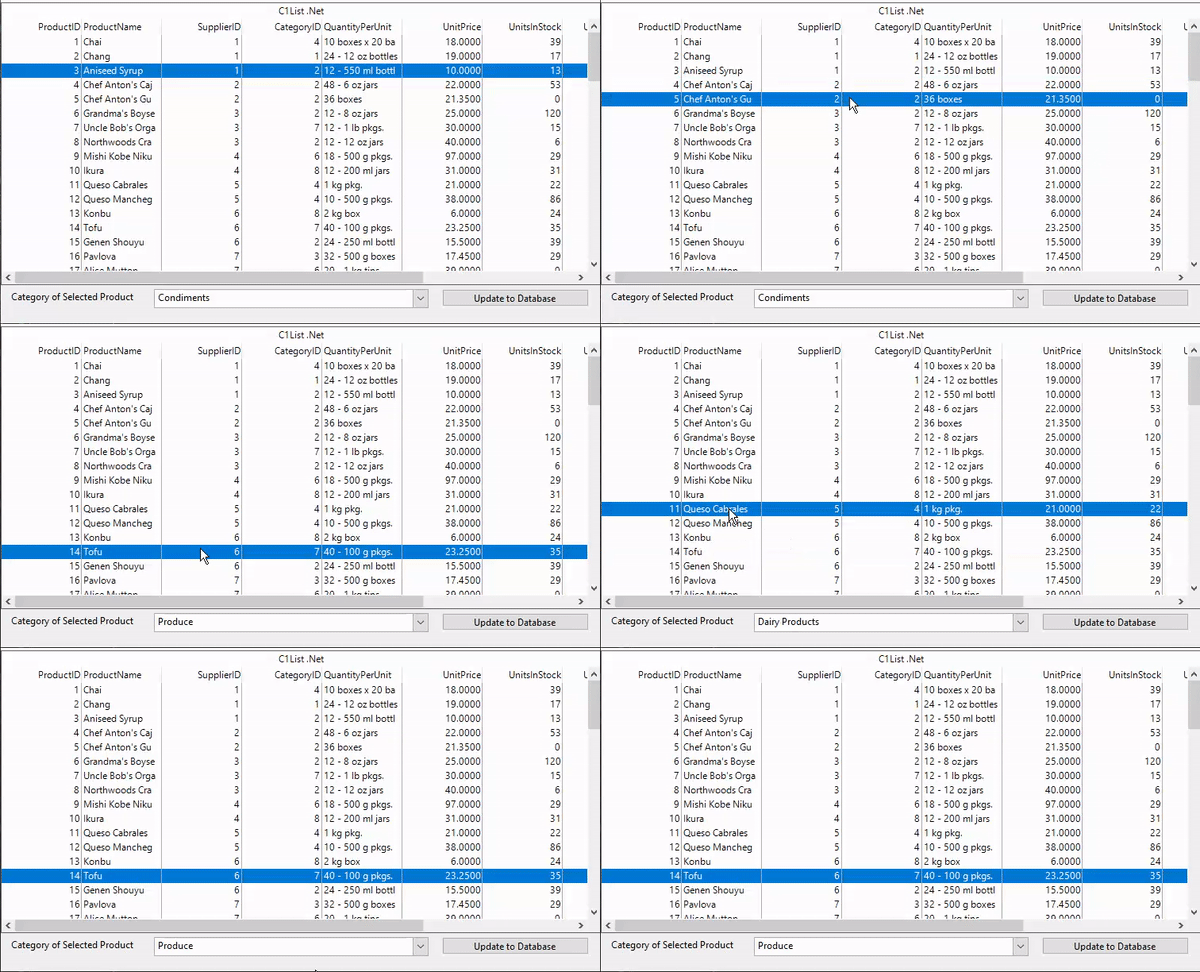
Use the following steps to use the LookUp feature to change the value of Combo box on a button click.
## Set Up the Application
1. Create a new **Windows Forms App** **(.NET** or **.NET Framework**) and set the project framework to **.NET 6.0** for .NET application and **.NET 4.5.2** for .NET Framework application using **Configure your new project** window.
2. Add reference to the List assembly in your application by installing **C1.Win.List** NuGet package ( for .NET app) or adding **C1.Win.List** dll (for .NET Framework app).
3. Drag and drop the List and Combo controls from **Toolbox** onto the Form.
## Bind to a Data Source
1. Create **GetDataTable** method to fetch the tables from the database.
```csharp
private DataTable GetDataTable(string tableName)
{
//Create the path of the Sample Common Database file in ComponentOne Samples folder
var file = Environment.GetFolderPath(Environment.SpecialFolder.Personal) + @"\ComponentOne Samples\Common\C1NWind.mdb";
DataTable dt = new(tableName);
//If sample Database file exists
if (File.Exists(file))
{
string connectionString = @"Driver={Microsoft Access Driver (*.mdb, *.accdb)};DBQ=" + file;
if(tableName == "Categories")
{
categoriesDataAdapter = new($"Select * from [{tableName}]", connectionString);
categoriesDataAdapter.Fill(dt);
_ = new OdbcCommandBuilder(categoriesDataAdapter);
}
else
{
productsDataAdapter = new($"Select * from [{tableName}]", connectionString);
productsDataAdapter.Fill(dt);
_ = new OdbcCommandBuilder(productsDataAdapter);
}
}
return dt;
}
```
2. Define a dataset and add tables to it. In this example, we have added the **Products** and **Categories** tables.
```csharp
//adding DataTables into DataSet
ds = new DataSet();
ds.Tables.Add(GetDataTable("Products"));
ds.Tables.Add(GetDataTable("Categories"));
```
3. Bind the Combo and List controls to the data source using the **DataSource** property of the C1List and C1Combo classes, respectively. Also, set the data member for Combo and List controls using **DataMember** property of the **C1Combo** and **C1List** classes, respectively as shown in the following code.
```csharp
//Setting the DataSource for the List
c1List1.DataSource = ds;
c1List1.DataMember = "Products";
//Setting the DataSource for the C1Combo
c1Combo1.DataSource = ds;
c1Combo1.DataMember = "Categories";
```
## Use LookUp feature
1. Add the following code to define relations between the data tables.
```csharp
//Adding a relation between the DataTables
DataColumn parentCol, childCol;
parentCol = ds.Tables["Categories"].Columns["CategoryID"];
childCol = ds.Tables["Products"].Columns["CategoryID"];
DataRelation rel_ProductCategory = new("Product_Category", parentCol, childCol);
ds.Relations.Add(rel_ProductCategory);
```
2. Bind [SelectedValue](/componentone/api/win/online-list/dotnet-api/C1.Win.List.10/C1.Win.List.C1Combo.SelectedValue.html) property of the C1Combo class to the currently selected CategoryID in the Products table shown in the List.
```csharp
c1Combo1.DataBindings.Add("SelectedValue", ds, "Products.CategoryID");
```
3. Subscribe to the button click event and add the following code to the **btnUpdate\_Click** event handler to update the data tables in Combo and List controls.
```csharp
private void btnUpdate_Click(object sender, EventArgs e)
{
if (ds is not null)
{
try
{
//update the Categories Table in the Database
categoriesDataAdapter.Update(ds, "Categories");
//update the Products Table in the Database
productsDataAdapter.Update(ds, "Products");
}
catch (Exception ex)
{
MessageBox.Show(ex.Message);
}
}
}
```