# Display Images
## Content
You can use foreground images to add visual cues to static list elements such as caption bars, column headers, and column footers. Foreground images are specified by the [ForegroundImage](/componentone/api/win/online-list/dotnet-api/C1.Win.List.10/C1.Win.List.Style.ForegroundImage.html) property of the Style class. These images can be displayed beside some text or in place of it, but can not be displayed over text.
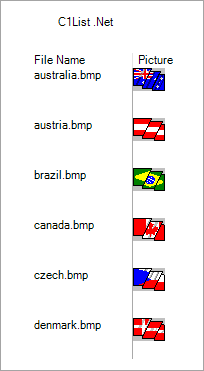
Use the following steps to add image to the List control. In the following example, we have subscribed to the **FetchCellStyle** event to display images in cells.
1. Subscribe to Form\_Load event and add the following code to the **Form\_Load** Event Handler to fire the FetchCellStyle event.
```csharp
// Fire the FecthCellStyle event.
this.c1List1.Splits[0].DisplayColumns[1].FetchStyle = true;
this.c1List1.FetchCellStyle += C1List1_FetchCellStyle;
```
2. Add the following code to the **C1List1\_FetchCellStyle** event handler to add images to the cells of List control. Please note that the following code picks the images from a specified directory in the application.
```csharp
private void C1List1_FetchCellStyle(object sender, C1.Win.C1List.FetchCellStyleEventArgs e)
{
if (e.Col == 1)
{
e.CellStyle.ForeGroundPicturePosition = C1.Win.C1List.ForeGroundPicturePositionEnum.PictureOnly;
e.CellStyle.ForegroundImage = Image.FromFile("../../Image.bmp");
}
}
```