# ComboBox Item Modes
Learn how to manipulate item representation in Combobox using the ItemMode property.
## Content
You can use the [ItemMode](/componentone/api/win/online-input/dotnet-framework-api/C1.Win.C1Input.4.8/C1.Win.C1Input.C1ComboBox.ItemMode.html) property to build item presentation.
There are three options which include the following:
**Default**
In the default option, each C1ComboBoxItem is a string and can also be an image.
The following image illustrates a C1ComboBox with the Default option:
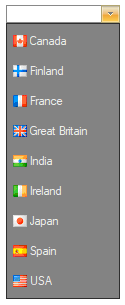
For an example see the **ComboBoxImages** sample.
**HtmlPattern**
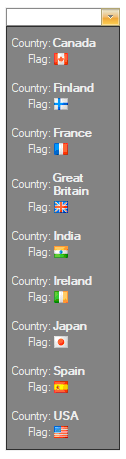
In the HtmlPattern, each item is built from a HTML pattern and bound item data.
The following image illustrates a C1ComboBox with the HtmlPattern:
The HtmlPattern used above is set to the following: \\\| Country:\ | \\{Text}\\ | \
\\| Flag:\ | \\ \ \ | \
\
For an example see the **ComboBoxItemModes** sample.
**Html**
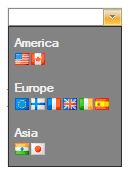
In the Html option, each item is a fragment of a HTML subset.
The following image illustrates a C1ComboBox with the Html option:
The Html used above is set to the following:
For an example see the **ComboBoxItemModes** sample.
## See Also
[C1ComboBox Styling](/componentone/docs/win/online-input/usingthec1inputcontr/c1inputcontrols/C1ComboBoxControlOverview/comboStyling)