# Navigating the C1DateEdit Control
Lear how to navigate the C1EditControl.
## Content
When end-users select the **C1DateEdit** control, then press the Enter or Tab to move to another control or select another control with the mouse, the current date is automatically entered into the **C1DateEdit** control.
To move to another control without the date being automatically entered, complete one of the following:
### Using the Designer:
1. Create a new .NET project and place a **C1DateEdit** control and a **C1TextBox** control on your form.
2. To show end-users that a control has an empty value, in the [C1DateEdit.NullText property](/componentone/api/win/online-input/dotnet-framework-api/C1.Win.C1Input.4.8/C1.Win.C1Input.C1TextBox.NullText.html), enter “{Empty Value}”.
If you ran the program at this point and selected the **C1DateEdit** control with either the keyboard or mouse, then try to select the **C1TextBox** control, today’s date would automatically be entered into the C1DateEditr field and you would be unable to leave that field blank.
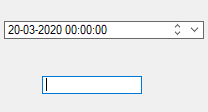
Notice that the cursor is in the **C1TextBox** but the current date remains in the C1DateEdit field.
3. Using the Properties window, change the [C1DateEdit1.DateTimeInput property](/componentone/api/win/online-input/dotnet-framework-api/C1.Win.C1Input.4.8/C1.Win.C1Input.C1TextBox.DateTimeInput.html) to **False** and change the [C1DateEdit1.EmptyAsNull](/componentone/api/win/online-input/dotnet-framework-api/C1.Win.C1Input.4.8/C1.Win.C1Input.C1TextBox.EmptyAsNull.html) property to **True**.
4. Run the Program and click on the **C1DateEdit** control, then click on the **C1TextBox**.
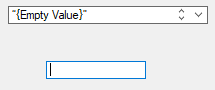
Notice that even after switching to the **C1TextBox**, the C1DateEdit field remains empty.
### Using the Code Editor:
1. Create a new .NET project and in the Solution Explorer add a reference to the C1Input control.
2. Add the following import statement to the code editor
DOC-DETAILS-TAG-OPEN
DOC-SUMMARY-TAG-OPEN
To write code in Visual Basic
DOC-SUMMARY-TAG-CLOSE
```vbnet
Imports C1.Win.C1Input
```
DOC-DETAILS-TAG-CLOSE
DOC-DETAILS-TAG-OPEN
DOC-SUMMARY-TAG-OPEN
To write code in C#
DOC-SUMMARY-TAG-CLOSE
```csharp
using C1.Win.C1Input;
```
DOC-DETAILS-TAG-CLOSE
3. Add the C1DateEdit control and C1TextBox control to the Form\_Load event.
DOC-DETAILS-TAG-OPEN
DOC-SUMMARY-TAG-OPEN
To write code in Visual Basic
DOC-SUMMARY-TAG-CLOSE
```vbnet
Dim X As New C1DateEdit
Controls.Add(X)
X.Location = New Point(50, 40)
Dim Y As New C1TextBox
Controls.Add(Y)
Y.Location = New Point(100, 80)
```
DOC-DETAILS-TAG-CLOSE
DOC-DETAILS-TAG-OPEN
DOC-SUMMARY-TAG-OPEN
To write code in C#
DOC-SUMMARY-TAG-CLOSE
```csharp
C1DateEdit X = new C1DateEdit();
Controls.Add(X);
X.Location = new Point(50, 40);
C1TextBox Y = new C1TextBox();
Controls.Add(Y);
Y.Location = new Point(100, 80);
```
DOC-DETAILS-TAG-CLOSE
4. To show end-users that the control has an empty value, add the following code to the C1DateEdit entry.
DOC-DETAILS-TAG-OPEN
DOC-SUMMARY-TAG-OPEN
To write code in Visual Basic
DOC-SUMMARY-TAG-CLOSE
```vbnet
X.NullText = "{Empty Value}"
```
DOC-DETAILS-TAG-CLOSE
DOC-DETAILS-TAG-OPEN
DOC-SUMMARY-TAG-OPEN
To write code in C#
DOC-SUMMARY-TAG-CLOSE
```csharp
X.NullText = "{Empty Value}";
```
DOC-DETAILS-TAG-CLOSE
If you ran the program at this point and selected the **C1DateEdit** control with either the keyboard or mouse, then try to select the **C1TextBox** control, today’s date would automatically be entered into the **C1DateEdit** field and you would be unable to leave that field blank.

5. To preserve the “Empty Value” in the C1DateEdit field even after switching to another control, add the following code to the C1DateEdit entry.
DOC-DETAILS-TAG-OPEN
DOC-SUMMARY-TAG-OPEN
To write code in Visual Basic
DOC-SUMMARY-TAG-CLOSE
```vbnet
X.DateTimeInput = False
X.EmptyAsNull = False
```
DOC-DETAILS-TAG-CLOSE
DOC-DETAILS-TAG-OPEN
DOC-SUMMARY-TAG-OPEN
To write code in C#
DOC-SUMMARY-TAG-CLOSE
```csharp
X.DateTimeInput = False;
X.EmptyAsNull = False;
```
DOC-DETAILS-TAG-CLOSE
6. Run the Program and click on C1DateEdit control, then click on the C1TextBox.

Notice that even after switching to the **C1TextBox**, the **C1DateEdit** field remains empty.
## See Also
[Displaying a Border Color for the C1Input Controls](/componentone/docs/win/online-input/inputforwinformstask/displayingabordercol)