# Decorators Collection Editor
Learn how to add, remove, and edit decorators in the C1Gauge control with the help of Decorators Collection Editor. See more demos, documentation, and samples here.
## Content
The **C1LinearGauge.Decorators Collection Editor** and **C1RadialGauge.Decorators Collection Editor** allow you to add, remove, and edit items in the [Decorators](/componentone/docs/win/online-gauges/) collection. You can access the **Decorators Collection Editor** by selecting the **Edit Decorators** option from the [C1LinearGauge and C1RadialGauge context menus](/componentone/docs/win/online-gauges/designtimesupport/c1lineargaugeandc1ra) or by clicking the **ellipses** button next to the **Decorators** item in **C1LinearGauge** or **C1RadialGauge**'s Properties window.
Once open, the **Decorators Collection Editor** will appear similar to the following image:
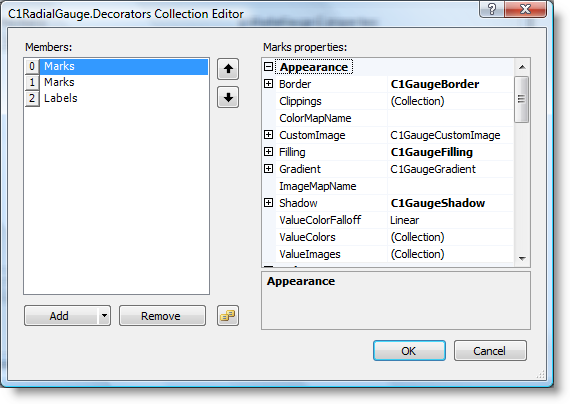
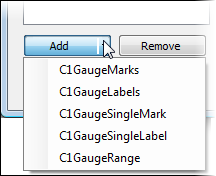
The left side of the editor lists the decorators included in the collection. You can click the **Add** button to add new marks, labels, a single mark, a single label, or a range:
To remove an item, select the item to remove and click the **Remove** button. You can also change the order that decorators appear in by using the arrow buttons.
To edit properties on a decorator, pick an item in the **Members** list and edit its properties in the properties grid. To save your changes click the **OK** button. To close the dialog box without saving any changes, click the **Cancel** button. You can also double-click the Decorators item on the form to open the **Item Editor** and edit the properties.
## See Also
[CoverShapes Collection Editor](/componentone/docs/win/online-gauges/designtimesupport/gaugesforwinformscol/covershapescollectio)