# Accessing Item Properties
Easily access properties for any hit-testable Gauge for WinForms item at design time. See more demos, documentation, and samples here.
## Content
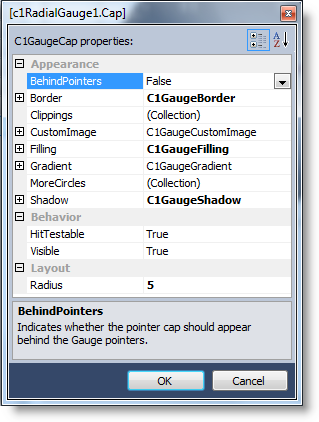
You can easily access properties for any hit-testable **Gauge for WinForms** item at design time by double-clicking the item on your form and opening the **Item Editor**. You can also open the **Item Editor** by right-clicking an item and selecting **Launch** **Item Editor** from the context menu.
For example, double-click the [C1GaugeCap](/componentone/docs/win/online-gauges/) on a [C1RadialGauge](/componentone/docs/win/online-gauges/).
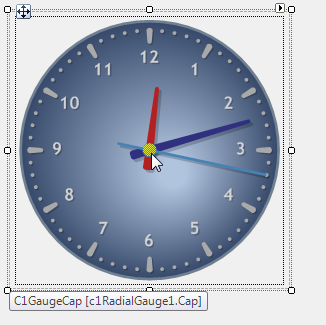
The **C1RadialGauge1.Cap Item Editor** opens, allowing you to set the properties for the cap and to access collection editors.
## See Also
[Working with Gauges for WinForms](/componentone/docs/win/online-gauges/workingwithgaugesfor)