# Move Task
## Content
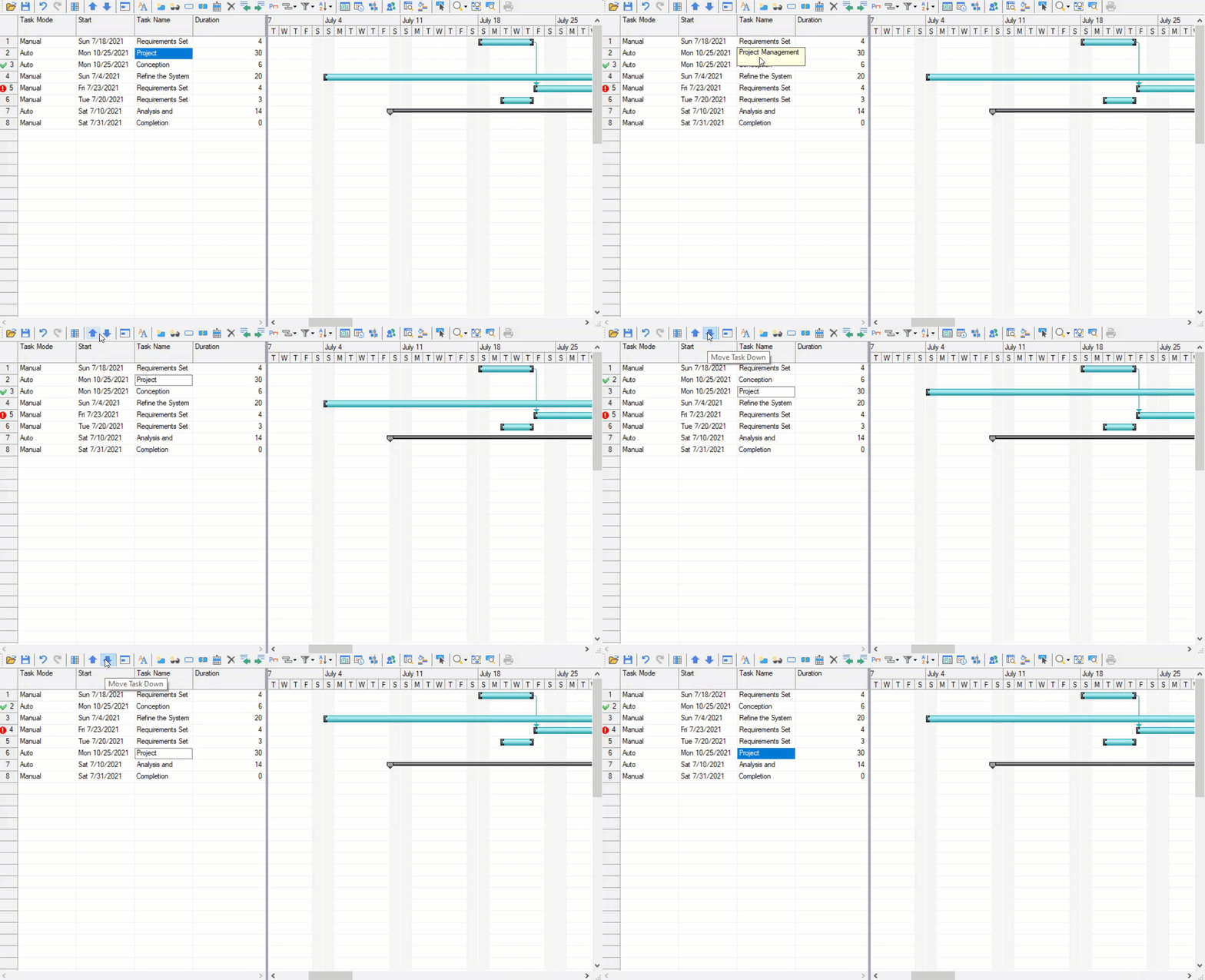
GanttView makes it easier for you to rearrange your tasks to occupy new positions in the project's schedule. You can move a task at run time using the up or down arrows located on the **GanttView Toolbar**.
### Move a task at run-time
To move a task at run time, follow the steps below:
1. In the grid, select the task you wish to move.
2. Click either the **Move Task Up** button to move the task up or **Move Task Down** button to move the task down a position.
This moves your task to a newer position in the project's schedule.
### Move a task programmatically
To move a task using code, you can use **RemoveAt** and **Insert** methods of the **Collection** class.
The below code snippet shows how you can move a task programmatically in the GanttView.
```csharp
int taskindex = tasks.IndexOf("Task 1");
C1.Win.C1GanttView.Task task1 = tasks[taskindex];
tasks.RemoveAt(0);
tasks.Insert(1, task1);
```