# Print Preview Dialog Box
## Content
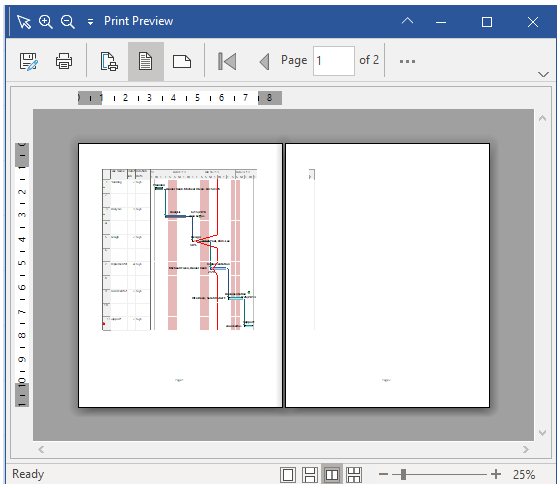
The **Print Preview** dialog box is used for customizing and displaying the layout of each page of the document before it is printed.
**To access the Print Preview dialog box**
Click on the **Print** button in the GanttView toolbar and then click the **Preview** button from the Print dialog.
The following image shows the **Print Preview** dialog box:
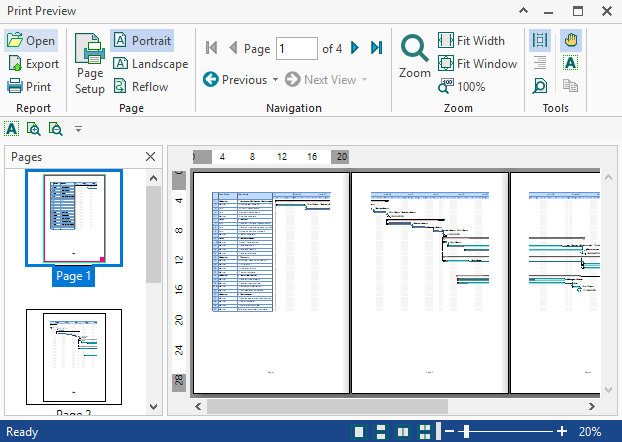
The Following table describes different groups of commands present in the print preview ribbon:
| **Component** | **Description** |
| --------- | ----------- |
| 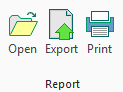 | The Report group has following buttons: - Open \- Open a report \(\.c1d or \.c1dx\) document to preview
- Export \- Export the current report document to a file
- Print \- Print the current report document
|
| 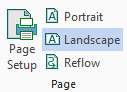 | The Page group has following buttons: - Page Setup \- Change the page settings of the current document
- Potrait \- Potrait orientation of the preview
- Landscape \- Landscape orientation of the preview
- Reflow \- Regenerate or Refresh the document
|
| 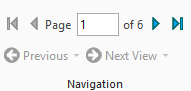 | The Navigation group has following buttons: - Next Page \- Go to the next page
- Last Page \- Go to the last page of the document
- Previous Page \- Go to the previous page
- First Page \- Go to the first page of the document
- Page Number Text Box \- Displays the current page\. You can type the page number to navigate\.
|
| 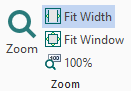 | The Zoom group has following buttons: - Zoom \- Customize zoom level settings
- Fit Width \- Zoom pages to fill the window width
- Fit Window \- Zoom pages to fit within the window
- 100% Zoom \- Zoom the document to 100% of the normal size
|
| 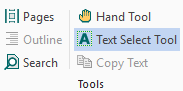 | The Tools group has following buttons: - Pages \- View thumbnails panel of the pages
- Outline \- View outline panel of the pages
- Search \- Text search panel to search text in the document
- Hand Tool \- Scroll in window using the mouse
- Text Select Tool \- Select text to copy
- Copy Text \- Copy the selected text
|
| 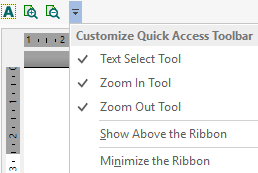 | The Quick Access Toolbar's dropdown menu has following options: - Text Select Tool \- Select text text to copy
- Zoom In Tool \- Zoom into a mouse\-selected area
- Zoom Out Tool \- Zoom out of a mouse\-selected area
- Show Above the Ribbon \- To show the toolbar above ribbon
- Minimize the Ribbon \- To minimize the ribbon components
|
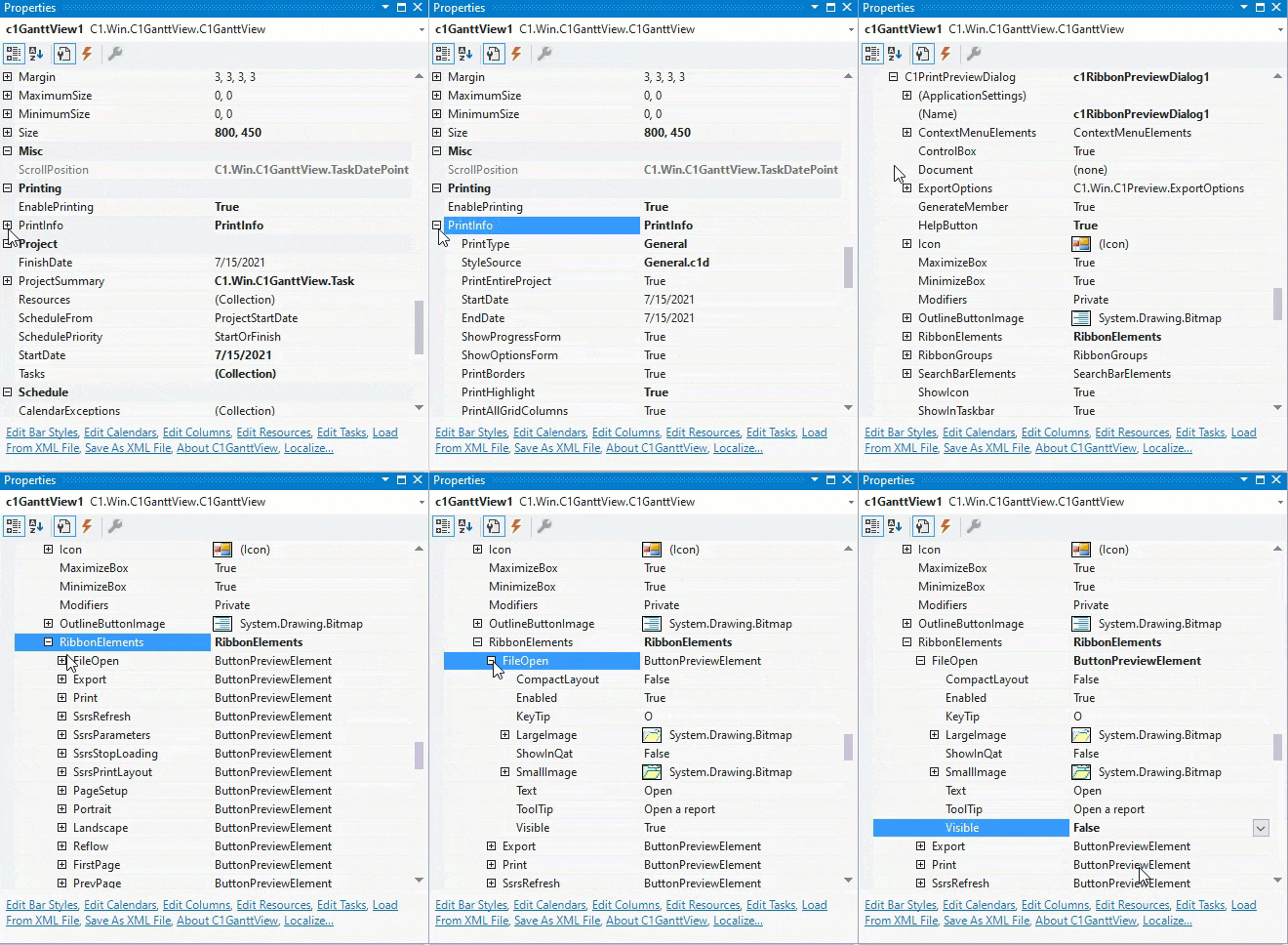
You can also customize the Print Preview dialog in GanttView applications. The **PrintInfo** class provides the **PreviewHelper** property for this purpose. For instance, if you do not want to show the **Open** button in the **Print Preview Dialog** of GanttView application, you can simply set the visibility of that button to false.
This is depicted in the code snippet below:
```csharp
private void ganttView_BeforePrintPreview(object sender, CancelEventArgs e)
{
if (ganttView.PrintInfo.PreviewHelper.C1PrintPreviewDialog is C1.Win.RibbonPreview.C1RibbonPreviewDialog)
(ganttView.PrintInfo.PreviewHelper.C1PrintPreviewDialog as C1.Win.RibbonPreview.C1RibbonPreviewDialog).RibbonElements.FileOpen.Visible = false;
}
```
We have set the visibility of the button for File open action to false using the **PreviewHelper** property.
The visibility can be changed at design time via the **Properties** window as well.