# Add Vacation Day for Resource
## Content
This topic illustrates how to add a calendar exception in Design view.
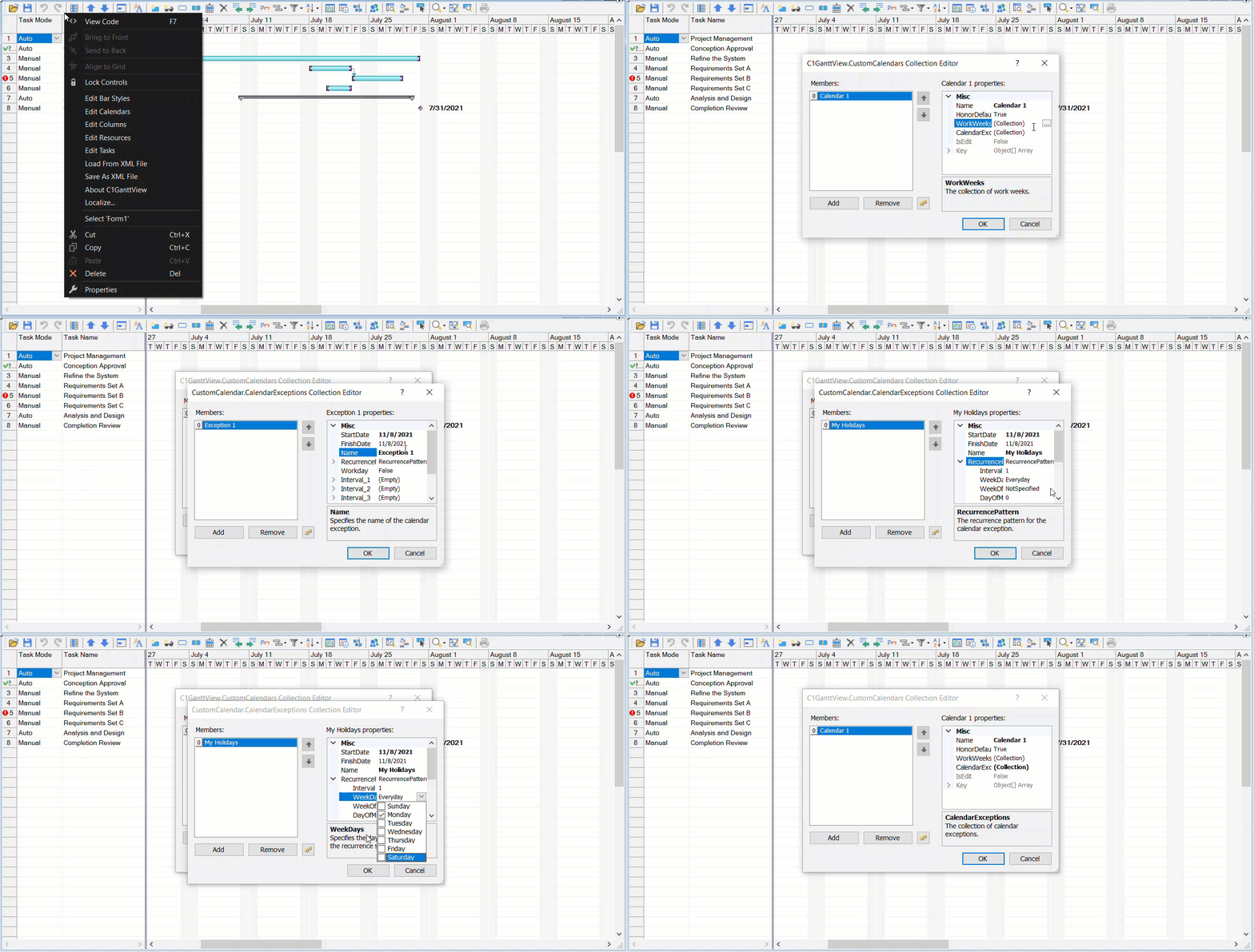
1. Click **GanttView's** smart tag to open the **C1GanttView Tasks** menu and click **Edit Calendars**.
The C1GanttView.CustomCalendars Collection Editor appears.
2. Click **Add** to add a new calendar member to the editor.
3. Click on the ellipsis button next to the **CalendarExceptions** to open the **CustomCalendar.CalendarExceptions Collection Editor**.
4. Click **Add** to add a new calendar exception to the collection editor.
5. In the properties pane, enter, **My Holidays**, next to the **Name** property.
6. Expand the **RecurrencePattern** node and click on the dropdown arrow next to WeekDays.
7. Select the required **WeekDay** and the **WeekOfMonth**. Let say, select Monday as the **WeekDay** and set the **WeekOfMonth** to Fourth.
8. Set the **StartDate** and click **OK** to save and close the **CustomCalendar.CalendarExceptions Collection Editor**.
9. Click **OK** to save and close the **C1GanttView.CustomCalendars Collection Editor**.
This adds a Calendar exception.