# Load SSRS Reports
Get started with, FlexReport comprehensive reporting tool that provides complete reporting solution - from building complex reports to previewing, exporting, and printing.
## Content
The FlexViewer control supports [C1SsrsDocumentSource](/componentone/docs/win/online-flexreport/) to show SSRS reports; you can browse the reports tree available on a SSRS server, and preview individual reports. You can also click Parameters from the control's ribbon to view any parameters in the report.
**C1SsrsDocumentSource** enables you to specify the location or name of the SSRS report to be viewed. The **FlexViewer** control can then be used to display an SSRS report.
> type=note
> **Note**: You must have access to the SSRS report server and have at least one report on that server before you start this topic.
To preview or export an SSRS report in **FlexViewer** control, create a new WinForms application, using .NET framework 4.0 or above and complete the following steps:
1. Create a new WinForms Application project.
2. From the toolbox, add the **C1SSRSDocumentSource** component onto the form. It appears in the component tray.
> type=note
> If you cannot find the component in the toolbox, right click and select **Choose items**. The **Choose Toolbox Items** dialog appears. Locate the component in the **C1.Win.C1Document.dll** and add it to the toolbox.
3. Add the **FlexViewer** control on the form. Set its Dock property to Fill.
4. Click **C1FlexViewer** and set **DocumentSource** property to c1SSRSDocumentSource1. This assigns the C1SSRSDocumentSource component to C1FlexViewer's **DocumentSource** property.
5. Right click the C1SSRSDocumentSource and select **Properties** to open the Properties window.
6. Click the drop-down arrow next to the **DocumentLocation** property.
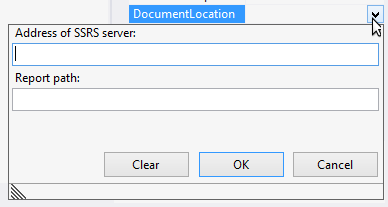
7. Specify the address of the SSRS server and the full path to the report in the following dialog and click **OK**.
8. Expand the **ConnectionOptions** property group.
9. Click the drop-down arrow next to the **Credential** property.
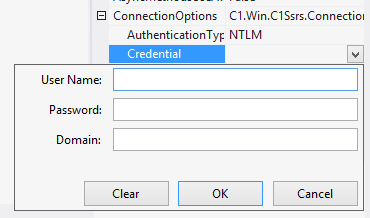
10. Specify the User Name, Password and Domain in the following dialog and click **OK**.
> type=note
> **Note**: Ensure that the following DLLs are added to the project references.
>
> * C1.Win.C1Document.dll
> * C1.Win.dll
> * C1.Win.C1DX.dll
> * C1.Win.ImportServices.dll
> * C1.Win.FlexReport.dll
> * C1.Win.FlexViewer.dll
> * C1.Win.C1Ribbon.dll
> * C1.Win.C1Input.dll
> * C1.Win.C1InputPanel.dll
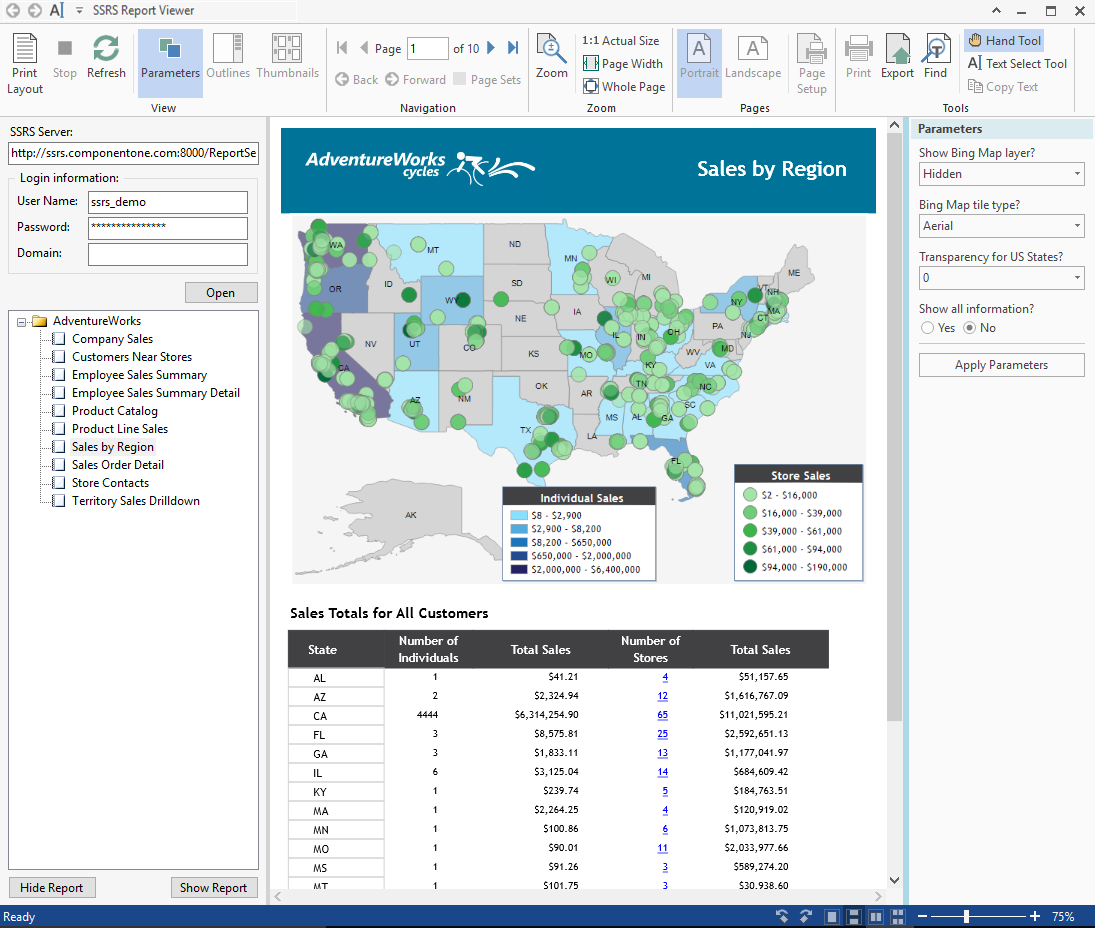
You may be asked to set some parameters, based on which you see the specified SSRS report in the preview control. The following image shows the **FlexViewer** control displaying a SSRS report on ComponentOne server:
You can now export it to a number of supported external formats.