# Load PDF Files
Get started with, FlexReport comprehensive reporting tool that provides complete reporting solution - from building complex reports to previewing, exporting, and printing.
## Content
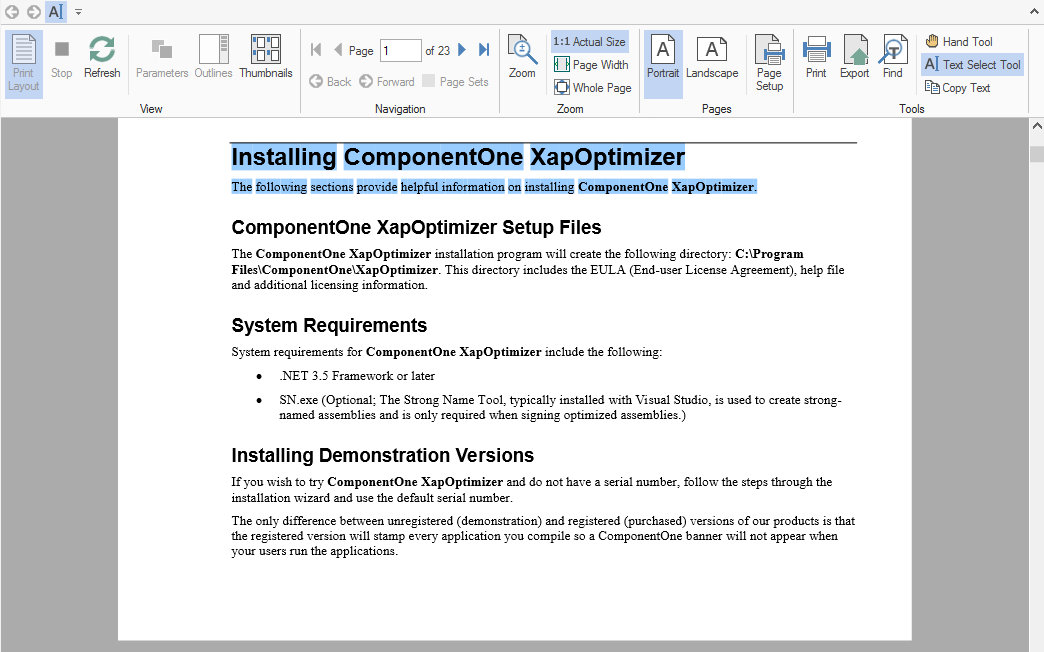
FlexViewer allows you to load the PDF files in the **FlexViewer** control using [C1PDFDocumentSource](/componentone/docs/win/online-flexreport/) class. **ComponentOne Studio for WinForms** includes a new component, **C1PDFDocumentSource,** which can open a PDF file and load it into the **FlexViewer** for viewing. The rendered PDF file can also be exported or printed, if need be.
### Loading PDF files in FlexViewer control at design time
Perform the following steps to render a PDF file in FlexViewer control:
1. Create a new **WinForms** application.
2. Drag and drop **C1PDFDocumentSource** control on the form. It appears in the form's component tray.
3. Navigate to the Toolbox, drag and drop **C1FlexViewer** control on the form. You can adjust the position and size of **FlexViewer** according to the requirement.
4. In Properties Window, click the dropdown arrow next to **DocumentSource** property value field and select **c1PDFDocumentSource1**.
5. Select **C1PDFDocumentSource** component and go to properties of **c1PDFDocumentSource1** in Properties window. Locate DocumentLocation property and enter the full path of the PDF file you want to view.
6. Run the application. The PDF is rendered in FlexViewer control.
### Loading PDF files in FlexViewer control programmatically
Perform the following steps to render a PDF file in FlexViewer control programmatically:
1. Drag and drop **C1PDFDocumentSource** and **C1FlexViewer** on the form.
2. Double-click the form and write the following code in the **Form1\_Load** event: **vbnet**
```vbnet
Dim pds As New C1PdfDocumentSource()
pds.DocumentLocation = "../../Injury Form.pdf"
C1FlexViewer1.DocumentSource = pds
```
**csharp**
```csharp
C1PdfDocumentSource pds = new C1PdfDocumentSource();
pds.DocumentLocation = @"..\..\Injury Form.pdf";
c1FlexViewer1.DocumentSource = pds;
```
Furthermore, the following features are supported in the PDF files loaded in the FlexViewer control:
* **Text Search** -
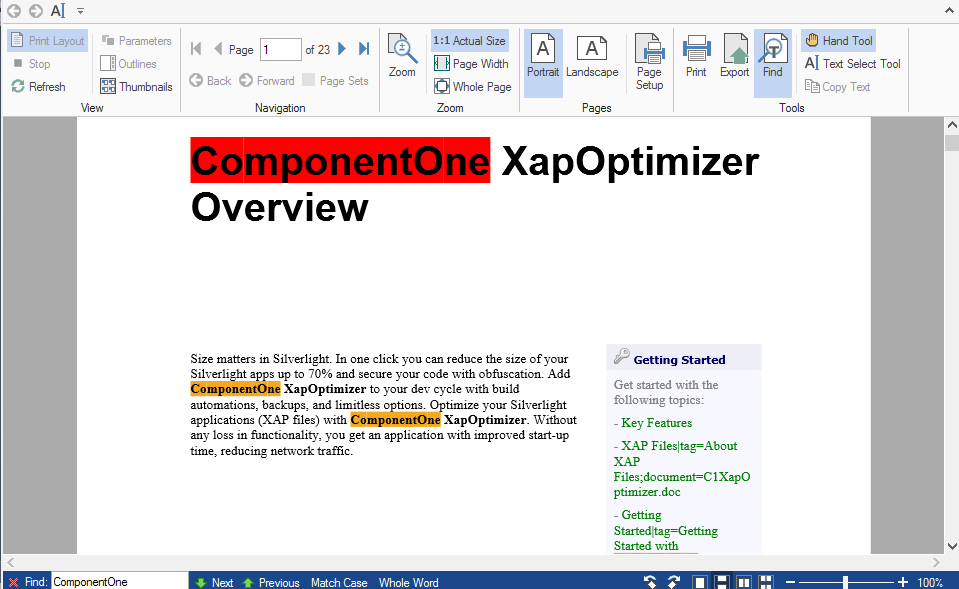
To search text in a PDF file, follow these steps:
1. Load the PDF containing text in the FlexViewer control.
2. Select Find option in the FlexViewer Ribbon.
3. In the Find textbox that appears in Status bar, type the text you want to Search and press Enter.
* **Text Selection and copying text** -
To select text in a PDF file, follow these steps:
1. Load the PDF containing text in the FlexViewer control.
2. Select Text Selection tool from the FlexViewer Ribbon.
3. Select the text in the PDF.
4. Copy the text using Keyboard keys,Ctrl+C, or ‘Copy Text’ option in FlexViewer Ribbon.