# Gutter Margin
FlexReport for WinForms provides gutter margins are extra space/margins added to a page layout required for binding. See more demos, documentation, and samples here.
## Content
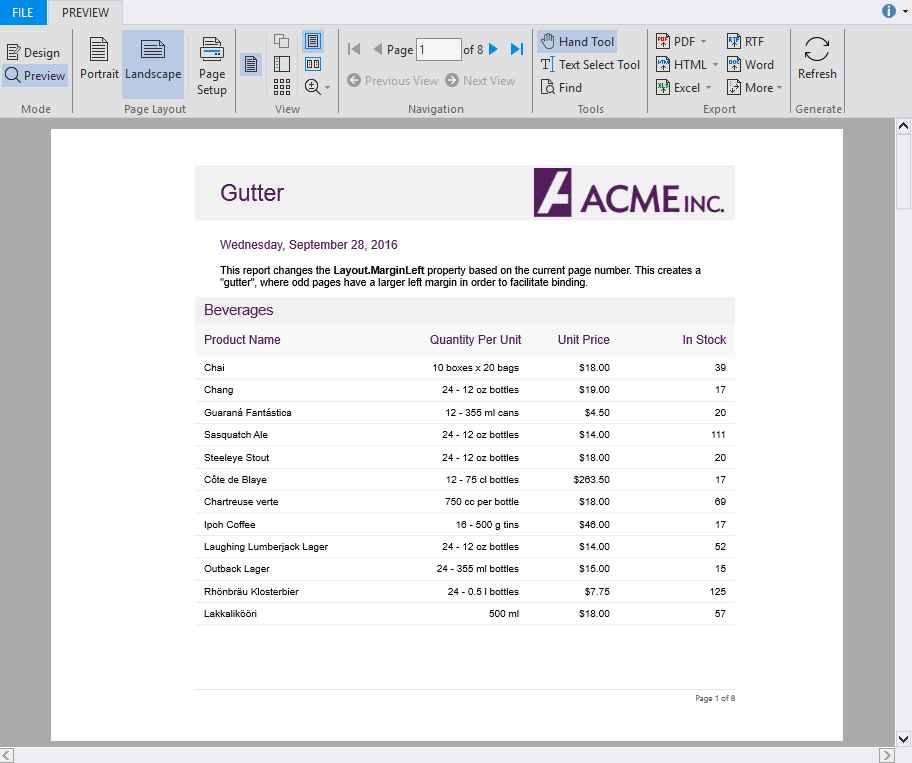
This topic uses "Gutter" report to demonstrate how to create gutter margins in a report.
Gutter margins are extra space/margins added to a page layout required for binding. They make it easier to bind the pages into folders, brochures, etc. You can add a gutter margin to a report by adding the left margin on the pages, which changes on the basis of the currently displayed page. The gutter margin can be changed depending upon the type of binding you select.
In this report, the value of [Layout.MarginLeft](/componentone/docs/win/online-flexreport/) property is changed on the basis current page number which creates a gutter margin where odd pages have a larger left margin. Perform the following steps to see how this can be done.
### To create a report with gutter margin
* [Step 1: Create a report](/componentone/docs/win/online-flexreport/customize-reports/CreatingaGutterMargin#step-1-create-a-report)
* [Step 2: Connect the report to a data source](/componentone/docs/win/online-flexreport/customize-reports/CreatingaGutterMargin#step-2-connect-the-report-to-a-data-source)
* [Step 3: Create gutter margin](/componentone/docs/win/online-flexreport/customize-reports/CreatingaGutterMargin#step-3-create-gutter-margin)
* [Step 4: View the report](/componentone/docs/win/online-flexreport/customize-reports/CreatingaGutterMargin#step-4-view-the-report)
#### Step 1: Create a report
1. Open the **C1FlexReportDesigner** and go to **FILE|New**.
2. Click **New Report** drop down from the **Reports** tab and select **Empty Report** to create a report.
#### Step 2: Connect the report to a data source
1. Switch to the **Data** tab, right-click the **Main** data source and choose **Edit** to open and the **Data Sources Wizard** and start editing.
2. Select **OLEDB Data Provider** from the **Data provider** drop-down and click the ellipsis button next to the **Connection string** textbox to select the **C1NWind.mdb** file.
3. Specify the following Sql statement in the **Sql statement** tab:
```
SELECT Categories.*, Products.*
FROM Categories INNER JOIN Products
ON Categories.CategoryID = Products.CategoryID
```
#### Step 3: Create gutter margin
1. Click **Groups** in **Home** tab and add a group named **CategoryName**.
2. In the **Groups** wizard, set the following properties for the **CategoryName** group:
| **Property** | **Value** |
| --- | --- |
| GroupBy | CategoryName |
| Keep Together | KeepFirstDetail |
| Sort | Ascending |
| ShowGroupFooter | False |
| ShowGroupHeader | True |
| OutlineLabel | =CategoryName |
3. Click **OK** to close the **Groups** wizard.
4. Right-Click the **GroupHeader** and select **Add SubSection** from the context menu to divide the header into two parts.
5. In **GroupHeader0/ \**, add a TextField and set its text property to **=CategoryName**.
6. In **GroupHeader0/ \**, add four TextFields and set the following properties:
| **Property** | **Value** |
| --- | --- |
| TextBox2.Text | Product Name |
| TextBox3.Text | Quantity Per Unit |
| TextBox4.Text | Unit Price |
| TextBox5.Text | In Stock |
7. In the **Details** section, add four TextFields corresponding to the TextFields in **GroupHeader0/ \**, and set the following properties:
| **Property** | **Value** |
| --- | --- |
| TextField6.Text | =ProductName |
| TextField7.Text | =QuantityPerUnit |
| TextField8.Text | =UnitPrice |
| TextField9.Text | =UnitsInStock |
8. Select the report name from the drop-down situated above the list of properties in the **Properties** window.
9. Navigate to the **OnClose** property and click the ellipsis button next to it. The **VBScript Editor** appears. Enter the following VBScript expression in the editor to create gutter margin when the report finishes rendering:
```
report.layout.marginleft = gutter
```
10. Go to the report's **OnOpen** property and then click the ellipsis button. The **VBScript Editor** appears. Enter the following VBScript expression in the editor to create gutter margin when the report starts rendering:
```
gutter = report.layout.marginleft
```
11. Go to the report's **OnPage** property and then click the ellipsis button. The **VBScript Editor** appears. Enter the following VBScript expression in the editor set the report margin when a new page is created:
```
report.layout.marginleft = _
iif(page mod 2 = 1, 2880, 1440)
```
#### Step 4: View the report
Preview the report.
> type=note
> **Note**: For the complete report, see report 'Gutter' in the **FlexCommonTasks.flxr** report definition file, which is available in the **ComponentOne Samples\\Winforms\\C1FlexReport\\CS\\FlexCommonTasks** folder. The data base used is **C1NWind.mdb** which is also available in the **ComponentOne Samples** folder.