# Conditional Formatting
Learn how to change a field's appearance depending on the data it represents. See more demos, documentation, and samples here.
## Content
This topic uses "Conditional Formatting" report to demonstrate how to change a field's appearance depending on the data it represents. This can be done using parameters.
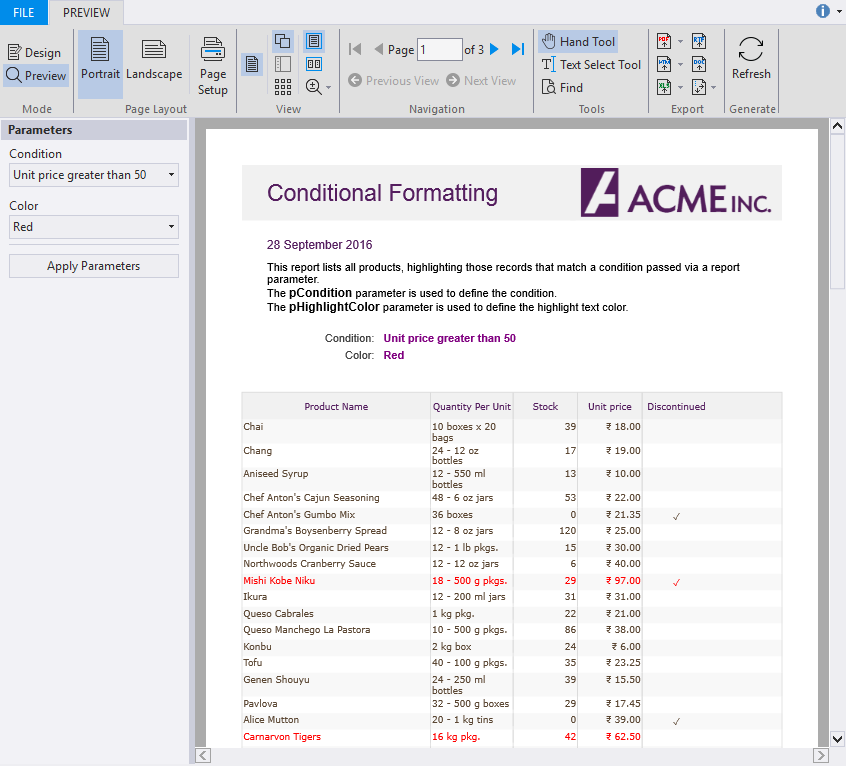
Conditional formatting allows you to format data based on one or more conditions. In this report, the data fields are highlighted depending on the following conditions which are defined in a parameter named pCondition:
* Unit price greater than 50
* Unit price greater than 100
* More than 50 units in stock
The report contains another parameter, pHighlightColor, that highlights the data fields depending on the conditions defined in the pCondition parameter.
On previewing the report, the data fields with the unit price greater than 50 are highlighted in red color. However, you can select any other condition from the above listed conditions and also change the highlighting color to green from the **Parameters** Panel. Perform the following steps to see how this can be done.
### To create a report with conditional formatting
* [Step 1: Create a report](/componentone/docs/win/online-flexreport/customize-reports/AddingConditionalFormatting#step-1-create-a-report)
* [Step 2: Connect the report to a data source](/componentone/docs/win/online-flexreport/customize-reports/AddingConditionalFormatting#step-2-connect-the-report-to-a-data-source)
* [Step 3: Add parameters](/componentone/docs/win/online-flexreport/customize-reports/AddingConditionalFormatting#step-3-add-parameters)
* [Step 4: Add conditional formatting](/componentone/docs/win/online-flexreport/customize-reports/AddingConditionalFormatting#step-4-add-conditional-formatting)
* [Step 5: View the report](/componentone/docs/win/online-flexreport/customize-reports/AddingConditionalFormatting#step-4-view-the-report)
#### Step 1: Create a report
1. Open the **C1FlexReportDesigner** and go to **FILE|New**.
2. Click **New Report** drop down from the **Reports** tab and select **Empty Report** to create a report.
#### Step 2: Connect the report to a data source
1. Switch to the **Data** tab, right-click the **Main** data source and choose **Edit** to open and the **Data Sources Wizard** and start editing.
2. Select **OLEDB Data Provider** from the **Data provider** drop-down and click the ellipsis button next to the **Connection string** textbox to select the **C1NWind.mdb** file.
3. Select **Products** table from the **Data source** tab.
#### Step 3: Add parameters
1. Right-click **Parameter**s and select **Add Parameters** to add two parameters, pCondition and pHighlightColor.
2. Set the following properties for the parameters from the **Properties** window.
| **pCondition properties** | **Value** |
| --- | --- |
| **Prompt** | Condition |
| **Value** | 1 |
| **DataType** | Integer |
| **pHighlightColor properties** | **Value** |
| --- | --- |
| **Prompt** | Color |
| **Value** | Red |
| **DataType** | String |
3. Specify the properties for each parameters in **AllowedValuesDefinition** property as follows. The following values set alternate color to the row.
| **pCondition Labels** | **Values** |
| --- | --- |
| Unit price greater than 50 | CInt(1) |
| Unit price greater than 100 | CInt(2) |
| More than 50 units in stock | CInt(3) |
| **pHighlightColor Labels** | **Values** |
| --- | --- |
| Red | Red |
| Green | Green |
#### Step 4: Add conditional formatting
1. Add four TextFields to the report header and set the following properties:
| **Property** | **Value** |
| --- | --- |
| **TextField1.Text** | =pCondition.Prompt & ":" |
| **TextField2.Text** | =pHighlightColor.Prompt & ":" |
| **TextField3.Text** | =pCondition.DisplayText |
| **TextField4.Text** | =pHighlightColor.DisplayText |
2. Click **Groups** in **Home** tab and add a group named **HeaderGroup**.
3. In the **Groups** wizard, set the following properties for HeaderGroup:
| **Property** | **Value** |
| --- | --- |
| **ShowGroupFooter** | True |
| **ShowGroupHeader** | True |
4. Click **OK** to close the **Groups** wizard.
5. In **HeaderGroup\_Header**, add five TextFields and set the following properties.
| **Property** | **Value** |
| --- | --- |
| **TextField5.Text** | Product Name |
| **TextField6.Text** | Quantity Per Unit |
| **TextField7.Text** | Stock |
| **TextField8.Text** | Unit Price |
| **TextField9.Text** | Discontinued |
6. In the **Details** section, add five TextFields corresponding to the TextFields in **HeaderGroup\_Header**, and set the following properties:
| **Property** | **Value** |
| --- | --- |
| **TextField10.Text** | =ProductName |
| **TextField11.Text** | =QuantityPerUnit |
| **TextField12.Text** | =Stock |
| **TextField13.Text** | =UnitPrice |
| **TextField14.Text** | =Discontinued |
7. Select **Detail** from the drop-down list on the top of the **Properties** window.
8. Go to the **OnFormat** property and click the ellipsis next to it.
9. The **VBScript Editor** appears. Enter the following VBScript expression in the editor to apply conditional formatting.
```
row = row + 1
if row mod 2 = 1 Then
rowColor = Rgb(248, 248, 248)
Else
rowColor = "Transparent"
EndIf
doHighlight = False
if pCondition = 1 Then
doHighlight = UnitPrice > 50
ElseIf pCondition = 2 Then
doHighlight = UnitPrice > 100
ElseIf pCondition = 3 Then
doHighlight = UnitsInStock > 50
EndIf
if doHighlight Then
textColor = pHighlightColor
Else
textColor = Rgb(90, 70, 50)
EndIf
Detail.BackColor = rowColor
for i = 0 to Detail.Fields.Count - 1
Detail.Fields(i).ForeColor = textColor
Next
```
#### Step 4: View the report
1. Preview the report.
2. In the **Preview** mode, click **Parameters** from the **View** group to open the parameters panel and apply parameters.
> type=note
> **Note**: For the complete report, see report 'Conditional Formatting' in the **FlexCommonTasks.flxr** report definition file, which is available in the **ComponentOne Samples\\Winforms\\C1FlexReport\\CS\\FlexCommonTasks** folder. The data base used is **C1NWind.mdb** which is also available in the **ComponentOne Samples** folder.