# Data Binding
Learn how to perform data binding using the report parameters in FlexReport for WinForms control. See more demos, documentation, and samples here.
## Content
To perform data binding in report parameters, the steps are as follows:
1. Run **FlexReportDesigner.exe** application.
2. Create a new report. Bind it to a data source, which is the Main data source. The report opens in the Design mode.
3. Click the **Data** tab.
4. Right-click **Data Sources** and select **Add Data Source** The **Data Sources** dialog box appears.
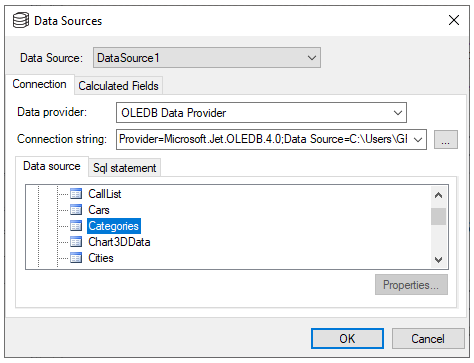
5. Select a **Data Source,** say **DataSource1**, to create a new data source and set Connection, Data provider, Connection string, etc.
6. You can rename DataSource1 from the Properties window by setting **Name** property. In our case, we have set Name to dsCategories.
7. Add a parameter by right-clicking **Parameters** and then selecting **Add Parameter.**
8. From the Properties window, click the ellipsis button next to **AllowedValuesDefinition**. The **AllowedValuesDefinition Editor** dialog box appears.
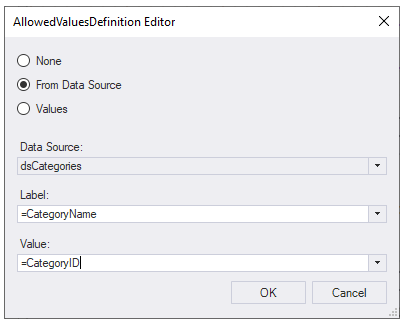
9. Select the **From Data Source** radio button and then select Data Source, Label, and Value for binding the data source to the parameter as shown. Click OK.
10. From the Properties window, set the **DataType** to a value that is same as the data type of **Value** in the **AllowedValuesDefinition Editor**. In our case, **DataType** is set to Integer since Value=CategoryID is integer.